Phone Freezing After a Software Update

On this page
- Is the update still installing, or has the phone frozen afterwards?
- Restart using your phone’s own button sequence
- Update apps and check for a follow-up system release
- Check storage and temperature before blaming the update
- Separate an app problem from a wider Android fault
- Protect your data before considering a factory reset
- Give support a useful fault record
If your phone freezes after a software update, first check whether installation has finished. A progress screen needs different handling from a phone that reaches the home screen and then stops responding. Once installation is complete, try the correct restart for your model, update the affected apps, and check free storage. On Android, Safe mode can help identify a downloaded app. Keep a factory reset until after you have verified your backup.
Is the update still installing, or has the phone frozen afterwards?
An update progress bar can appear stationary without the installation having failed. Apple says the duration varies with the operation and files involved, and advises keeping an iPhone connected to power during a wireless update. Follow its guidance for an Apple logo with a progress bar rather than repeatedly interrupting installation. For an Android update screen, follow your manufacturer’s instructions for that exact model.
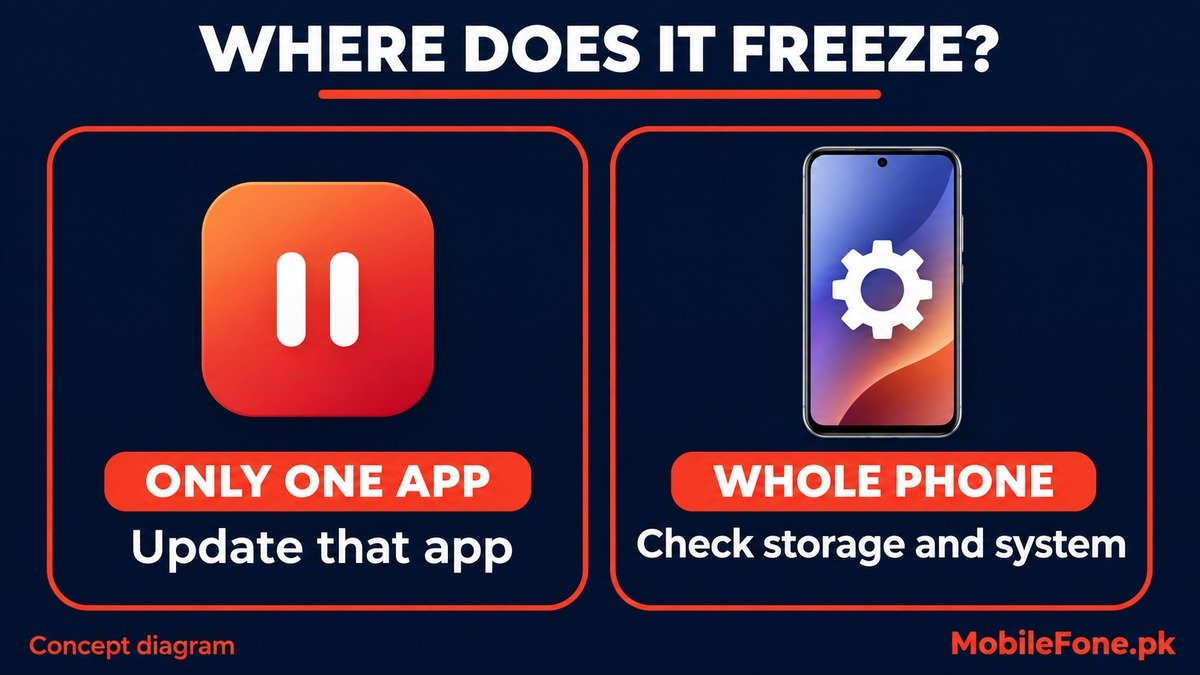
If the home screen opens, pay attention to where the freeze begins. Can you open Settings? Does only one app hang? Does a loading page stop while the rest of the phone responds? These observations help you choose the next check without deleting anything.
| What happens | What it suggests | Next check |
|---|---|---|
| Only one app hangs; Settings works | An app-specific problem is possible | Update and troubleshoot that app first |
| Home screen and Settings stop responding | The problem affects more than one app | Use the model’s restart procedure, then check storage |
| Online content stalls; phone controls work | A connection issue may resemble freezing | Compare Wi-Fi and mobile data before changing system settings |
| Android behaves normally in Safe mode | A downloaded app is a likely contributor | Remove suspected apps one at a time and retest |
| The installation screen never completes | This needs update-recovery guidance | Use official support for that model and screen |
Restart using your phone’s own button sequence
Use the normal Restart option if the controls work. If the phone is unresponsive after installation, a forced restart may restore control. A restart is different from a factory reset; do not select an erase or wipe option in a recovery menu.
- Samsung Galaxy: Samsung documents holding the Side key and Volume down together for more than seven seconds until the device restarts. See its Galaxy restart instructions.
- iPhone 8 and later, including iPhone SE 2nd generation and later: Quickly press and release Volume up, then Volume down. Hold the Side button until the Apple logo appears. Older iPhones use different combinations; check Apple’s model-specific button sequences.
- Other Android phones: Look up the manufacturer’s instructions for your exact model. Do not assume a Galaxy combination applies to Redmi, Infinix, Oppo or every other handset.
If you are checking a Samsung Galaxy A04 or an iPhone 12 Pro Max, the model listing can help distinguish the handset. Check the actual installed software in Settings too. A product’s original operating system does not identify the update currently on your phone.
Update apps and check for a follow-up system release
Once you can use the phone, check its official software-update screen for another available release. On many Android devices this is under Settings, System, Software update, but manufacturers use different labels. On iPhone, open Settings, General, Software Update. Install only updates offered for your device through official channels.
Next, update the app that freezes. On Android, open Google Play, tap your profile, then Manage apps & devices and review available updates. On iPhone, open the App Store, tap your profile, and check App Updates. Apple recommends app updates when an app stops responding; contact its developer if the problem persists.
Change one thing, then repeat the action that triggered the freeze. If you change several settings at once, you lose a useful clue about what helped.
Check storage and temperature before blaming the update
Google warns that Android phones can develop problems when less than 10% of storage is free. Check the device’s Storage screen. This is a troubleshooting indicator, not proof that storage caused the freeze. Its Android freezing guide also recommends checking system and app updates.
Remove replaceable downloads first. Copy important local files elsewhere and verify the copies before deleting them. Clearing an Android app’s cache removes temporary data, while clearing its storage permanently removes app data. Google’s storage guidance explains the difference. Avoid Clear storage or Clear data unless you understand what that particular app will lose.
On iPhone, use Settings, General, iPhone Storage. Apple recommends keeping at least 1GB free to avoid slowdowns. Its performance guidance also notes that excessive heat or cold can reduce speed. Move a hot phone away from direct sun and let it return to a moderate temperature before retesting.
Some update activity continues after an iPhone becomes usable. On supported software, Settings, Battery may show an Ongoing iOS Update insight. Apple associates this with temporary battery and thermal effects. That does not establish that repeated complete freezes are normal or that waiting a fixed number of days will cure them.
Separate an app problem from a wider Android fault
Android Safe mode temporarily disables downloaded apps. If ordinary system navigation works there but freezes in normal mode, a downloaded app becomes a stronger suspect. This test narrows the investigation; it does not identify the particular app automatically.
- Use the manufacturer’s Safe mode instructions for your model. Samsung provides a Safe mode procedure through the power menu on supported Galaxy devices.
- Test the system action that failed, such as opening Settings or moving around the home screen.
- Restart normally. If Safe mode helped, remove one suspected recently installed app, protecting its local data first, then retest.
- Keep a short record of which change helped. If freezing continues in Safe mode, seek device-specific support rather than declaring a hardware fault from that result alone.
These Android instructions do not apply to iPhone. For an iPhone app that hangs, close that affected app, reopen it and check updates. Reinstalling can remove locally stored information, so verify its backup or sync first.
Protect your data before considering a factory reset
A factory reset erases device data. If the phone contains your only copy of something important, stop before erasing it.
Review Android backup details, including what is actually covered. Google cautions that not every app can restore all its data. On iPhone, use iCloud Backup and confirm the successful backup date and time. Check essential app data separately rather than assuming every file is protected.
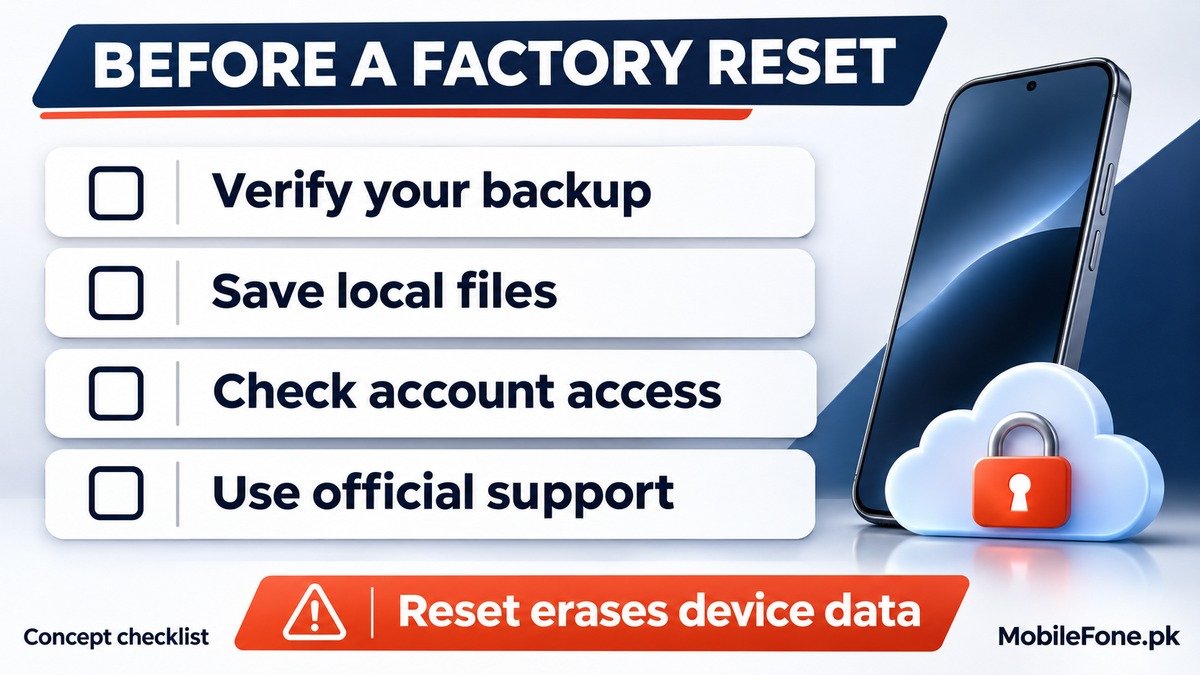
Confirm you can access the Google or Apple account linked to the phone, and save important local files. Google’s factory-reset preparation specifically requires knowing the associated Google account credentials. Ask official support whether a reset is appropriate for your symptoms before proceeding.
Give support a useful fault record
If freezing persists, record the exact model, installed build, update date, free storage and the action that reproduces it. Include whether Settings works, whether only one app fails, and the result of any Safe mode test. This is more useful than reporting only that the phone became slow.
Contact the manufacturer’s support or a qualified service centre with that record. Ask whether the proposed repair preserves data before authorising it. A freeze following an update establishes timing, not the cause. Avoid unofficial firmware, random rollback packages and paid miracle-fix apps while the problem remains unidentified.

Related reading
 Mobile Problems & FixesAndroid Phone Running Slow: What to Check FirstNovember 14, 2026
 Mobile Problems & FixesPhone Keeps Restarting: Common Causes and Safe FixesNovember 14, 2026
 Mobile Problems & FixesPhone Turns On but Screen Stays BlackNovember 14, 2026
 Mobile Problems & FixesMobile Speaker Not Working During CallsNovember 14, 2026