Phone Microphone Not Working in WhatsApp Calls

On this page
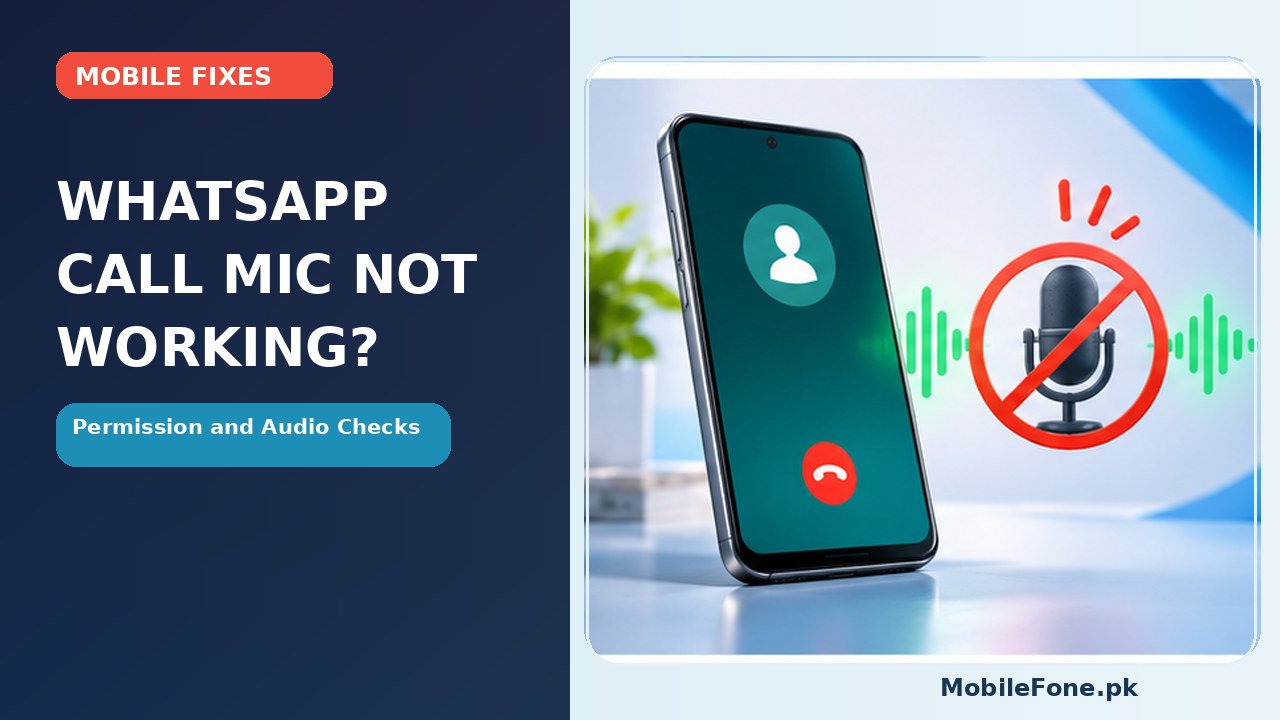
If people cannot hear you during WhatsApp calls, first check whether the call is muted, confirm WhatsApp has microphone permission, and switch off Bluetooth temporarily to rule out a connected headset. Try recording a short voice note and compare it with the phone’s built-in recorder. These tests help separate an app or permission problem from a physical microphone fault. An unstable internet connection can also cause missing or broken voice during calls, even when the microphone itself works.
Start with mute, Bluetooth and a quick voice test
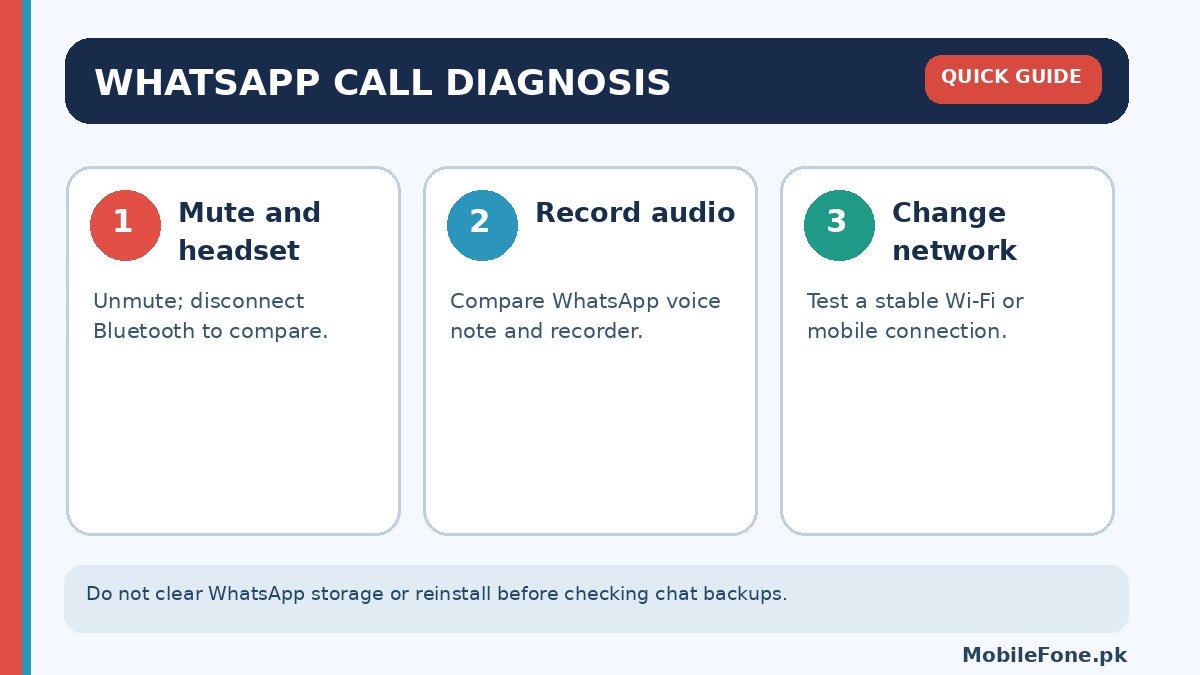
Open a WhatsApp call and look for the microphone or mute button. If the microphone icon indicates muted audio, turn mute off and ask the other person to confirm they can hear you. Disconnect Bluetooth earbuds, a car kit or wired headset and repeat the test. A connected accessory with its own microphone can change where your voice is captured, so testing with the handset alone removes one variable.
Next record a short WhatsApp voice note and listen to it. Try the phone’s built-in voice recorder as a separate comparison. If neither recorder captures intelligible sound, investigate the device’s microphone, privacy switch or physical obstruction. If the built-in recorder works but WhatsApp does not, an app-specific permission or configuration problem becomes more likely. One successful test is not a complete hardware diagnosis, especially if a device has multiple microphones.
Check WhatsApp microphone permission on Android
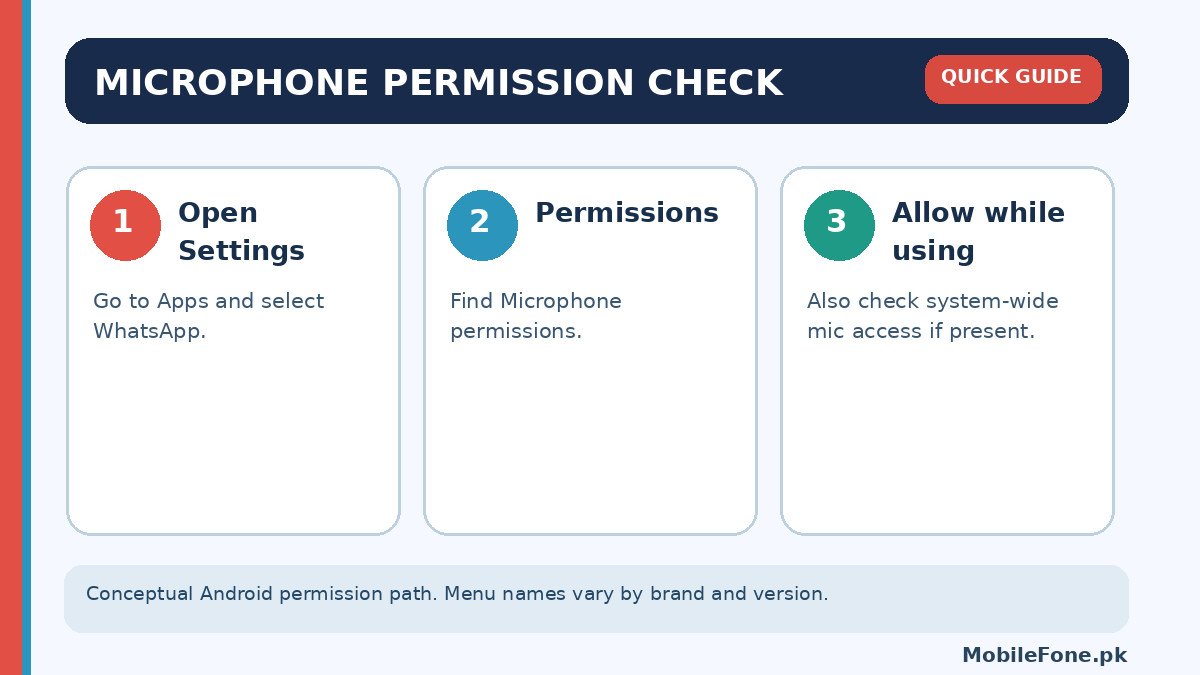
Open Settings > Apps > WhatsApp > Permissions > Microphone on Android devices that use this layout, and allow access while using the app if you want to make calls. Brand-specific interfaces may place permissions under App management or Privacy. Google’s Android permission guide explains that microphone access can be allowed or denied separately for each app. Check that WhatsApp is not set to “Don’t allow”.
On Android 12 and later, a system-wide microphone access control may appear in Quick Settings or Privacy controls. If it is turned off, microphone features in otherwise permitted apps may fail. Google’s microphone access documentation explains the control and the green privacy indicator. Check it only if your Android version and phone expose that feature. You should not need to grant unrelated permissions such as contacts, photos or location just to test microphone audio.
Compare app behaviour and network quality
Make a brief normal cellular call to someone you know and, if safe, try another trusted calling app. If the person hears you in the normal phone call but not in WhatsApp, investigate WhatsApp and the internet connection rather than immediately booking a microphone replacement. Compare WhatsApp calls over a stable Wi-Fi network and your usual mobile data, taking care not to use up your data package unnecessarily. Poor signal, congestion or packet loss can make audio intermittent even with a working microphone.
Ask the other caller whether they have the same issue with different people. A one-sided problem might involve the other person’s device or output settings. If voice notes transmit clearly but live calls fail on only one connection, internet quality or call routing is a reasonable next area to examine. This is a diagnostic comparison, not a guarantee that switching networks will fix the call.
Update WhatsApp and try low-risk app fixes
Update WhatsApp from Google Play Store or the phone’s official app source, then restart the phone. Use the Play Store’s app-management section to check available updates. If WhatsApp alone misbehaves, force-stop it from Android Settings and reopen it. Google’s guidance for misbehaving Android apps recommends checking updates, restart and app-specific troubleshooting before more disruptive changes.
Clearing an app’s cache is not the same as clearing its storage/data. Do not tap Clear storage, uninstall WhatsApp or reset the phone until you have checked your WhatsApp chat backup and whether you can restore it. Local photos, voice notes, chat history and login methods matter. Be wary of third-party “WhatsApp microphone repair” APK files or modified WhatsApp builds: they are unnecessary for this diagnosis and can expose private conversations.
Look for obstruction or device microphone trouble
Remove an ill-fitting case that may cover a microphone opening and inspect the outside of the phone for dirt. Avoid inserting sharp objects into holes, particularly because microphone and SIM-eject holes can be close together on some devices. Do not use liquids or compressed air directly into ports. If the device has been wet, dropped or damaged, a hardware fault becomes more plausible and should be assessed professionally.
Some phones use different microphones for voice calls, speakerphone and video recording. As a result, one working voice recording does not conclusively prove that every microphone or audio path is functioning. Record which types of calls and recordings work and whether wired or Bluetooth headsets change the outcome. This gives a repairer specific evidence instead of an assumption based on one failed WhatsApp call.
Check whether the issue appears only when you switch between the phone’s earpiece and speakerphone. Some devices use different microphone paths or noise processing depending on call mode. A caller who hears you clearly in one mode but not another provides useful information for support, but the result alone does not prove a certain microphone is damaged. You should also avoid covering the microphone with a finger when holding the phone in landscape orientation; accessories and grips can accidentally obstruct it.
If the phone is shared, remember that application permissions and privacy controls may be changed by another user or a recent software update. Rechecking the current setting is more reliable than assuming it has stayed as you configured it months ago. Keep all tests brief and protect other people’s privacy when making recordings.
What to do if the microphone still does not work
If WhatsApp is unmuted, microphone permission is allowed, system-wide microphone access is enabled where applicable, Bluetooth has been ruled out and the app is up to date, retry a test call on a reliable connection. If WhatsApp still fails while other apps work, seek guidance through WhatsApp’s in-app Help support and describe the Android version, app version and tests already performed. Avoid sharing private chat content unless necessary.
If no app can record your voice, an authorised phone service provider is a better next step than reinstalling multiple apps. Back up your data before handing the phone over or approving any operation that might erase it. For most users, this sequence offers a safer path than an immediate factory reset and makes the eventual diagnosis clearer.

Related reading
 Mobile Problems & FixesAndroid Phone Running Slow: What to Check FirstNovember 14, 2026
 Mobile Problems & FixesPhone Keeps Restarting: Common Causes and Safe FixesNovember 14, 2026
 Mobile Problems & FixesPhone Turns On but Screen Stays BlackNovember 14, 2026
 Mobile Problems & FixesMobile Speaker Not Working During CallsNovember 14, 2026