Android Phone Stuck on the Boot Logo

On this page
- Is the Phone Frozen on One Logo or Rebooting Repeatedly?
- Check Power, Charger, Case and Buttons First
- Try One Model-Appropriate Force Restart
- Can the Phone Start in Safe Mode?
- If It Boots Again, Protect Your Data and Check the Cause
- Recovery Mode and Factory Reset Are Not the Same as Restart
- When Should You Seek Professional Repair in Pakistan?
If your Android phone stays on its startup logo and never reaches the lock screen, first check its charge and accessories, then try a force restart using the instructions for your exact model. A logo that remains on screen is not proof that the phone needs a factory reset. The cause might be a stalled software startup, a button held down by the case, an app-related crash or a hardware fault. Avoid any option labelled Wipe data, Erase or Factory reset until you understand what it will delete.
Is the Phone Frozen on One Logo or Rebooting Repeatedly?
There are two similar-looking problems. In a frozen-logo startup, the manufacturer’s name stays visible and the phone seems to stop making progress. In a boot loop, the logo disappears and comes back as the device repeatedly restarts. Both prevent normal use, but the difference helps a technician or support agent understand the symptoms.
Note what happened immediately before the problem. Was there a system update, an unexpected shutdown, a low battery, a drop, water exposure or a newly installed app? A failed startup after an update does not automatically prove that the update damaged the phone. The timing is a useful clue, not a diagnosis.
If an update is visibly progressing rather than frozen, avoid repeatedly interrupting it. If the phone is becoming unusually hot, has a swollen back, smells abnormal or was recently wet, stop charging or operating it and seek qualified assistance. Do not try to cool it with water or open the battery compartment yourself.
Check Power, Charger, Case and Buttons First
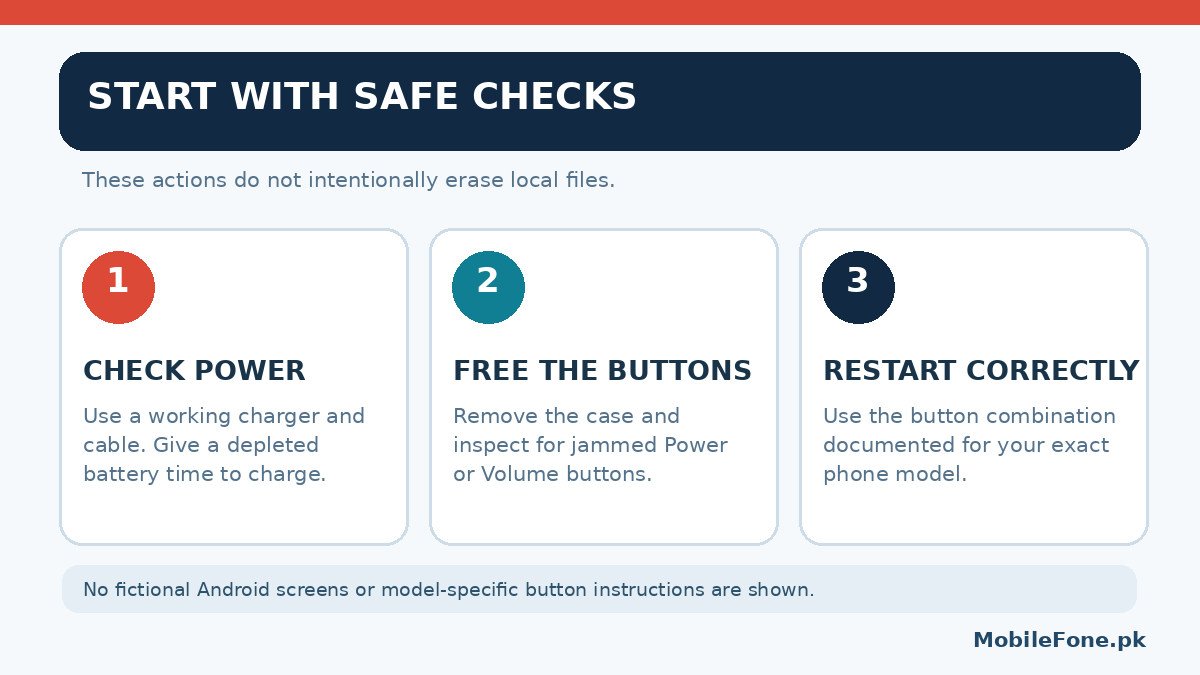
A depleted battery and a stalled operating system can be easy to confuse. Check for a charging indication, then use a compatible charger, a working cable and a reliable power outlet. A damaged cable can introduce another problem while you are troubleshooting. Google’s Android power troubleshooting guidance recommends checking the charger, cable and outlet before assuming the device itself is faulty.
- Disconnect headphones, USB accessories and any connected computer.
- Remove the protective case and check whether the Power or Volume buttons are being pressed continuously.
- Connect a compatible, known-working charger. If the battery may be completely depleted, allow it time to charge before another restart attempt.
- Inspect the outside of the charging port for visible damage or moisture. Do not insert metal objects or liquids to clean it.
Samsung’s logo-screen guidance specifically advises checking the battery and physical condition before attempting a forced reboot. Its charging and restart directions vary by model, so treat the illustrations below as a general checklist rather than a model-specific button map.
Try One Model-Appropriate Force Restart
A force restart interrupts an unresponsive session and asks the phone to start again. It is different from a factory reset: a normal forced restart does not intentionally erase your photos, messages or installed apps. The required buttons vary between manufacturers and sometimes between models from the same brand.
For many Samsung Galaxy phones, Samsung instructs users to hold Volume Down and the Side/Power button together for approximately 10 seconds, continuing until the restart begins. If a maintenance screen appears, choose Normal Boot, not an erase option. See Samsung’s official logo-screen instructions for the full procedure and exceptions.
For some Xiaomi, Redmi and POCO devices, Xiaomi documents holding the Power button for more than 10 seconds to restart a frozen phone. Its support article on crashes and restart loops also discusses Recovery mode, but its data-erasing options should not be treated as ordinary reboot commands.
Other Android phones, including Google Pixel, Oppo, Vivo, Tecno and Infinix models, can use different combinations or hold durations. Find the manufacturer’s instructions for your exact model rather than experimenting with every combination. If the phone responds and starts normally, make a backup before investigating further.
Can the Phone Start in Safe Mode?
Safe mode temporarily disables downloaded apps while keeping the core system available. If the phone can reach Safe mode and behaves normally there, a recently installed or updated app becomes a more plausible cause. It is not a guaranteed test for damaged firmware or hardware, and it may be unavailable when the phone never passes its logo.
The route into Safe mode differs by model. On supported Samsung phones that can open the power menu, for example, Samsung documents touching and holding Power off and then selecting Safe mode. Some devices offer an alternate button-based method during startup. Check your manufacturer’s current instructions before proceeding.
If you successfully enter Safe mode, restart normally and consider removing apps installed around the time the problem began, one at a time. Avoid deleting every app at once: changing one variable helps you identify the cause. Google’s Android restarting and crashing guide explains this approach. If Safe mode will not load, do not assume that an app is responsible.
If It Boots Again, Protect Your Data and Check the Cause
The first successful startup is your opportunity to safeguard important information. Check whether contacts, photographs, WhatsApp chats, authenticator access and other important files are already backed up. A Google account sync is not the same as a complete backup of every app’s local data. Verify that the specific information you care about is available before changing the phone further.
Once your backup is secure, open your device’s Settings and look for the software-update screen. On some Android devices it appears under System; Samsung uses different menus. Use only the manufacturer’s built-in updater or official computer tools. Also check available storage and update apps from their official store. Google’s guidance notes that phones can have stability problems when free storage becomes very low.
If you suspect a downloaded app, uninstall it and observe the phone before removing anything else. If the problem returns during ordinary use or immediately after every restart, record the pattern and seek manufacturer support. Repeated loops are not something to ignore just because the phone eventually starts.
Recovery Mode and Factory Reset Are Not the Same as Restart
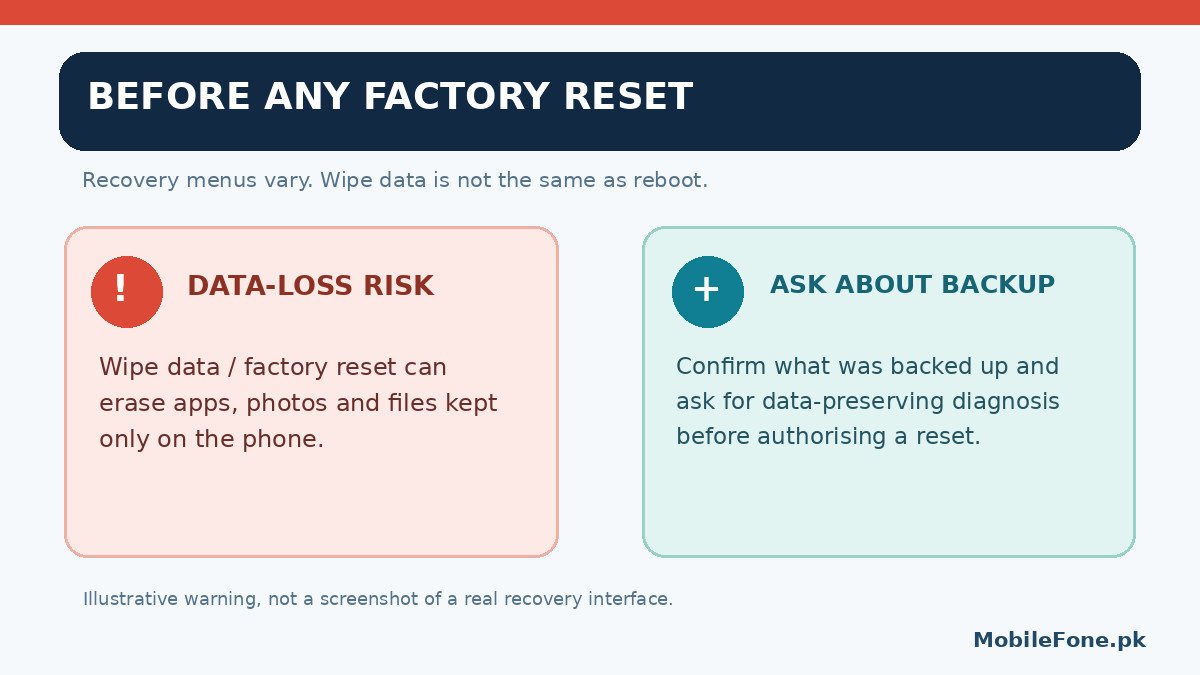
Many Android phones have a Recovery or boot-management interface. It may contain safe navigation choices such as Reboot system now, alongside destructive choices such as Wipe data. The labels, button combinations and available functions vary by manufacturer, Android version and device. A photograph online showing a recovery menu for another phone is not reliable guidance for yours.
Before selecting any reset or erase command, assume that locally stored data may be permanently lost. A factory reset removes apps and local information, and account verification may be needed when the phone starts again. A device that cannot boot may not allow you to create a new backup at all. Google warns that factory resetting an Android device removes its data, while Xiaomi’s documented Recovery reset explicitly clears all data.
Do not install random firmware packages, use unknown PC flashing utilities or follow videos promising a guaranteed no-data-loss repair. An incompatible system image or improper procedure may create additional problems. If the content on the device matters, ask an authorised service provider about data-preserving diagnosis before consenting to any reset or firmware reinstallation.
When Should You Seek Professional Repair in Pakistan?
Stop home troubleshooting if the phone becomes dangerously hot, has visible damage, was exposed to liquid, repeatedly restarts after a correct force reboot, or still cannot reach the lock screen or Safe mode. A failing battery, damaged power button, storage issue or other hardware problem can resemble a software startup failure; the logo alone cannot identify the defective part.
When visiting a service centre in Lahore, Karachi, Islamabad or elsewhere in Pakistan, provide the exact model number, what happened before the fault, whether it still charges and which safe steps you tried. Ask what diagnostic work will be done, whether a reset is planned, and whether the repair could affect your data or warranty. Do not share your Google or manufacturer account passwords with an untrusted repair shop.
Bottom line: Start with charging, physical checks and one verified force-restart method. Use Safe mode only if your device supports it and can get that far. Keep reset and flashing procedures as last-resort decisions, especially when the phone holds irreplaceable personal data.

Related reading
 Mobile Problems & FixesAndroid Phone Running Slow: What to Check FirstNovember 14, 2026
 Mobile Problems & FixesPhone Keeps Restarting: Common Causes and Safe FixesNovember 14, 2026
 Mobile Problems & FixesPhone Turns On but Screen Stays BlackNovember 14, 2026
 Mobile Problems & FixesMobile Speaker Not Working During CallsNovember 14, 2026