Phone Keeps Restarting: Common Causes and Safe Fixes

On this page

A phone that restarts unexpectedly may be affected by a buggy app, an unfinished software change, low storage, a pressed power button or a hardware problem. Start by removing the case, checking whether the power button is stuck, updating the operating system and reviewing recently installed apps. If the device still stays on long enough to use, back up important data now. Do not treat a factory reset as the first repair for a restarting phone.
First distinguish random restarts from a boot loop
Random restarts happen while the phone is being used or sitting idle; it later returns to the home screen. A boot loop is different: the device may repeatedly show the brand logo without fully starting. A phone that powers off when the battery reading is low may have another cause entirely. Note whether the problem occurs during charging, when using a certain app, while gaming or immediately after a system update.
Remove a tight phone case and make sure the power and volume buttons move normally. Some cases constantly press a side key. Disconnect unusual accessories and test without a power bank or damaged charging cable. If the phone was dropped, exposed to liquid or has a visibly swollen battery, stop routine troubleshooting and seek professional assessment. Do not puncture, press or heat a questionable battery.
Check updates, storage and app behaviour
Google’s Android restart and crash guide recommends checking system updates, available storage and downloaded apps. Update the phone using Settings > System > Software update where available; Samsung, Xiaomi, Oppo and other brands may use different menu names. Keep the device adequately charged and connected to stable internet. Update applications through Google Play Store rather than unofficial app stores.
Check Settings > Storage or your manufacturer’s equivalent. Google notes that devices may have problems when available storage drops below roughly 10%. Removing unused downloads and large duplicated files can be sensible, but do not clear unknown application data. If the restarts started after installing a keyboard, launcher, cleaner or other app, record its name and when the problem began.

Safe mode can identify a third-party app
Safe mode temporarily disables most downloaded apps while leaving the core system running. If the device becomes stable in safe mode, a third-party app becomes a stronger suspect. Google’s safe-mode troubleshooting instructions advise uninstalling recently downloaded apps one at a time and testing between changes. The exact steps for entering safe mode depend on the phone model. On some devices you use the power menu; on others you use hardware buttons during startup.
Do not assume safe mode is a perfect hardware test. A phone might restart only when a processor is under load, when it heats up or when a particular network function is active. If safe mode does not help, note the circumstances and move to the remaining checks rather than installing random repair utilities.
Check charging, heat and when the problem happens
Use a compatible, undamaged charger and cable, especially if restarts occur only while charging. If a different verified accessory makes no difference, stop swapping chargers repeatedly. Inspect the charging port visually for damage; do not insert metal pins or liquids. Let an unusually hot phone cool in a shaded, ventilated place before trying again. Recurring restarts during light use are not explained simply by “too many apps”.
If a problem occurs during mobile data or calls, note the network signal and whether it continues on Wi-Fi. This comparison may help customer support investigate, but it cannot diagnose a SIM or radio fault by itself. If the phone becomes stable only when a removable accessory is disconnected, test that accessory independently rather than assuming the main board has failed.
Back up your data before advanced troubleshooting
A factory reset erases the phone’s local content and installed applications. Before considering it, confirm that contacts, photographs, documents, messages and authenticator recovery methods are backed up. WhatsApp chat backup and device backup are separate processes, so check both where relevant. Make sure you know your account credentials. Google specifically states the data-loss risk in its restart troubleshooting guidance; a reset is an advanced step, not a routine maintenance action.
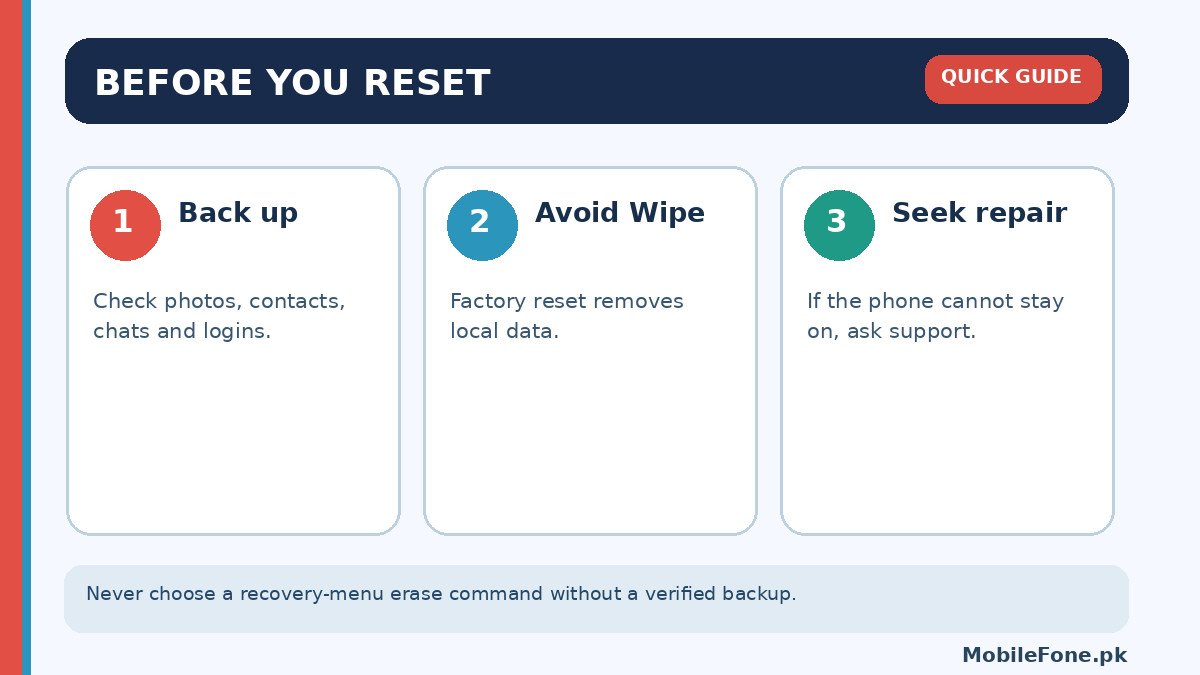
If the phone cannot boot far enough to back up data, do not experiment with recovery-menu erase options. Ask an authorised service centre what recovery and repair possibilities exist. Choosing “wipe data” to get past a boot loop may permanently remove files you hoped to save, and a shop may not be able to reverse that deletion.
Prepare a short troubleshooting record before you contact support: your exact model, approximate age, whether the issue began after an update, the battery level when it occurs and whether a SIM, charger or heavy application is involved. Note whether it restarts fully into Android or stalls at the boot logo. This information helps distinguish a reproducible software trigger from an apparently random power interruption. It also prevents unnecessary repetitions of steps that already failed.
Be careful with suggestions to remove the battery as a first step. Many current smartphones have sealed, non-user-replaceable batteries, and attempting removal can create an electrical or physical hazard. For devices with a genuinely user-removable battery, follow only the maker’s instructions. A stable, data-preserving diagnosis is the priority, not a quick but destructive shortcut.
Know when repair is safer than further software changes
Seek qualified repair if the phone reboots after impact or liquid exposure, restarts while powered off and charging, shows battery swelling, cannot stay on for a backup or continues failing after cautious software checks. Explain which steps you tried and whether the problem also happens in safe mode; that information is more valuable than guessing an exact faulty component.
If a trustworthy repair estimate is unusually high for an older model, compare replacement options using the MobileFone phone directory. Compare the actual storage variant, software support and local warranty rather than assuming that a newer listing automatically solves every reliability problem. For a phone still under warranty, contact the brand’s authorised support network before allowing third-party disassembly.

Related reading
 Mobile Problems & FixesAndroid Phone Running Slow: What to Check FirstNovember 14, 2026
 Mobile Problems & FixesPhone Turns On but Screen Stays BlackNovember 14, 2026
 Mobile Problems & FixesMobile Speaker Not Working During CallsNovember 14, 2026
 Mobile Problems & FixesPhone Microphone Not Working in WhatsApp CallsNovember 14, 2026