Mobile Speaker Not Working During Calls

On this page
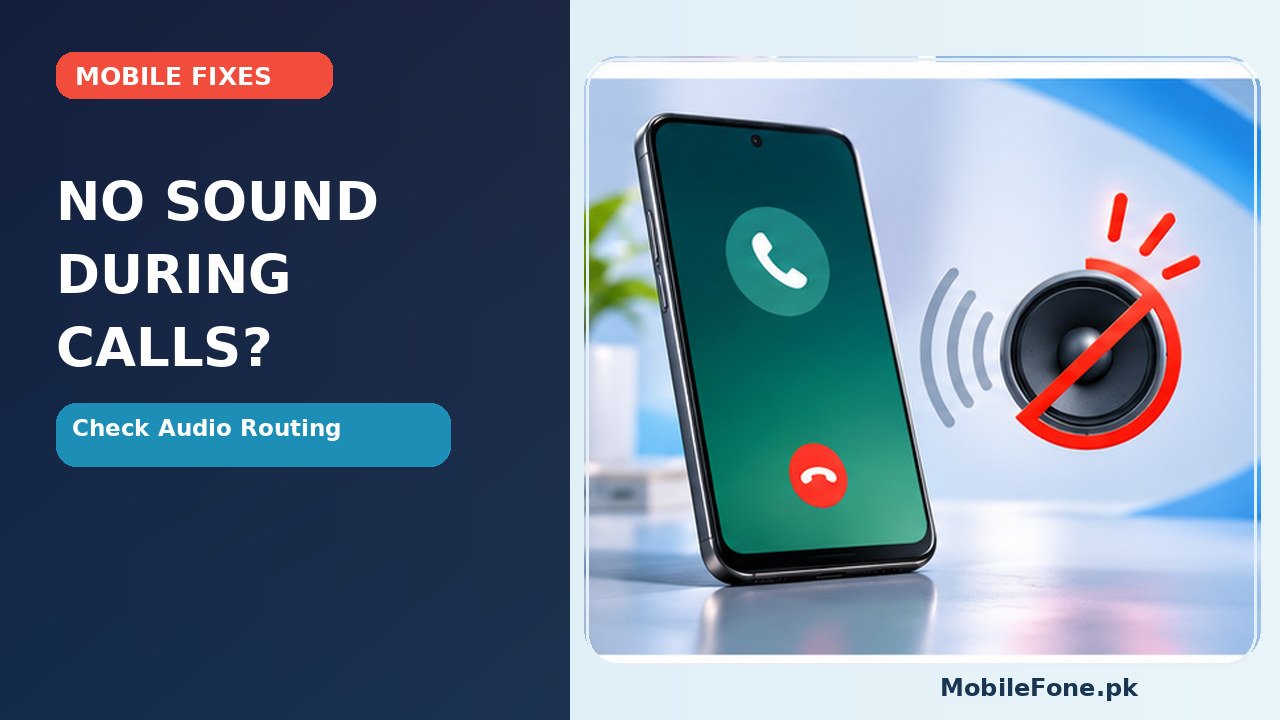
If you cannot hear someone during a phone call, first raise the in-call volume, switch between the earpiece and speakerphone, and temporarily disconnect Bluetooth headphones or a car system. These quick tests tell you whether sound is being sent somewhere else or whether a particular speaker may be affected. A call-audio problem is not the same as your microphone failing: one concerns what you hear, the other what the caller hears.
Separate the earpiece from the loudspeaker
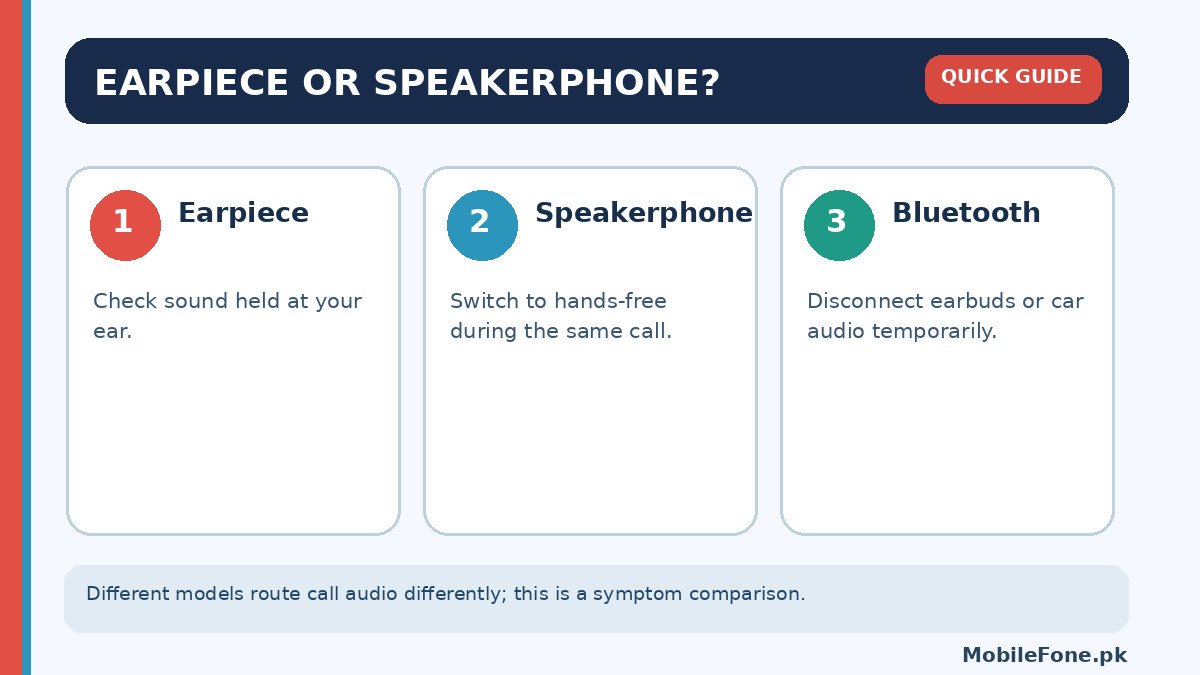
Make a normal test call to someone who can help. With the phone at your ear, check whether the other person’s voice is audible. Then turn on speakerphone and listen again. Many smartphones use a small earpiece near the top for ordinary calls and a separate loudspeaker for hands-free output. Some models share components or use stereo arrangements, so this is a practical comparison rather than a universal hardware diagram.
If speakerphone works but the earpiece does not, inspect the small top grille and any screen protector covering it. If the earpiece works but speakerphone is silent, check the main loudspeaker area and call-audio routing. If both fail, examine Bluetooth, call volume and software before assuming two speakers are broken. The Samsung call-audio support guide also begins with volume and receiver obstructions.
Check in-call volume and where sound is routed
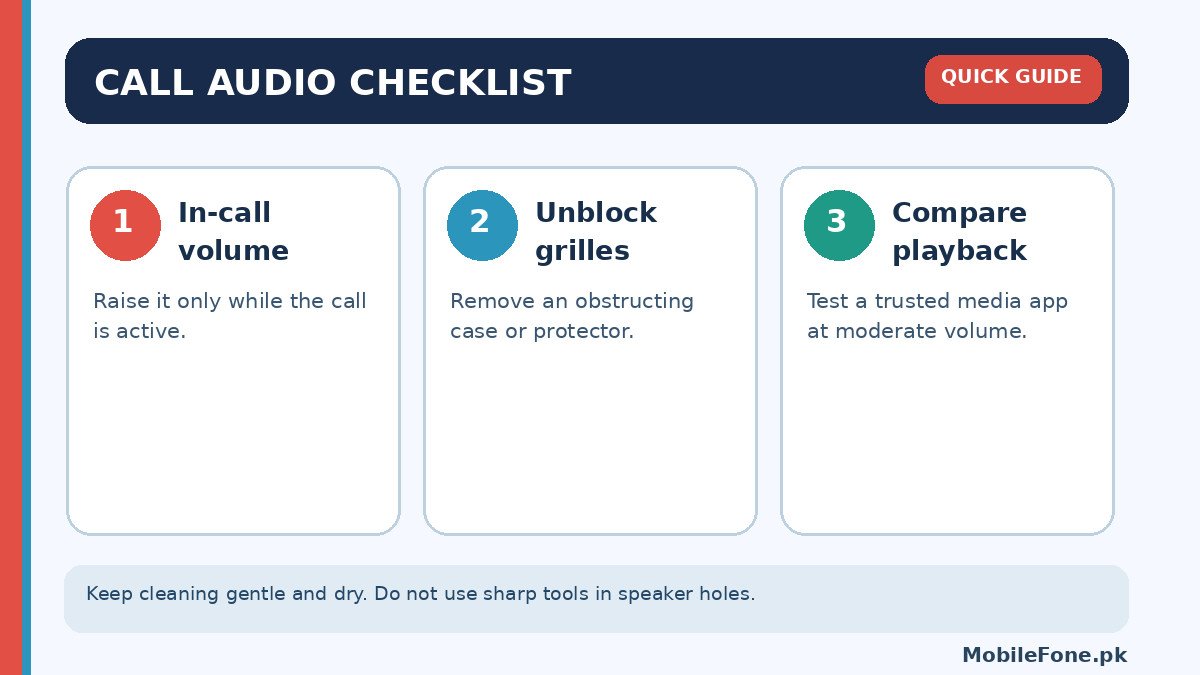
Press Volume Up while the call is active. Media volume and ringtone volume are not necessarily the same as call volume; raising music volume from the home screen may change the wrong control. Inspect the call interface for a Bluetooth or audio-output control. Turn Bluetooth off temporarily, disconnect wired earphones and retry the call. A paired car system or earbuds may capture audio even when they are not directly in front of you.
When comparing apps, test an ordinary cellular call and a call in a trusted internet app. If only internet calls are affected, investigate that app’s audio settings, permissions and connection. If every kind of playback is silent, test a known video or alert at a moderate volume to see whether a wider sound issue exists. Do not blast the speaker at maximum volume as a “repair test”.
Remove physical obstructions safely
Take off a case or ill-fitting screen protector to see if it blocks the top receiver, lower speaker grille or a sensor. Check for dust using a light. You can wipe the exterior gently with a soft, dry cloth. Avoid pushing pins, toothpicks or liquids into the speaker openings; they may damage the mesh or internal parts. If the phone was recently wet, follow the maker’s drying and service guidance rather than attempting heat or high-pressure cleaning.
Samsung’s speaker troubleshooting instructions specifically suggest removing external devices and accessory obstructions and testing with Bluetooth disabled. These ideas apply as general diagnostic checks, although the buttons and audio-output screens vary by Android manufacturer.
Restart, update and compare call conditions
Restart the phone and install a suitable official software update if one is available. If the problem started immediately after an app installation or an update, note when it began. Test another call at a place with better cellular reception. A weak signal may produce broken or intermittent call audio that feels like a speaker fault, but a permanently silent speaker during video playback points in a different direction.
If Wi-Fi Calling is enabled, temporarily compare an ordinary mobile-network call with Wi-Fi Calling off, where your phone and operator support that change. A network or Wi-Fi issue can affect call quality; it does not establish a defective speaker. For some Galaxy devices, Samsung describes this as a diagnostic step. Do not change unfamiliar network settings or reset the phone just to try a single call.
Use a simple result table to decide what to test next
| What happens | What to check next |
|---|---|
| Earpiece silent; loudspeaker works | Call volume, top receiver grille, protector |
| Both silent; Bluetooth works | Audio routing and phone speakers |
| Only one app has no call audio | App update, permissions, connection |
| Voices break up only in poor coverage | Signal and call quality before hardware |
For a test call, make sure the other person knows you are troubleshooting and use ordinary speech. Background noise can hide intermittent issues, so compare in a quiet place before drawing a conclusion. Try not to change several settings simultaneously.
This table narrows the next check; it does not determine whether a component needs replacement. If the caller cannot hear you, check the microphone, mute state and app permissions instead of replacing a speaker.
Some phones also have audio accessibility controls that adjust left/right balance or direct sound to a connected hearing device. If the output problem affects only certain headphones or an accessibility setup, compare the phone without those devices before changing your usual accessibility settings. Do not disable a setting that you rely on permanently just to make one test; note the original configuration so it can be restored.
If the person at the other end sounds faint rather than completely silent, ask them to speak at a normal volume and try a second contact. That helps separate one caller’s microphone problem from your own receiver. If audio from several people is identical, your phone or connection deserves more attention. These controlled comparisons can save unnecessary expense, particularly when a shop suggests replacing a speaker without checking an active call.
When a service centre should inspect the phone
Arrange an authorised service assessment when neither receiver nor loudspeaker works after the checks above, the phone was dropped or exposed to liquid, the grille is visibly damaged or sound cuts out across calls and media. Describe exactly which output works: earpiece, loudspeaker, wired headset or Bluetooth. Ask for a diagnosis and quote before authorising repairs, and back up important files if repair work might involve a reset.
If this began on a nearly new phone, check warranty terms with the retailer or manufacturer before allowing unapproved repair. A professional may need to test the audio circuitry, but internet advice cannot reliably distinguish a damaged speaker, loose connection or main-board fault from symptoms alone. Keep your troubleshooting reversible and specific.

Related reading
 Mobile Problems & FixesAndroid Phone Running Slow: What to Check FirstNovember 14, 2026
 Mobile Problems & FixesPhone Keeps Restarting: Common Causes and Safe FixesNovember 14, 2026
 Mobile Problems & FixesPhone Turns On but Screen Stays BlackNovember 14, 2026
 Mobile Problems & FixesPhone Microphone Not Working in WhatsApp CallsNovember 14, 2026