Touchscreen Not Responding on Android: Troubleshooting Guide

On this page
- First, Identify What “Not Responding” Actually Means
- Check the Screen, Your Hands and Accessories
- Restart the Phone Without Erasing Data
- Check Touch Settings and Apps If the Screen Works Intermittently
- Protect Your Files Before Any Advanced Repair
- Know When the Fault Needs Physical Repair
- A Quick Decision Guide
If your Android touchscreen stops responding, begin by checking the screen itself rather than immediately resetting the phone. Dry and clean the glass, remove a problematic screen protector or case, disconnect accessories, and restart using the method recommended for your model. A failure affecting only one part of the display suggests a different problem from a phone that freezes everywhere. Do not factory reset a device holding unbacked-up data just because touch input has stopped. The steps below help narrow down the likely cause without assuming every Android phone has identical controls.
First, Identify What “Not Responding” Actually Means
Touch problems tend to fall into three categories. The phone may display a normal picture but ignore every tap; it may register taps only along certain edges or in certain apps; or it may tap things by itself, a symptom often called ghost touch. These patterns help decide what to check next, but none identifies a failed component on its own.
Ask whether the problem started after installing a screen protector, charging with a different adapter, dropping the handset, exposing it to moisture, or updating an app. A phone that becomes unresponsive only while an app is open may have an application problem. A persistent strip of dead touch response, especially after impact, deserves hardware inspection. A screen that looks completely black belongs in a different troubleshooting category: you cannot judge touch recognition when the display itself does not work.
Before attempting anything complicated, make sure the phone is not unusually hot, swollen or wet. If there is visible battery swelling, do not press on the screen or continue charging it. Arrange qualified inspection instead.
Check the Screen, Your Hands and Accessories
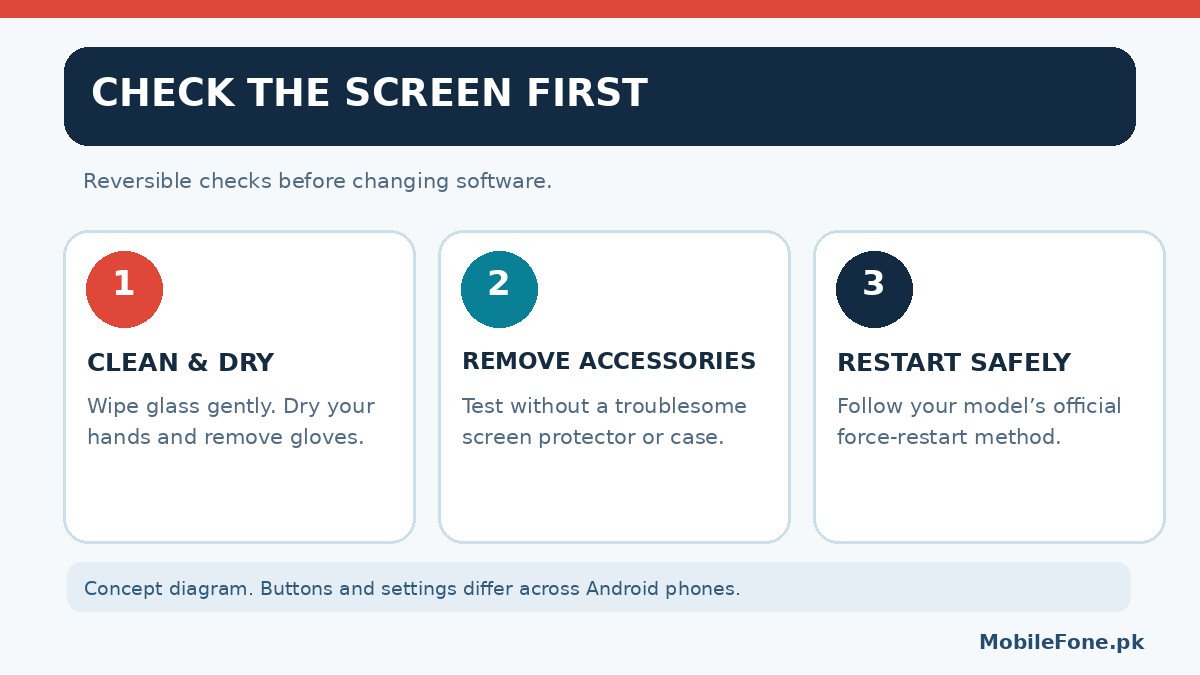
Google’s screen troubleshooting guidance recommends checking for damage and removing cases, screen protectors, gloves or stickers that interfere with contact. A damp screen, oily residue or protector lifting at the edges can make some touches unreliable. Gently wipe the display with a clean, soft cloth and dry your hands. Avoid sharp tools, liquids inside openings and aggressive pressure.
Try the phone without its case or removable screen protector if it is safe to do so. A poorly fitted protector may overlap the edges or interfere with gestures. If touch suddenly returns, replace the accessory with one appropriate for the model rather than assuming the panel needs repair. If symptoms occur only when a charging cable is attached, disconnect the charger and compare the response. Stop using any charger or cable that is damaged, excessively hot or behaving abnormally.
On supported Samsung Galaxy phones, Samsung’s September 2026 touchscreen guide identifies screen protectors, moisture, third-party accessories and certain settings as possible causes. These are checks, not proof that the same explanation applies to every Redmi, Tecno, Infinix, Oppo or Vivo model sold in Pakistan.
Restart the Phone Without Erasing Data
A normal restart is useful when Android or an app has temporarily stopped accepting input. If the screen still responds enough to open the power menu, use the normal Restart command. If not, use a documented force-restart combination for the specific manufacturer and model; a force restart is not the same as a factory reset.
For many modern Samsung Galaxy devices, Samsung documents holding the Side key and Volume down for more than seven seconds. Google says that on many other Android phones a long press of the power button may trigger a restart. Neither instruction should be copied blindly to every model. Button shortcuts may instead open emergency functions, voice assistants or recovery menus on other devices, so consult your handset’s official instructions.
After it starts, test the lock screen, keyboard, notification shade and more than one app. If every touch works again, keep watching for the issue to return. If one specific region still fails consistently, repeated restarts are unlikely to add much diagnostic value. Photograph the visible damage with another device if you may need to explain it to a service centre.
Check Touch Settings and Apps If the Screen Works Intermittently
If you can navigate Settings, check the software update area and install only the official updates available for the phone. On recent supported Galaxy models, Settings > Display > Touch sensitivity may improve recognition when using a suitable protector. That switch is model-dependent; increasing sensitivity does not repair a broken digitizer. Accessibility options can also change how touches and gestures behave, so review recently changed settings rather than switching everything off without understanding it.
Try more than one app. If typing fails only in a messaging application but works normally in Settings and the Phone app, update that app from its official store and consider restarting it. If several apps became troublesome immediately after a recent installation, Safe mode can be a useful comparison where available. It temporarily prevents downloaded apps from running, but the way to enter it differs across phones and versions.
Samsung’s current guidance explicitly notes differences in menu names by model and software version. If Safe mode works and ordinary mode does not, inspect recently downloaded apps one at a time. If Safe mode still shows the same dead patch, app conflict becomes less likely, although hardware damage is not proven without examination.
Protect Your Files Before Any Advanced Repair
A touchscreen problem can make it surprisingly hard to reach photos, contacts and two-factor authentication apps. If touch is still usable, check your existing Google backup and the backup status of apps that store important information locally. A synced Google account does not necessarily include every folder, banking app credential or messaging attachment. Verify the files you actually need.
Some Android phones support a USB-OTG mouse or an external display or computer connection, but support and permissions vary and a locked phone may still require on-screen approval. This is an optional device-specific accessibility route, not a guaranteed data-recovery technique. Do not give an unknown repair shop account credentials or install remote-control applications suggested by strangers.
Factory reset erases local data and settings. It should be considered only after backup verification, manufacturer instructions and a clear reason to think a software reset is warranted. Never choose recovery-menu items marked Wipe data simply to test whether the touchscreen comes back. An unsupported firmware flash can create an entirely new fault.

Know When the Fault Needs Physical Repair
A persistent dead area, cracked or separating screen, unexplained heat, liquid exposure or touch that fails even during initial setup warrants professional diagnosis. On some phones, the touch-sensitive digitizer is integrated with the display assembly; on others, the failure may involve connectors or electronics. The symptom alone does not establish which part needs replacement or how much repair should cost.
In Pakistan, begin with a manufacturer-authorised service point where practical, particularly for a phone still under warranty. Ask whether diagnostics, opening the device, replacing the screen or resetting software could affect stored information or warranty coverage. Record the model number and what steps were attempted. Check and save data before handing over the device if it can still be accessed.
A Quick Decision Guide
If touch fails only with a screen protector or a particular charger, remove that variable and retest. If it fails only within one app, inspect that app before changing the rest of the phone. If the entire interface freezes but returns after a model-correct restart, check official updates and observe whether the issue recurs. If a region stays dead after gentle cleaning and restarting, stop pressing harder and seek diagnosis.
The useful distinction is temporary software behaviour versus persistent physical failure. You can narrow that distinction safely without wiping a phone. Treat a reset as a carefully considered last option, not the default first fix.

Related reading
 Mobile Problems & FixesAndroid Phone Running Slow: What to Check FirstNovember 14, 2026
 Mobile Problems & FixesPhone Keeps Restarting: Common Causes and Safe FixesNovember 14, 2026
 Mobile Problems & FixesPhone Turns On but Screen Stays BlackNovember 14, 2026
 Mobile Problems & FixesMobile Speaker Not Working During CallsNovember 14, 2026