Android Phone Running Slow: What to Check First

On this page

If your Android phone has become slow, start by restarting it, checking free storage and updating apps. Then look for a particular app that freezes or runs badly. These checks are safer and more useful than immediately installing a “phone cleaner” or resetting the device. Slowness may come from crowded storage, an app problem, demanding background activity or ageing hardware. The right fix depends on whether everything feels slow or only one task does.
Identify exactly where the phone is slow
Notice whether the delay appears while unlocking the screen, opening Contacts, typing, taking photographs or switching between applications. A phone that hesitates in every app suggests a broader system issue. If only one app takes a long time to open, investigate that app before changing system settings. For example, a lagging Contacts search does not automatically mean the processor is failing; contact synchronisation, an oversized list or the app itself may be involved.
Also check when the slowdown began. Did it follow an app installation, a system update, a damaged storage card or a period when the phone became unusually hot? A short delay while a freshly updated phone settles is different from repeated crashes over several days. Keep a simple note of the symptom and what you changed. This prevents random troubleshooting steps from making the cause harder to identify.
Restart and inspect free storage
Restart the phone normally and test the same activity again. Next open Settings and look for Storage or Device care, depending on the brand. Google’s Android troubleshooting guidance warns that phones can develop problems when less than about 10% of storage remains free. This is a diagnostic clue, not a promise that clearing a particular amount will make every phone fast.
Remove downloads you no longer need, duplicate videos and unused large files. If photographs are already safely backed up, you can decide which local copies to keep. Emptying the trash in a photo or file app may also be required to reclaim space. Do not delete chat folders, application data or unfamiliar system files without checking what they contain. Some messaging apps store media or local backups that are not easily recovered.

Storage capacity matters when comparing older budget devices. If you are evaluating whether the phone still meets your needs, the MobileFone phone specifications directory helps you compare published RAM and storage variants without assuming that more memory repairs an existing fault.
Update apps and investigate one misbehaving app
Open Google Play Store, tap the profile icon and check Manage apps & device for app updates. Install trusted updates and restart if required. Check for a manufacturer-provided Android system update under Settings; the exact location differs across Samsung One UI, Xiaomi HyperOS, Oppo ColorOS and other Android versions. Download official updates over a reliable connection and keep enough battery charge for installation.
If only one app freezes, try force-stopping it, then reopening it. The official Android app-fixing guide also describes clearing app cache as a possible next step. Cache is temporary data, but clearing app storage or data is different: it can remove saved settings, offline content or sign-in information. Check an app’s backup options first. Avoid “RAM booster” APKs that ask for unnecessary permissions; they are not a substitute for investigating the actual cause.
Use safe mode to separate apps from system trouble
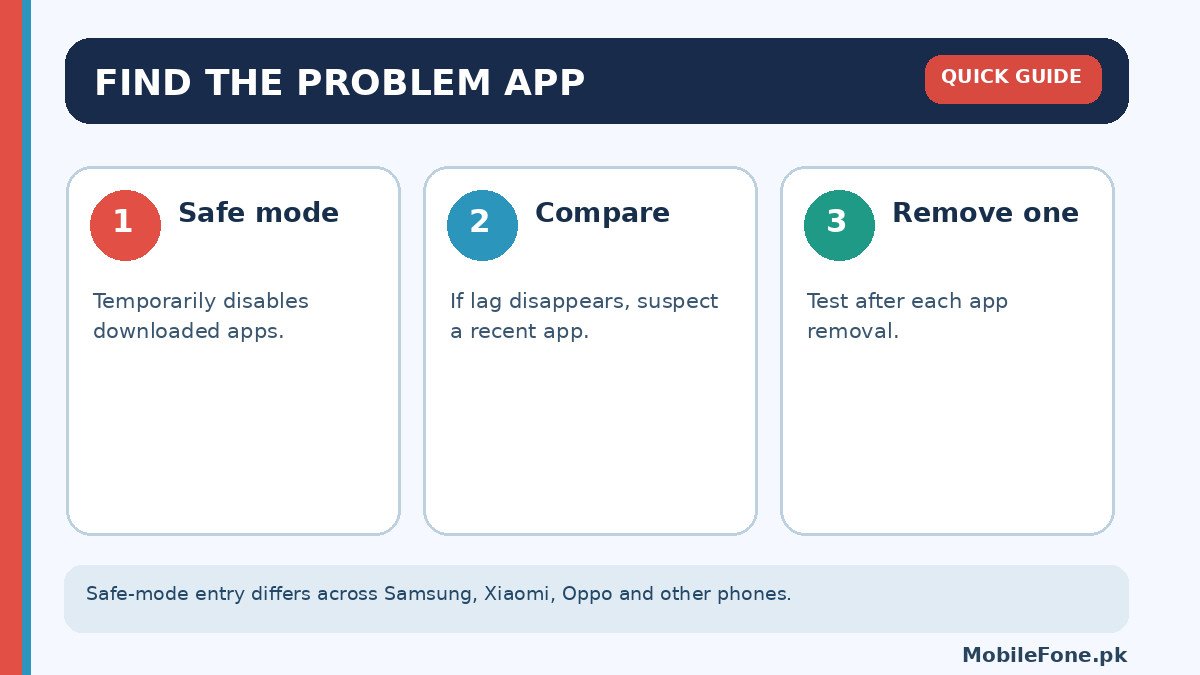
If the whole phone remains slow, try the manufacturer’s safe-mode procedure. Safe mode temporarily disables downloaded apps. If performance becomes normal in safe mode, a recently installed or updated third-party app is a plausible cause. If the problem continues there, look more closely at storage, operating-system faults, heat or hardware. Google explains this diagnostic distinction in its safe-mode guide.
Safe-mode button combinations vary by manufacturer and model, so follow the support instructions for your exact device instead of holding random keys. Restart normally to leave safe mode. Then uninstall suspicious apps one at a time and check whether the original delay has disappeared. Removing five apps at once may produce a faster phone, but it will not tell you which app caused the trouble.
Check battery, heat and available memory realistically
A phone may respond slowly when it is overheating, doing a heavy update, receiving a large batch of synced files or running demanding games. Close the activity, move the device away from direct sunlight and allow it to cool naturally. Do not put the phone in a refrigerator, use ice packs or force-cool a wet device. If the phone repeatedly becomes abnormally hot while idle, seek qualified support.
Storage and RAM are not interchangeable. Internal storage holds photos, apps and files; RAM is working memory used by running software. A phone with very little RAM may struggle with modern apps even after storage is cleaned. Likewise, so-called extended or virtual RAM uses part of storage and cannot be treated as identical to extra physical memory. When an older phone has reached its practical limit, the 8GB RAM phone directory is a starting point for comparing alternatives, not a performance guarantee.
One more useful comparison is to test the same task after the phone has been idle for several minutes, then after opening several large apps. If it only struggles under heavy multitasking, its available memory and processor may simply be limited for the workload. If opening Settings alone takes an unusually long time on a cool, recently restarted phone, the symptom is more general. Neither result proves a particular repair is needed, but both help you decide whether more app troubleshooting is worthwhile.
When to consider repair or a factory reset
Back up photographs, contacts, authenticators, chat histories and important files before attempting a factory reset. Check that you can actually sign back into the Google account and that any app-specific backups exist. A reset erases local data and installed applications. It is a last resort, not a first step. Avoid flashing unfamiliar firmware or using tools that claim to bypass account locks.
If the phone is slow even in safe mode, repeatedly freezes during boot, has been dropped or shows storage errors, ask the manufacturer or a qualified repairer to assess it. For an ageing phone, compare the cost of a trustworthy repair with a realistic replacement budget; published listings such as phones under Rs. 30,000 can help define that budget, although prices and availability should still be confirmed with sellers. Work through one change at a time and stop when the symptom has a clear cause.

Related reading
 Mobile Problems & FixesPhone Keeps Restarting: Common Causes and Safe FixesNovember 14, 2026
 Mobile Problems & FixesPhone Turns On but Screen Stays BlackNovember 14, 2026
 Mobile Problems & FixesMobile Speaker Not Working During CallsNovember 14, 2026
 Mobile Problems & FixesPhone Microphone Not Working in WhatsApp CallsNovember 14, 2026