How to Organise Phone Photos and Backups

On this page

Organise phone photos by finding where they are stored, choosing a simple album system and verifying the backup account and completed uploads. Before removing local copies, open important originals from the destination and understand what the delete option affects. An album is not an independent backup, and cloud synchronisation can also synchronise deletion. Keep a separate verified copy of irreplaceable photographs rather than relying on one phone or one synced library.
Find the originals before sorting the collection
List the places where pictures currently live: the camera folder, messaging or download folders, a memory card if used, and any cloud photo library. A single gallery view can combine several sources, so seeing a thumbnail does not tell you whether the original is on the phone, in the cloud or both.
For a Redmi 13C, check the actual save location if you use a card as well as phone storage. On an iPhone 12 Pro Max using iCloud Photos and optimised storage, some on-device versions may be space-saving copies. Apple’s iCloud Photos explanation describes storing originals in iCloud and keeping smaller local versions when optimisation is enabled.
Make this inventory before moving or deleting a large batch. If you find several old exports, give them clear names and check their contents rather than assuming the newest-looking folder contains everything.
Use a few useful albums instead of duplicating the filing problem
Choose groups you will remember, such as a trip, family event, work reference or a year. These are organisational examples, not required categories. Avoid building dozens of nearly identical albums that make the collection harder to search.
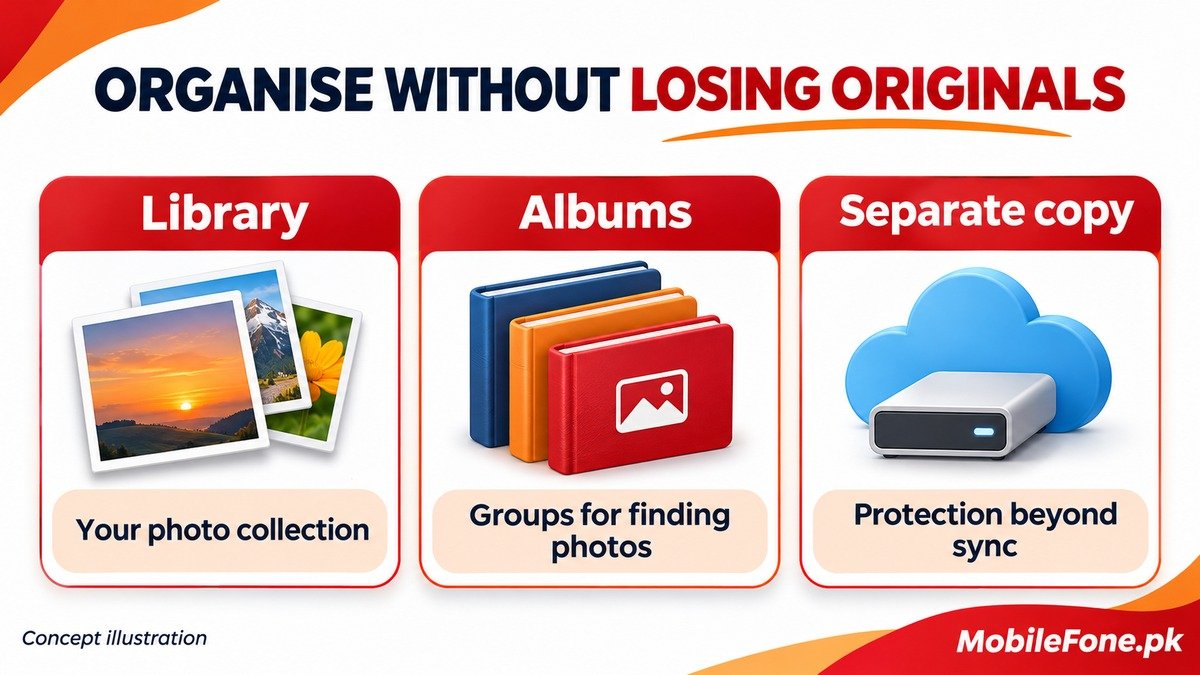
In Google Photos, removing an item from an album does not remove it from the main library. Google’s album guidance distinguishes those actions. Creating another album therefore does not create a separate protected copy, and deleting an album is different from deleting its photographs from the library.
| Layer | Useful purpose | What it does not prove |
|---|---|---|
| Phone or memory-card files | Local originals and offline access | That another copy exists elsewhere |
| Albums | Finding related pictures within a library | That the photos have been backed up separately |
| Cloud photo library | Access and synchronisation across signed-in devices | That deletion cannot affect other copies |
| Separate exported copy | An additional recovery option outside the live synced library | That every original exported successfully without checking |
Verify the account, folders and completed uploads
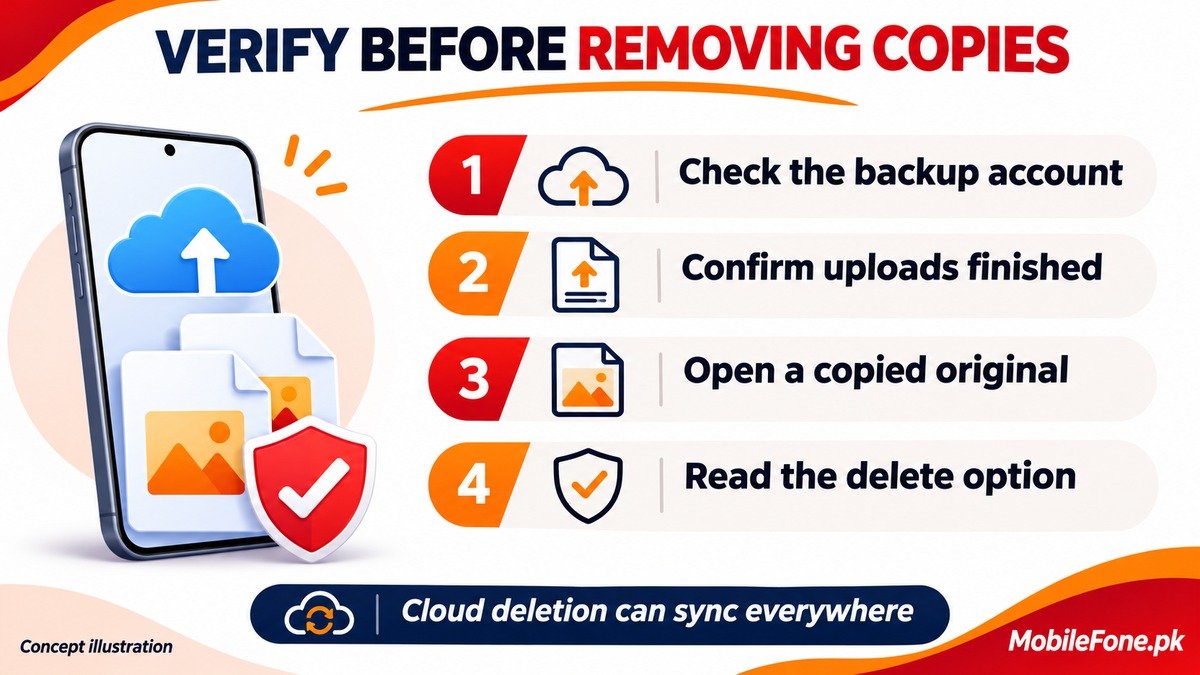
In Google Photos, open the profile area and review Photos settings, Backup. Confirm the account and the device folders you want included. Google’s backup checks explain why turning on backup does not settle every question about account selection, folders or timing. Pictures saved by another app may need their own folder included.
- Confirm which account holds the intended library and that it has available storage.
- Check the overall upload status; waiting, paused or preparing is not completion.
- Open several important recent and older items and inspect their individual backup details.
- Open the destination library from another trusted device or its website and check those items there.
- Keep the source originals until you have checked the result.
Google documents individual photo and video backup details. Use the reported status rather than relying on a familiar thumbnail or assuming one icon has the same meaning in every version and backup state.
Keep a separate copy of the photos you cannot replace
A synced library protects against some device-loss problems, but it is not immune to deletion or account trouble. Apple states that iCloud Photos changes, including deletions, appear across devices and that photos already in iCloud Photos are not duplicated in iCloud Backup. Keep that distinction in mind when deciding how many independent copies you actually have.
Use the service’s supported download or export method for an additional copy. Apple documents archiving iCloud photos and originals; Google provides data-export guidance for supported exports. Save the copy somewhere separate from the actively synchronised library, with suitable protection for private pictures.
Open a few exported photographs and videos, including older items, to check that they are usable originals rather than previews or missing files. For larger exports, keep the provided files and metadata together until you understand their structure. A completed download without a basic check is a weak basis for deleting the source.
Free local space without confusing it with library deletion
Read the confirmation before deleting: removing a device copy and deleting from a synced library are different actions.
Google Photos offers Free up space on this device for appropriately backed-up items. It removes local copies while keeping the cloud library. Those removed files will not be available in the same way through the built-in gallery or while offline. Keep anything you specifically need on the phone before travelling.
With iCloud Photos, deleting an item from the library deletes it across devices using that library. Use the supported storage-optimisation option when the aim is to reduce device storage without deleting the cloud original. Do not treat a second synced device as an independent archive.
- Check the account before every large cleanup.
- Keep uploads finished and verify important items individually.
- Retain a separate checked copy of irreplaceable files.
- Review the wording of the removal action before confirming it.
Repeat this small routine after an event or trip: sort useful albums, verify new uploads and refresh the separate copy. That is easier to maintain than a large deletion session driven only by a storage warning.

Related reading
 Mobile Problems & FixesAndroid Phone Running Slow: What to Check FirstNovember 14, 2026
 Mobile Problems & FixesPhone Keeps Restarting: Common Causes and Safe FixesNovember 14, 2026
 Mobile Problems & FixesPhone Turns On but Screen Stays BlackNovember 14, 2026
 Mobile Problems & FixesMobile Speaker Not Working During CallsNovember 14, 2026