Redmi Contacts App Slow or Freezing: What to Try

On this page

If your Redmi works normally until you open Contacts, start with the Contacts app and its saved accounts rather than resetting the whole phone. Restart, check for an app update, and clear only the app’s cache after protecting your contacts. Slow search can have several causes, so check whether the delay affects one account, the dialler’s contact list, or the entire phone. Avoid clearing Contacts Storage or removing an account as an early experiment.
Identify the app and the exact Redmi model
A contact list inside the Phone app and a separate Contacts app are different places to test. Open each, if available, and search for the same saved person. If one responds normally and the other hangs, that points toward the affected app rather than proving the phone lacks RAM. Record whether opening the list is slow or only searching it causes the delay.
Check the app’s name, developer and version in its App info screen. Redmi software and preinstalled apps vary with model, region and software release, so Google Contacts instructions will not match every Xiaomi contact manager. A Redmi 13 also differs from the Redmi 13C; do not install another model’s firmware or follow its menus blindly.
Xiaomi’s Redmi 13 responsiveness guidance identifies app conflicts and resource pressure as possible causes of unresponsiveness. It does not establish one confirmed cause for every slow contact search.
Back up the contacts you cannot afford to lose
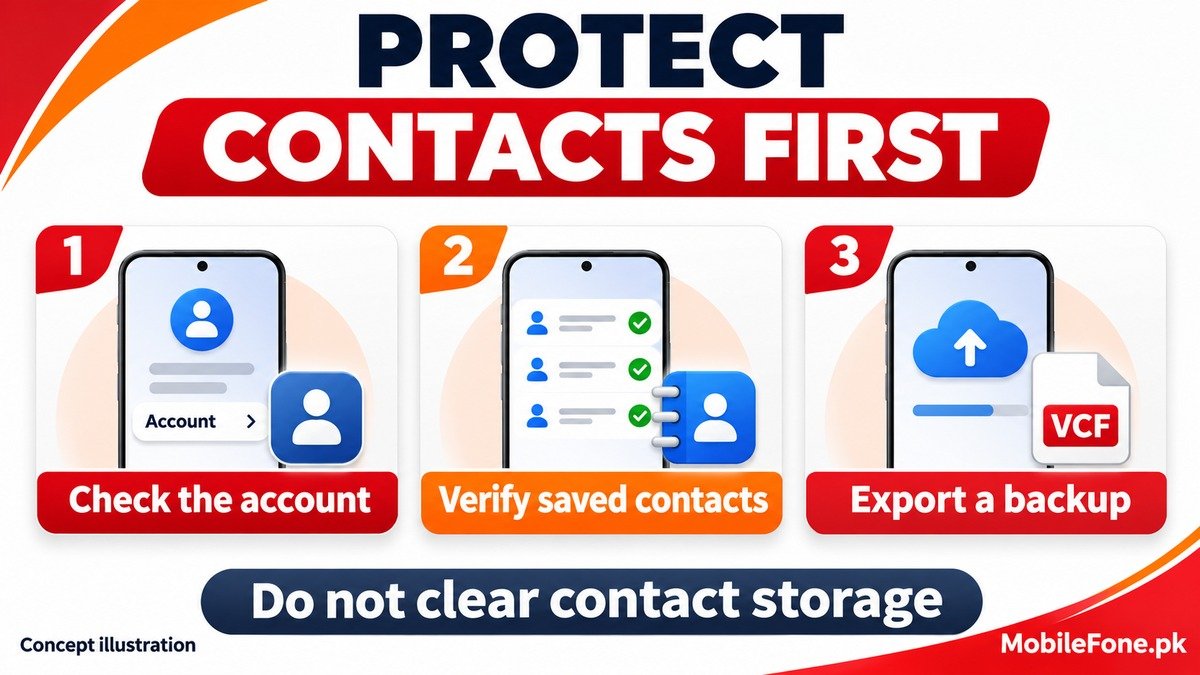
Contacts visible on the screen are not proof that every number is backed up.
A person can be saved to a Google account, a Xiaomi account, the SIM or local phone storage. Google’s device and SIM contact guidance explains that local contacts do not automatically become Google contacts. Automatic backup support also depends on the device. Check where important entries are actually saved before changing anything that could remove local information.
- Open a few essential contact entries and identify their account or storage location.
- For Google contacts, confirm the right account and check that recent changes have synced. For Xiaomi contacts, verify the relevant Xiaomi cloud account if that service is available.
- Make a separate export when the app supports it. In Google Contacts, the documented route is Fix & manage, Export to file, select accounts, then export a .VCF file. Menu labels can change with app updates.
- Copy the export somewhere safe outside the phone and check that the file exists. Treat it as private information, not something to upload to a random contact-repair website.
Google documents the contact export process. If the app freezes before you can export, preserve the phone’s current state and ask support for help rather than erasing the only copy.
Use the symptom to choose a safe next check
| Observation | Next check | Avoid assuming |
|---|---|---|
| Separate Contacts app is slow; dialler works | Update and clear cache for the affected app | That the whole phone needs a reset |
| One account’s entries are missing | Check selected account, sync and saved source | That missing contacts were permanently deleted |
| Search returns several copies of one person | Review account filters and genuine duplicates | That every repeated name is safe to delete |
| App reports denied contact access | Review that app’s Contacts permission | That granting unrelated permissions will improve speed |
| Settings and other apps also freeze | Check wider storage and system performance | That the contact database alone is responsible |
These are starting points for investigation, not diagnoses. Repeat the same search after each change so you can tell which action made a difference.
Clear only the Contacts app cache
Restart the phone first. Then check the affected app’s official update source: Google Play for Google Contacts, or the device’s official system-app updater where applicable. Avoid replacement APKs promising a faster dialler.
Xiaomi includes restarting, checking space, updating software and clearing Contacts cache in its contact troubleshooting guidance. That page addresses saving contacts, so its steps are useful low-risk checks, not proof that caching caused your slow search.
- Open Settings and find the affected app under Apps or Manage apps. Read the app name carefully before proceeding.
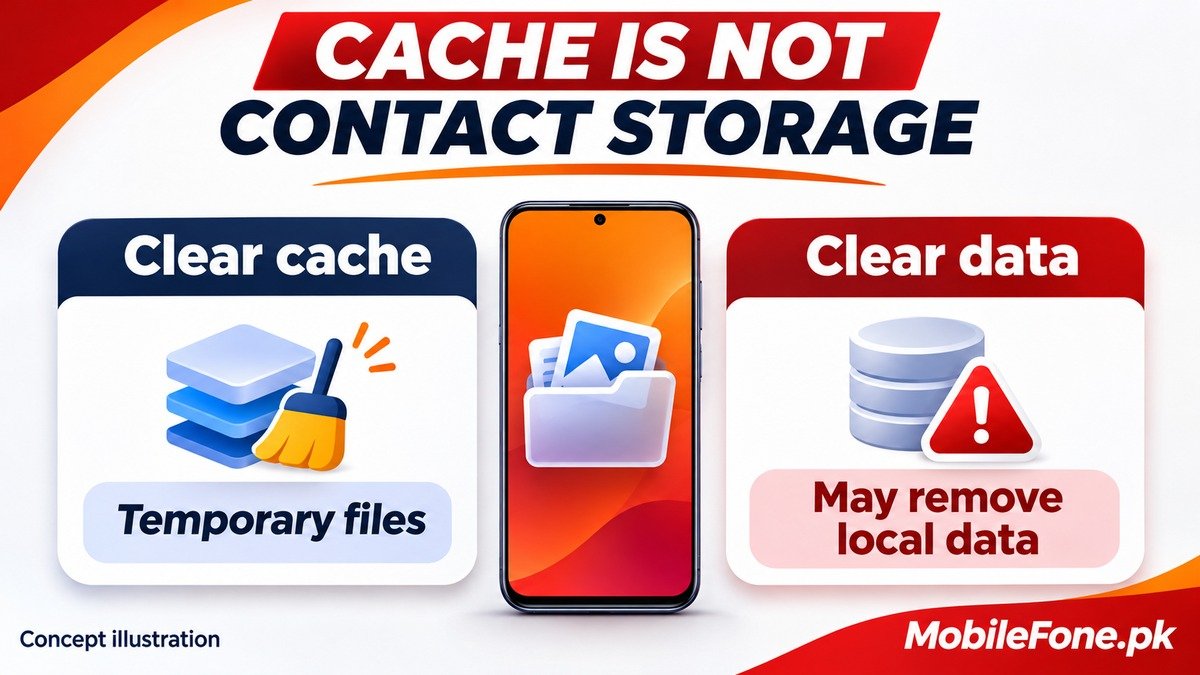
- Look for a clearly labelled Clear cache option. Read the storage-action choices carefully and select only Clear cache.
- If the choices are unclear or only Clear all data appears, stop. Do not use a destructive option to approximate a cache clear.
- Reopen Contacts and repeat your search. Give the first opening time to rebuild temporary information.
Google distinguishes temporary cache from permanent app data. Clearing app storage can delete app data. The system service named Contacts Storage is not the same thing as the visible app’s disposable cache.
Check account selection, sync and genuine duplicates
Choose the account that contains the person you are trying to find, then test again. Xiaomi’s missing-contact guidance specifically recommends checking contact sources. A filter that hides an account can look like failed search even when the entry remains stored elsewhere.
Do not switch sync off and on casually. Google warns that disabling Google Contacts sync removes those contacts from the device and can lose unsynced changes. Verify the cloud copy first. For Google Contacts, pulling down on the list can trigger a manual sync.
After backing up, review genuine duplicates rather than bulk-deleting repeated names. Google Contacts offers duplicate merging, but cannot merge entries across different Google accounts. Combining duplicates can make the list clearer; it is not a guaranteed performance fix.
Check permissions or wider phone trouble only when relevant
If the app reports missing access, review its Contacts permission in App info. Android’s permission instructions explain how to inspect an app’s allowed access. There is no reason to grant microphone, location or other unrelated access merely because name search is slow.
If the entire phone now struggles, check available storage and the latest official system update. Before contacting support, note the exact model, software build, Contacts version and which searches fail. Use the MobileFone model directory if you need help distinguishing similarly named phones, then confirm the model in the handset’s own Settings.
Send support the fault description without exposing your contact list. A full factory reset should not be the next step for an isolated slow app while your backup remains uncertain.

Related reading
 Mobile Problems & FixesAndroid Phone Running Slow: What to Check FirstNovember 14, 2026
 Mobile Problems & FixesPhone Keeps Restarting: Common Causes and Safe FixesNovember 14, 2026
 Mobile Problems & FixesPhone Turns On but Screen Stays BlackNovember 14, 2026
 Mobile Problems & FixesMobile Speaker Not Working During CallsNovember 14, 2026