How to Prepare Your Phone for a Service Centre

On this page

Preparing a phone for a service centre means doing three things before handing it over: protect your data, describe the fault clearly and agree on the repair process. Take a recent backup if the phone still works, remove your removable SIM or memory card when the shop allows it, and ask whether the technician might reset the device. Note down the visible damage and the issue you want investigated. These steps protect you whether the problem is a cracked screen, unreliable charging or a phone that restarts by itself.
Create a fault record before visiting
A clear fault description prevents unnecessary work. Write down exactly what happens, when it started and whether it followed a drop, moisture exposure or software update. For an intermittent problem, a short video captured on another device may be more useful than saying that the phone sometimes behaves strangely. Do not deliberately reproduce an overheating, swollen-battery or electrical hazard merely to record it.
Bring the model name, approximate purchase date and a record of previous repairs if you have them. If the charging problem happens only with one cable, note the cable and charger specifications; the technician may ask to test with known-good accessories. Ask first before leaving any personal accessory at the counter.
| Issue | What to record | Why it helps |
|---|---|---|
| Charging fails | Cable, charger and whether the port feels loose | Separates accessory checks from a port fault |
| Screen problem | Photo of cracks and when the display goes black | Creates a condition record before handover |
| Unexpected restart | Frequency and whether it occurs while charging | Gives the technician a repeatable symptom |
| Network issue | SIM/operator and whether another SIM works | Avoids treating a carrier issue as hardware damage |
| Moisture exposure | Time, circumstances and any subsequent use | Supports safety-first diagnosis |

Back up files and remove personal items
Do a new backup even if automatic backup is already enabled. On Android, Google’s backup instructions cover account-backed phone data, but not every app restores all its information. Check a few photos, contacts, recordings and chat backups from a different device or computer. Record any recovery keys or secure account sign-in alternatives outside the phone. Do not take a screenshot of a password and leave it on the handset.
Remove physical SIM and microSD cards if the repair shop’s instructions permit it. Transfer eSIM access only through your mobile operator’s supported process if a reset or replacement affects it. Never reveal account passwords, mobile-wallet PINs, banking credentials or one-time verification codes. If a technician says these are necessary, ask for an alternative diagnostic method and an explanation in writing.
- Charge the phone enough for inspection, unless charging presents a safety risk.
- Confirm the backup timestamp and one or two restored or opened items.
- Photograph the screen, back and edges using another device.
- Remove SIM and memory card when permitted, and note any case or accessory left behind.
- Check warranty documents, purchase receipt or service confirmation if available.
- Write down the complaint, required approval limit and expected collection procedure.
Choose a safe privacy and access arrangement
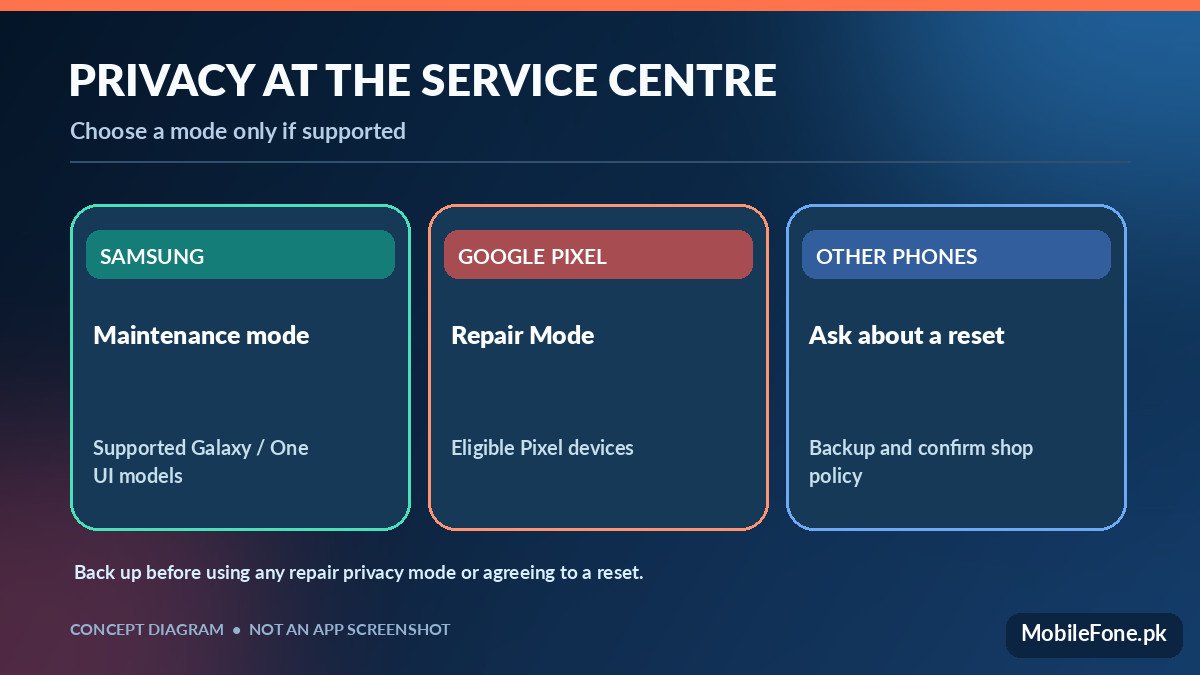
Some Android manufacturers provide a dedicated mode for repair staff. Samsung Pakistan describes Maintenance mode as a way to hide personal photos, messages and accounts while somebody else uses a Galaxy phone. Availability varies by model and One UI version. Google also offers Repair Mode on eligible Pixel phones. It starts a restricted environment for technicians, but a repair can still require data deletion or parts replacement, so back up first.
These modes are not a promise of data preservation or a substitute for deciding what access the technician really needs. Ask whether the issue can be demonstrated without unlocking your private apps. If an authorised repair process requires a reset, confirm that your backup is complete and you can sign back into your accounts before consenting. Do not perform a factory reset merely because it is on a generic checklist.
Ask about cost, warranty and replacement parts
Before any paid work, request a written estimate stating the diagnosed fault, proposed repair, total charge and what happens if the diagnosis changes. Google’s repair guidance specifically describes inspection followed by a repair estimate and approval of additional costs. Other brands and independent workshops follow different processes; ask about your local centre’s policy directly rather than assuming a standard price or turnaround time.
- Will the phone be opened or sent to another location?
- Could the repair erase storage or affect water-resistance seals?
- Are the replacement parts new, refurbished or third-party?
- How will changes in cost be authorised?
- What receipt, part warranty or post-repair testing will be provided?
For Pakistan buyers, do not assume a shop’s word “original” proves a part’s manufacturer origin. Request a description on the receipt. If you are evaluating repair versus replacement, MobileFone’s phone directory can provide recorded model options, while its 256GB storage listing helps assess whether a replacement has room for your existing files. Verify a specific model, variant and seller before making a purchase decision.
At collection, test the original fault first
Do not judge a repair only by whether the phone switches on. Test the precise symptom reported: charging with a compatible cable, making a test call, screen touch across the edges or a short period of normal operation. Inspect the frame, display fit and camera glass under normal lighting. If a repair involved the battery, watch for unusual heat or swelling and stop using the device if you see it.
Check that your SIM reconnects and your data remains available where appropriate. A replacement phone or reset handset may need a supported restore from backup; avoid logging into sensitive accounts on a public repair-counter computer. Keep the receipt and any part-warranty terms. If a new problem appears immediately after the work, report it promptly and refer to the documented intake condition.
When the phone is too damaged to prepare
With a dead screen, severe liquid damage or a swollen battery, not every step is possible. Do not keep turning on a wet phone, pierce a battery or pry open a sealed handset to recover a SIM. Tell the centre what happened and whether the stored data is especially important. Request a diagnosis before any wipe or board replacement, knowing that recovery may still be impossible.
Handover rule: leave the shop with a receipt, a clear repair scope, a decision on data handling and a way to approve changes. That is more valuable than a long list of generic “phone health” tips.

Related reading
 Mobile Problems & FixesAndroid Phone Running Slow: What to Check FirstNovember 14, 2026
 Mobile Problems & FixesPhone Keeps Restarting: Common Causes and Safe FixesNovember 14, 2026
 Mobile Problems & FixesPhone Turns On but Screen Stays BlackNovember 14, 2026
 Mobile Problems & FixesMobile Speaker Not Working During CallsNovember 14, 2026