How to Check Phone Health Before a Long Trip

On this page
Before a long trip, check whether your phone can hold charge through normal use, charge reliably, make an ordinary call, open essential files and use the maps you expect to need. Back up important data and try your offline essentials before departure. A phone-health score is less useful than discovering that your cable disconnects, your map area is missing or your account cannot be accessed. Resolve those problems while you still have time and support available.
Check the battery and charging equipment in normal use
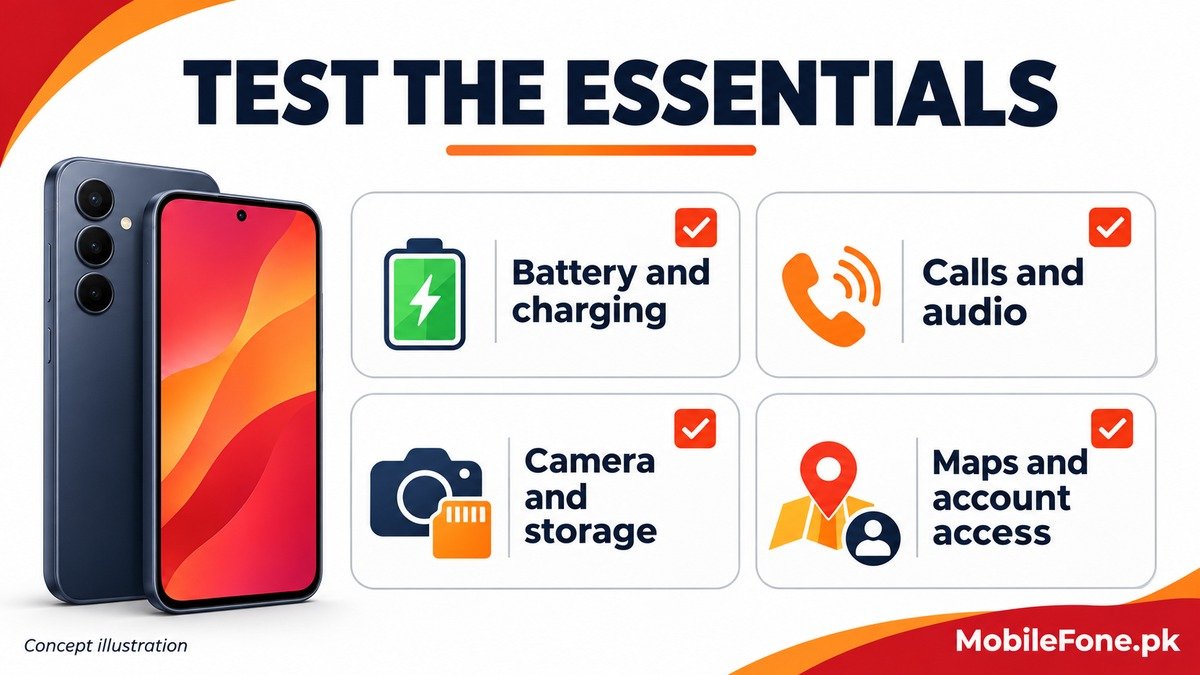
Observe the phone during an ordinary day rather than running a demanding benchmark or draining it deliberately to zero. Note unexpected shutdowns, unusual heat, a sudden change in runtime or charging interruptions. Test the actual adapter, cable and power bank you plan to take, using compatible equipment in good condition.
On supported Galaxy devices, Samsung documents battery status in Samsung Members diagnostics. Labels and routes vary. For a Galaxy A04, confirm the installed software and available tests rather than following a newer flagship’s screen blindly. A normal diagnostic result does not promise a particular number of travel hours.
On an iPhone 12 Pro Max, check the actual battery-health information and any service recommendation. Apple’s battery and performance guidance distinguishes current charge from battery condition. A full charge before departure does not remove an underlying shutdown problem.
Swelling, a lifting screen, damaged charging equipment or excessive recurring heat needs attention before the trip. Do not depend on a failing device merely because it still switches on.
Test the functions you will actually depend on
Make an ordinary call, check that you can hear and be heard, and test mobile data and Wi-Fi where available. Send a routine message through an appropriate channel if needed. Do not call an emergency service to test the phone. Check the speaker, microphone, screen response, buttons and camera by using their normal functions.
| Check | What to look for | If it fails |
|---|---|---|
| Charge with your travel cable | Secure connection without warnings or interruptions | Replace or inspect the unreliable item before leaving |
| Make an ordinary call | Working microphone, earpiece and connection | Investigate audio or service trouble now |
| Take and reopen a photo | Working camera and enough usable storage | Resolve storage or camera problems before relying on it |
| Open required saved files offline | Files actually available without an internet connection | Download or copy the missing items |
| Check backup status | Correct account and a completed, relevant backup | Finish and verify the missing copy |
Supported Galaxy users can also use Samsung Members function tests. These supplement the practical checks; they do not replace testing the cable, headphones or apps you will actually use.
Verify maps and important files without internet
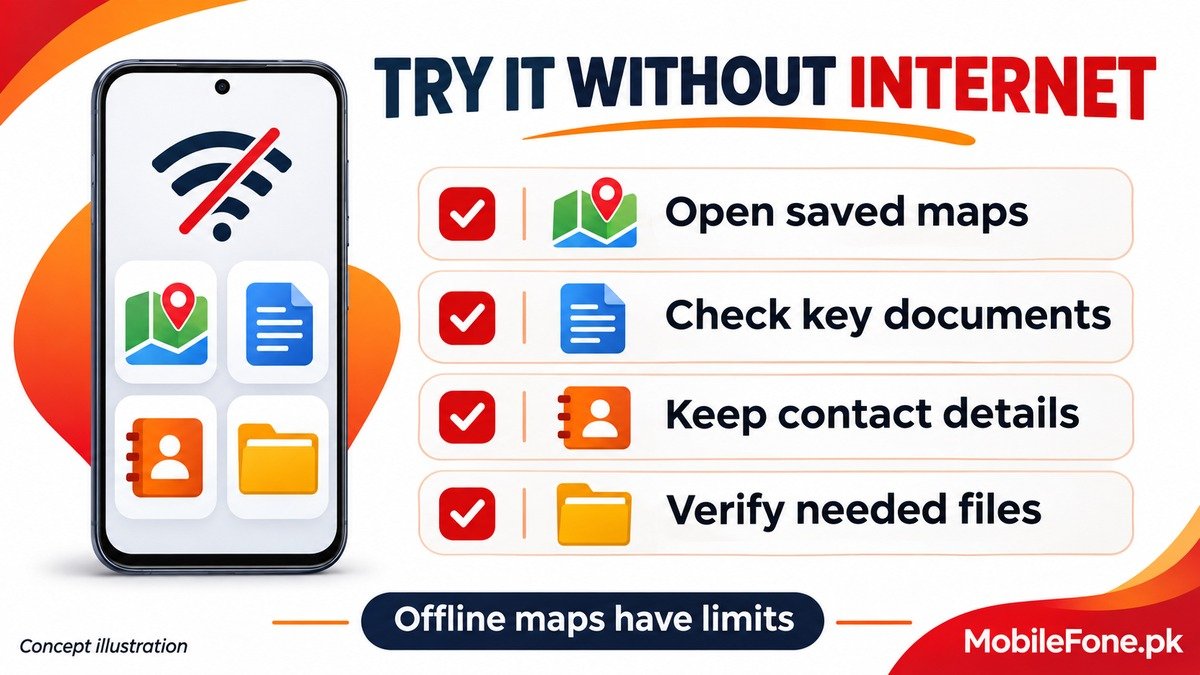
Download the map area before travelling where the mapping service supports it, then check that the required area is saved. Google’s offline Maps guidance says the entire driving route needs to be within the downloaded area. Offline transit, walking and cycling directions are unavailable, and offline driving does not provide live traffic or alternative routes. Downloads are also unavailable in some regions.
A visible map thumbnail is therefore not a promise that every planned journey will work offline. Check the route and the kind of navigation you need. Keep key addresses and contact details separately so that one app or connection problem does not remove all your useful information.
- Open necessary tickets, booking details and other saved documents before departure.
- Keep sensitive documents in a suitably protected place, not an openly shared photo album.
- Verify that an essential cloud file has a local copy if you expect to need it offline.
- Check offline-map status and updates instead of assuming an old download is current.
Check storage, backups and account recovery
Leave enough usable storage for the photographs, downloads and updates you expect to create. Remove replaceable downloads before risking important originals. Google’s Android storage guide distinguishes temporary cache from app data; clearing an app’s storage can remove information you may need on the trip.
Confirm the backup account, date and included data. Google’s Android backup guidance cautions that not every app restores all of its data. Photo backup, messaging history and device backup should be checked according to their own services. A sign-in screen after reinstalling an app is not evidence that its contents have been preserved.
Check that you know how to access the accounts you rely on and that recovery options are current. Do not keep passwords or recovery secrets in an unprotected note merely to make travel easier.
Run a short rehearsal and fix the weak point
- Charge with the equipment you will take and inspect it for damage.
- Use the phone for the ordinary calls, photos, audio and navigation tasks that matter to you.
- Check saved essentials without relying on a live connection, then restore normal connectivity.
- Confirm backups and note any unresolved warning or repeated failure.
Review emergency contact information where the phone supports it. Google’s Android safety guidance notes that information shown on a locked screen can be seen by someone who picks up the phone, and feature availability varies. Choose what to expose deliberately.
If the rehearsal reveals repeated shutdowns, unreliable charging or another important fault, arrange support before leaving. Pack a working charging setup and an alternative way to reach key people; a last-minute factory reset is a poor substitute for finding the problem.

Related reading
 Mobile Problems & FixesAndroid Phone Running Slow: What to Check FirstNovember 14, 2026
 Mobile Problems & FixesPhone Keeps Restarting: Common Causes and Safe FixesNovember 14, 2026
 Mobile Problems & FixesPhone Turns On but Screen Stays BlackNovember 14, 2026
 Mobile Problems & FixesMobile Speaker Not Working During CallsNovember 14, 2026