How to Review Large Files on Android

On this page
To review large files on Android, open Files by Google, go to its Clean section and look for the large-files recommendation, or browse your storage by file type. Check each item’s filename, location and contents before deleting it. A huge video or ZIP archive may be a disposable download; a recording or original family video may be irreplaceable. The useful goal is to recover space while keeping the important files, not simply to delete whatever appears at the top of a size-sorted list.
Check storage first, then choose a file manager
Start in Settings > Storage or the equivalent Device care screen to estimate what is filling the phone. If apps are consuming almost everything, a file-by-file cleanup may have little effect; review app downloads or installation sizes instead. If videos, archives and downloads dominate, a file manager is more useful. Menu names and storage categories vary across Samsung One UI, Xiaomi HyperOS, Oppo ColorOS and other Android versions.
Files by Google is a documented option for browsing, searching and cleaning local files. Google’s instructions describe compatibility with Android 8 or later. On devices without the app, use the manufacturer’s built-in file manager if it exposes file size and location. Avoid downloading a random “boost” app just to identify large files.
Review large files in Files by Google
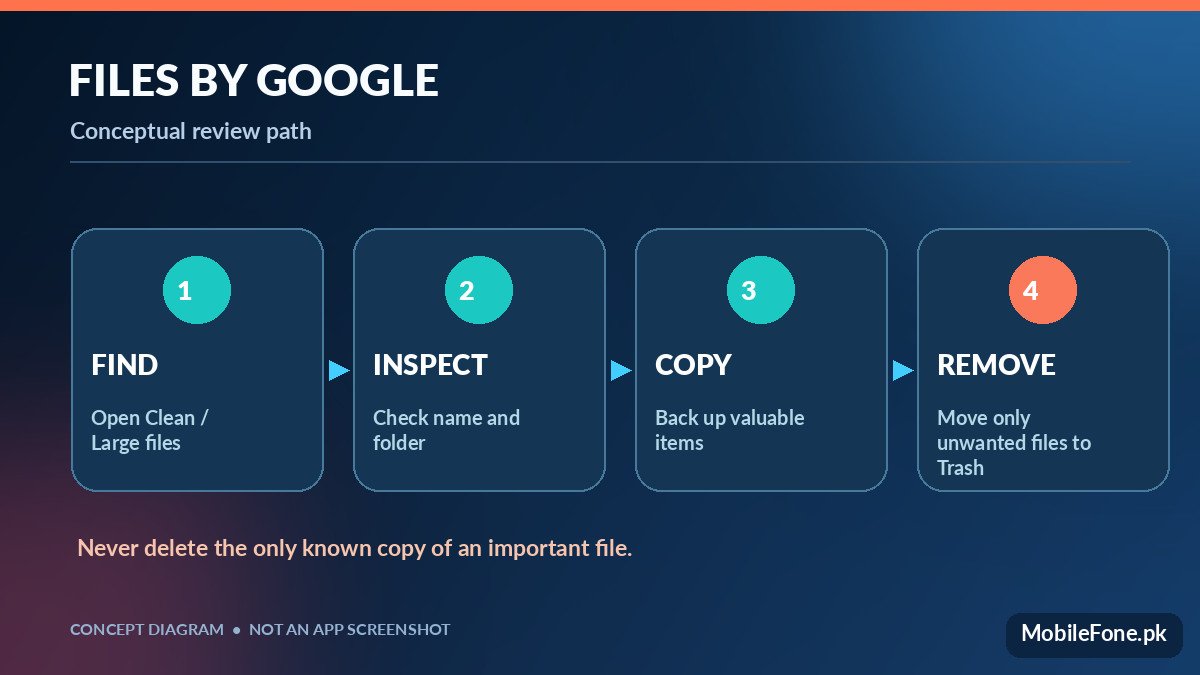
Google’s large-files instructions describe opening Files by Google, selecting Menu > Clean, then using the “Delete large files” card. Select files after reviewing them and choose the move-to-Trash confirmation only if you want those files removed. The visible card and navigation can differ between app releases; if the card is absent, browse Videos, Downloads or internal-storage folders manually.
- Open Files by Google and check the Clean section for a large-files card.
- Review the displayed file name, size, format and containing folder where available.
- Open a sample of each unfamiliar item; do not infer value from its extension alone.
- Check whether a separate backup or another original exists.
- Select only confirmed unwanted items and use the app’s supported Trash action.
- Check storage again after the app updates its file inventory.
Do not delete Android system folders, application-private databases or unfamiliar files simply because they have large sizes. Some apps rebuild cache automatically, whereas others lose offline documents or saved progress. If a file manager cannot open a file, leave it alone until you know which application owns it.
Decide what deserves a closer look
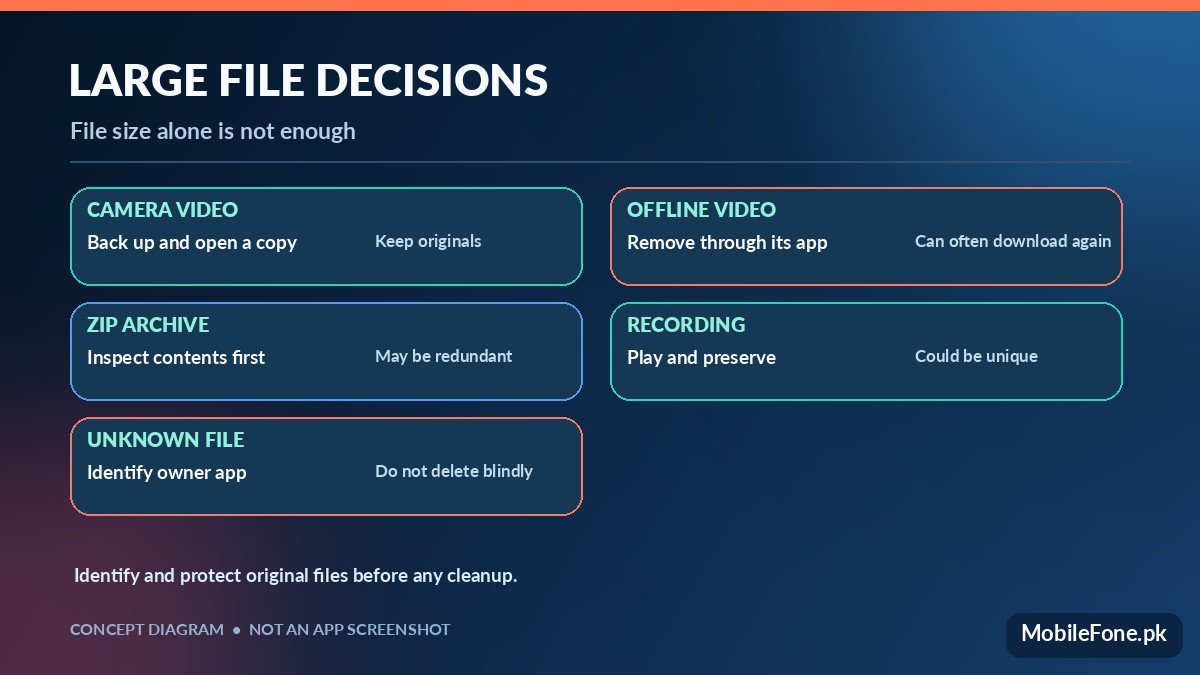
A large file is not necessarily a useless one. Use the folder path and whether another copy exists to choose the next action. These examples are decision rules, not a claim that any particular file is on your device.
| File type | Question to ask | Safer next action |
|---|---|---|
| Camera video | Is the original backed up and playable? | Copy or verify cloud backup first |
| Downloaded movie | Can its original app download it again? | Remove through that app if no longer needed |
| ZIP or installer | Do you still need the extracted contents? | Inspect and then remove redundant archive |
| Audio recording | Is it a lecture, interview or voice memo? | Play and back up before considering deletion |
| Unknown app file | Which app created or uses it? | Leave in place until ownership is clear |
Copy irreplaceable files before removing them
For camera originals, family videos, scanned identity documents and important study recordings, use a second storage location. You can upload selected files to a supported cloud service or copy them via USB to a computer. Google provides a USB File Transfer guide that includes unlocking the phone and choosing File Transfer rather than charge-only mode. Open the copied file from the destination to confirm the transfer worked.
When evaluating a replacement phone or a long-term storage limit, check capacity rather than assuming every model offers an SD-card slot. Browse recorded 256GB-storage phones or compare variants in MobileFone’s full phone directory. Both are browsing references, not guarantees that a device’s free space equals its marketed capacity.
What happens after you move files to Trash?
Files by Google’s Trash instructions describe restoring files from Trash and warn that deleting them from Trash is permanent. Do not empty Trash until you have checked your gallery, downloads and important app files. Moving files to Trash may not immediately reclaim all space while recoverable copies remain. A software update or cleanup app is not a reason to bypass the review stage.
- Verify the deleted item is not referenced by an active project or app.
- Check whether a cloud service also synchronises the folder.
- Keep a separate copy of irreplaceable photos, recordings and documents.
- Leave unknown files until their source is identified.
- Recheck available space after any safe cleanup, rather than deleting more by habit.
For photos stored in Google Photos, remember that deleting synced items can affect cloud and other device copies. Use the service’s explicit phone-only removal feature only after confirming backup and offline needs. A file’s location and sync status change the outcome of a delete button.
When a file remains large or refuses to delete
Sometimes a file is in use, protected by an app, or represented twice by a gallery thumbnail and a downloaded copy. Restarting the app and reviewing the original folder may clarify the issue. Do not repeatedly use “force delete” utilities against system data. If a file belongs to an app that stores offline content, use that app’s built-in storage management rather than editing hidden folders.
The practical test: after removing a small number of clearly unwanted files, verify that the originals you care about still open and that device storage increased. If either check fails, stop and investigate before deleting anything else.

Related reading
 Mobile Problems & FixesAndroid Phone Running Slow: What to Check FirstNovember 14, 2026
 Mobile Problems & FixesPhone Keeps Restarting: Common Causes and Safe FixesNovember 14, 2026
 Mobile Problems & FixesPhone Turns On but Screen Stays BlackNovember 14, 2026
 Mobile Problems & FixesMobile Speaker Not Working During CallsNovember 14, 2026