Phone Storage Cleanup Without Losing Important Photos

On this page
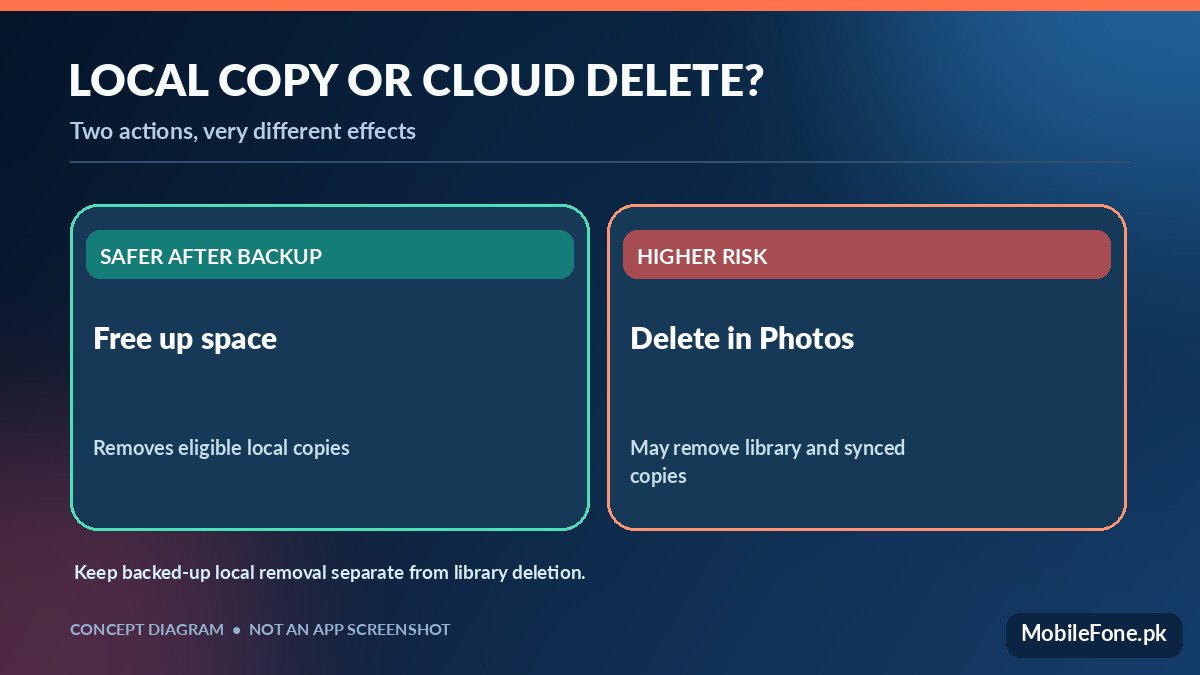
If your phone is short on space, do not start by selecting hundreds of photos and tapping Delete. First verify that the pictures you care about have a readable backup. Then remove large downloads, app-created clutter and duplicate files before considering local photo copies. Google Photos has a specific Free up space on this device feature for backed-up media; that is different from deleting photos from your Google Photos library, which may remove synced copies too. The distinction matters more than any storage-cleaner app.
Find out what is filling the phone
Open Settings and look for Storage or Device care, depending on the brand and Android version. Check the proportions used by photos and videos, apps, documents, system files and cached data. If the gallery occupies most of the space, videos are often worth inspecting first, but a single game download or offline streaming library can also be large. The labels shown by Android’s storage screen are estimates and may group app data differently across devices.
Work from least risky to most risky. Clearing downloaded files you recognise is usually simpler than removing photos from a synchronised library. If you later decide that a larger-capacity phone is needed, MobileFone’s 256GB storage directory can help compare recorded storage configurations, with individual model variants checked before buying.
| Action | Likely effect | Before you proceed |
|---|---|---|
| Delete unwanted downloads | Reclaims local file space | Open the file and confirm it is not needed |
| Remove offline app downloads | Clears stored media within an app | Check future offline-access needs |
| Clear temporary cache | May reclaim space; apps can recreate cache | Do not choose Clear storage/data by mistake |
| Google Photos Free up space | Removes eligible backed-up local copies | Verify online backup and offline needs |
| Delete inside Google Photos | Can remove cloud and synced copies | Confirm you intend a library-wide deletion |
Understand which delete button you are pressing
Google’s Free up space help states that the feature deletes eligible media copies from the phone after they are backed up. The images remain available in Google Photos and on photos.google.com when the backup is intact, but they may no longer appear in the built-in gallery or when you are offline. Therefore, someone who needs a particular video during travel should keep a local copy or download it again before departure.
By contrast, Google’s delete guidance warns that deleting photos in the Google Photos app can remove those items from your device and from devices using backup. Do not assume moving something to Trash is the same as removing a phone-only copy. Permanent deletion can make recovery impossible. On some phones, gallery apps have their own sync behaviour as well, so pause before using a bulk-delete button.
Confirm the actual backup, not just the toggle
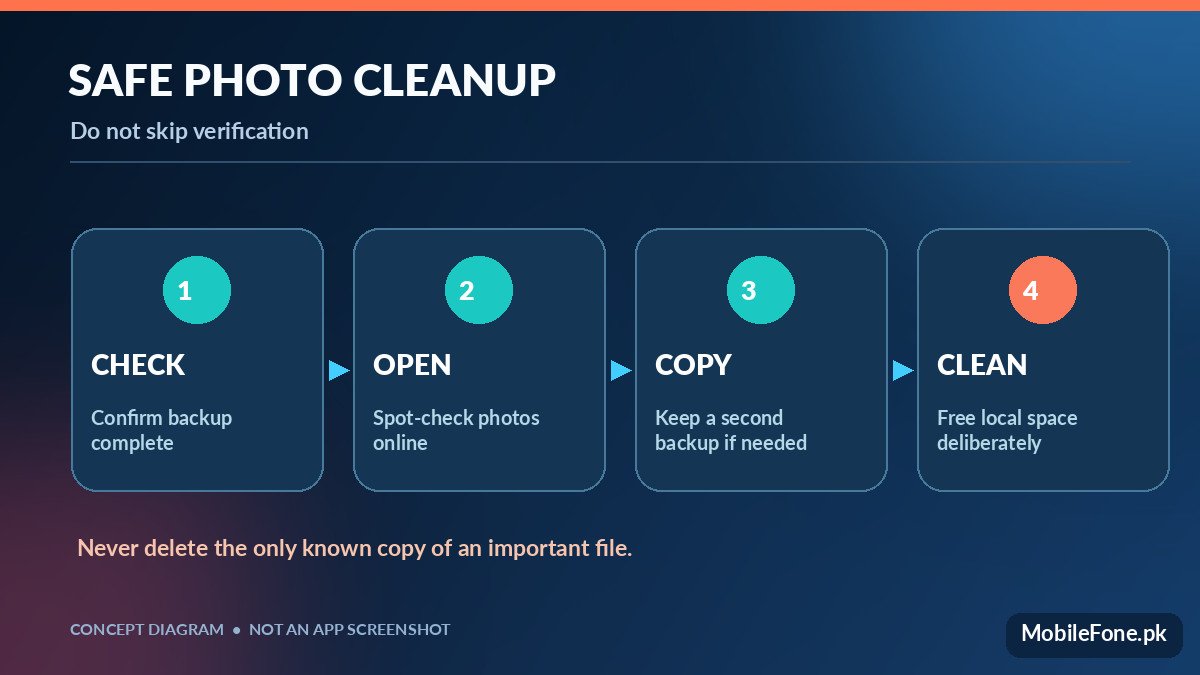
Open Google Photos, check you are in the correct account, then review the backup status. According to Google’s backup instructions, the app can show “Backup complete” after all eligible items finish uploading. Under Photos settings > Backup, look at the chosen device folders. Screenshots, messaging-app images and media stored outside the camera folder might not be covered unless you selected those folders.
- Connect to reliable Wi-Fi and allow the photo backup to finish.
- Open photos.google.com on a computer or another browser session in the same account.
- Spot-check recent pictures, older images and at least one long video.
- Inspect any private or unsynchronised folder separately; copy critical files to a second location.
- Only then run the Photos Free up space feature, if you are comfortable losing offline local copies.
For a particularly important family collection, consider a second independent backup on a computer or external drive. Google documents how to transfer files over USB from Android. Copy before deleting, and open a few copied files to make sure they are readable. A second copy protects against account problems, accidental library deletion and damaged devices.
Reclaim space without touching your photo library
Open Files by Google or the file manager included with your phone. The Files by Google guide describes recommendations for junk, duplicates, screenshots and unused apps. Review the selected items one by one; a screenshot can contain a ticket, a receipt or a recovery code despite looking unimportant. Delete only files you recognise. A cleaning suggestion is not an independent backup.
- Remove completed installers, exported documents and duplicate downloads after checking their contents.
- Delete offline video or music inside the app that downloaded it, so the app updates its own index.
- Review large videos or voice recordings for copies stored elsewhere.
- Uninstall games or apps you do not use, after checking whether their saved data is backed up.
- Clear app cache selectively; avoid tapping Clear storage or Clear data unless you accept losing local app information.
If you often run out of space, confirm the actual storage configuration of your handset in a model listing. The MobileFone phone directory can help locate recorded storage variants, but a listed 128GB or 256GB capacity is not the same as free usable space after the operating system and apps.
What if photos are already missing?
Stop further deletion. Check the correct Google Account, the photo app’s Trash, the device’s Recently deleted album and any external backup. Look for an unsynchronised device folder or microSD card before concluding the files are gone. Do not empty a trash folder in a panic; recovery opportunities depend on the service and how the files were deleted. Avoid third-party “recovery” apps that demand passwords or promise guaranteed results.
A sensible stopping point: when you have enough space for updates and everyday use, stop cleaning. Keeping verified copies of irreplaceable photos is more important than making the storage meter look empty.

Related reading
 Mobile Problems & FixesAndroid Phone Running Slow: What to Check FirstNovember 14, 2026
 Mobile Problems & FixesPhone Keeps Restarting: Common Causes and Safe FixesNovember 14, 2026
 Mobile Problems & FixesPhone Turns On but Screen Stays BlackNovember 14, 2026
 Mobile Problems & FixesMobile Speaker Not Working During CallsNovember 14, 2026