How to Back Up a Phone Before Repair

On this page

Before a phone goes to a repair shop, save the information you cannot replace: photos, contacts, messages, account access and files stored only on the handset. Then open a few items from the backup on another device. A screen or motherboard repair may require the technician to erase or replace components, so a phone that still switches on today should not be treated as a safe storage location tomorrow. A complete backup takes more than turning on a single cloud switch.
Decide what could be lost during the repair
First ask the service centre what they expect to do. A simple external part replacement may not involve storage, but an inspection can uncover another fault. For a phone that is freezing, restarting or has a damaged screen, capture recoverable data while it remains accessible. If the battery is swollen or the device is too hot to handle safely, stop using or charging it and seek qualified help instead of attempting a backup under unsafe conditions.
Use this short inventory to find gaps rather than assuming the word “backup” means everything is covered.
| Data | Where to check | Easy-to-miss issue |
|---|---|---|
| Contacts and settings | Google or Apple account backup status | Contacts saved to a SIM or another account |
| Photos and videos | Cloud photo library and local camera folders | WhatsApp or Downloads folders not selected |
| Chats and call history | Each messaging app’s own backup or transfer feature | App-specific backup, encryption key or PIN |
| Documents and recordings | Files app, Downloads, audio and work folders | Files stored only on internal storage |
| Account recovery | Recovery email, passkeys and authenticator access | Codes or approval prompts tied to the phone |
Make a device backup, then cover the gaps
On a recent Android phone, open Settings and find Google services or Google > Backup; menus differ across Android versions and brands. Review the included data and select Back up now. Google’s Android backup guide explains that apps, call history, contacts, device settings and messages can be included, but not every app can restore every item. A backup status is not proof that an unrelated app’s private files are saved.
For Samsung Galaxy models, the manufacturer’s Smart Switch instructions provide an additional computer-backup path for supported data. iPhone owners should review iCloud Backup or create an encrypted local computer backup using Apple’s supported backup methods, especially if Health and certain sensitive settings matter. Use the procedure supported by your actual phone and computer, not a random backup application.
- Connect to trusted Wi-Fi and adequate power. Confirm you have enough cloud or computer storage.
- Run the phone’s account-level backup and note its displayed completion time.
- Open your photo backup service and check that upload is complete for the correct account.
- Export or copy local documents, audio, camera folders and downloads to a computer or drive.
- Check each important messaging app’s backup or phone-to-phone transfer instructions.
- Prepare recovery methods for accounts and two-factor authentication before losing access to the handset.
For an Android computer copy, Google documents USB File Transfer after unlocking the device and choosing the correct USB mode. Copy rather than move files for the first pass. Large video folders can take a long time, and a cheap charge-only USB cable will not necessarily transfer data.

Check photos, chats and account recovery separately
Google Photos has a separate backup status from general Android device backup. Its official help page describes how to check “Backup complete” and choose device folders. If your camera images are saved but WhatsApp media, screenshots or downloads are not, enable only the folders you actually need or copy their files separately. Verify a handful of older images and recent videos at photos.google.com in the intended account.
WhatsApp and other messaging services may use independent backup systems. A chat list shown on the old phone does not establish that an online copy exists. Check the service’s own backup timestamp, selected account and any encryption password before proceeding. Similarly, a password manager or authenticator app may require its own export, recovery codes or secure migration. Store recovery codes somewhere private, not in a screenshot left on the phone for a technician.
Check SIM contacts, a microSD card and offline maps only if they are important to you. Some documents may sit in a work profile that blocks personal-device backups. The general Android backup service may also be unavailable on managed company phones; ask your organisation’s administrator rather than using an unofficial workaround.
Verify the copy before leaving the phone
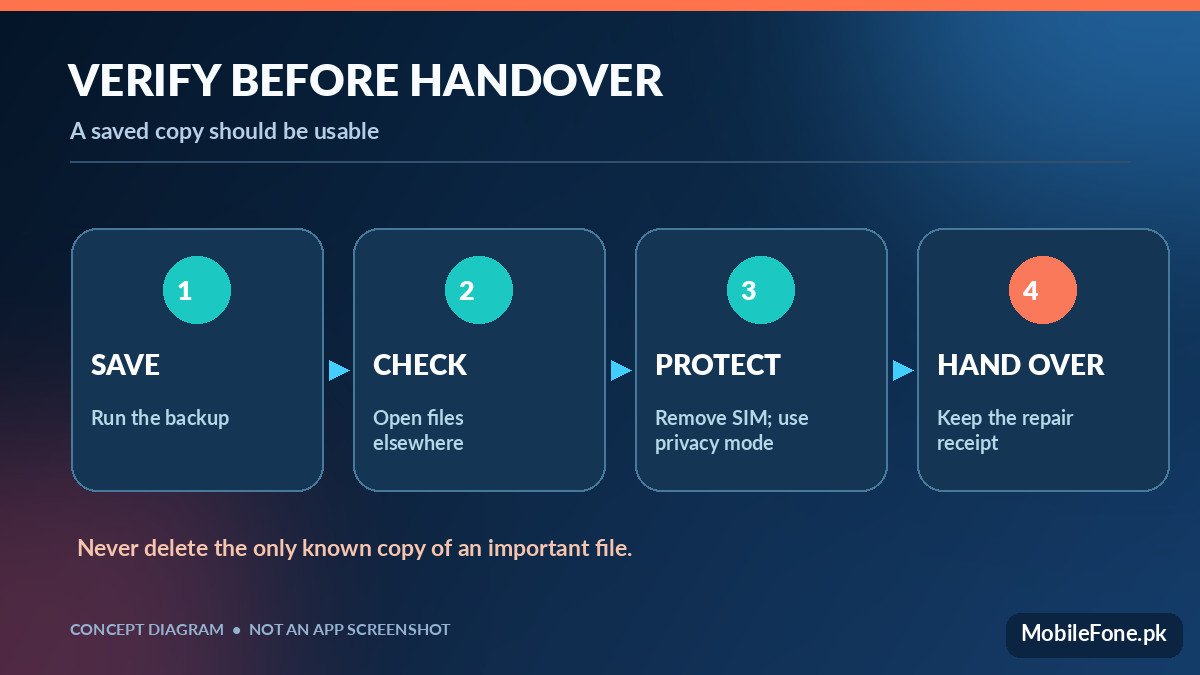
The strongest check is simple: use another signed-in device or a computer to open representative backed-up items. Confirm a recent contact, a long video, a document from Downloads and one app-specific record. If you copied a folder over USB, compare the contents and approximate file count. Do not delete the originals during verification. If you cannot inspect a backup at all, treat its recovery reliability as uncertain.
- Cloud backup: correct account, recent successful timestamp and representative files visible online.
- Computer backup: folder or backup file exists, is readable where supported and has enough storage.
- Recovery access: a second trusted sign-in method works without this phone.
- Physical storage: take out removable SIM and memory cards if the repair process permits.
Protect your privacy during handover
Ask the repair shop whether a privacy mode is available and whether it needs to access your personal information to reproduce the fault. Eligible Google Pixel phones offer Repair Mode, and Google still recommends a backup because some repairs can require a reset. Some Galaxy phones offer Maintenance mode. Neither feature guarantees that data cannot be lost during a parts replacement. Do not share your Google, Apple or banking password or a one-time code with a technician.
Record the repair reference, visible physical condition and any written estimate. Ask whether a reset is required before consenting. A reputable service process should explain what information it needs and what happens to stored data. If you are comparing a replacement handset while a phone is away, MobileFone’s phone directory can help identify models and their recorded storage options; the 256GB storage directory is useful when your backed-up media no longer fits a smaller device. These listings do not replace checking an individual variant.
What if the phone will not unlock?
A completely black screen or dead mainboard can make ordinary backups impossible. Do not trust a shop promising guaranteed recovery without evaluating the damage, and avoid installing unknown recovery software that asks for unnecessary permissions or account credentials. Tell the technician that preserving existing data is a priority and ask whether diagnostics can be performed before any erase or storage replacement. If the data is irreplaceable, consider a reputable specialist and understand that recovery may be impossible.
Before handover: verify at least two independent recovery paths for what matters most, remove removable identifiers when appropriate, and keep a written record of the repair terms. That reduces the consequences of an unexpected reset without pretending any backup method is perfect.

Related reading
 Mobile Problems & FixesAndroid Phone Running Slow: What to Check FirstNovember 14, 2026
 Mobile Problems & FixesPhone Keeps Restarting: Common Causes and Safe FixesNovember 14, 2026
 Mobile Problems & FixesPhone Turns On but Screen Stays BlackNovember 14, 2026
 Mobile Problems & FixesMobile Speaker Not Working During CallsNovember 14, 2026