Why Does a Phone Stop Charging at 80%?

On this page

A phone that stops charging around 80% may be following a selected charge limit, delaying the final charge until later, or protecting itself from excessive temperature. Those are different behaviours. Read the lock-screen message and Battery settings before replacing the charger. If the phone is cool and the displayed limit explains the pause, it may be working as intended. A temperature warning needs cooling, even if you want a full battery immediately.
Read the message before changing the limit
Note whether charging stops at roughly the same level each time and whether the phone shows a planned completion time, a battery-protection message or a temperature alert. A consistent upper plateau deserves a settings check. It is different from a phone that cannot gain charge at a low level or repeatedly connects and disconnects.
| Behaviour | What it means | Next step |
|---|---|---|
| A selected upper limit is shown | Charging is capped to reduce time spent highly charged | Keep it or use the supported setting when you need more runtime |
| A later completion time is shown | Charging may be scheduled around your routine | Check the available temporary completion option |
| A temperature hold is shown | Charging has paused for thermal protection | Let the phone return to a normal temperature |
| Charging continues, but more slowly | The final charging stage may be slower | Check whether it is progressing rather than fully stopped |
The number alone cannot tell these cases apart. Take a screenshot of the message for your own record if needed, but avoid sharing personal account information when asking for help.

Check the controls supported by your phone
On iPhone 15 and later, Apple documents Settings, Battery, Charging and a selectable charge limit. Its charging-options guide describes limits from 80% to 100% in five-percentage-point steps on supported software. With a limit below full, occasional charging to 100% can help maintain the charge estimate; it is not automatically a broken limit.
Earlier iPhones use a different control. For an iPhone 12 Pro Max, look for Optimised Battery Charging under Battery Health & Charging rather than assuming the newer selectable-limit interface exists. Optimisation can delay finishing a charge based on a learned routine.
On supported Galaxy phones, open Settings, Battery, Battery protection. Samsung’s One UI 6.1 explanation describes a Maximum mode that stops at 80%, while earlier supported protection implementations used 85%. Features vary by model. The number and mode should be checked on the phone, not inferred from its brand.
Samsung’s newer Pakistan battery-protection guidance documents selectable Maximum-mode limits on supported One UI 7 software and a sleep-time charging option. On supported Pixel software, Google’s charging optimisation guide distinguishes Adaptive Charging from Limit to 80%. Menu names and availability differ across releases, so search Battery settings if the documented route does not match.
A temperature hold takes priority over a chosen target
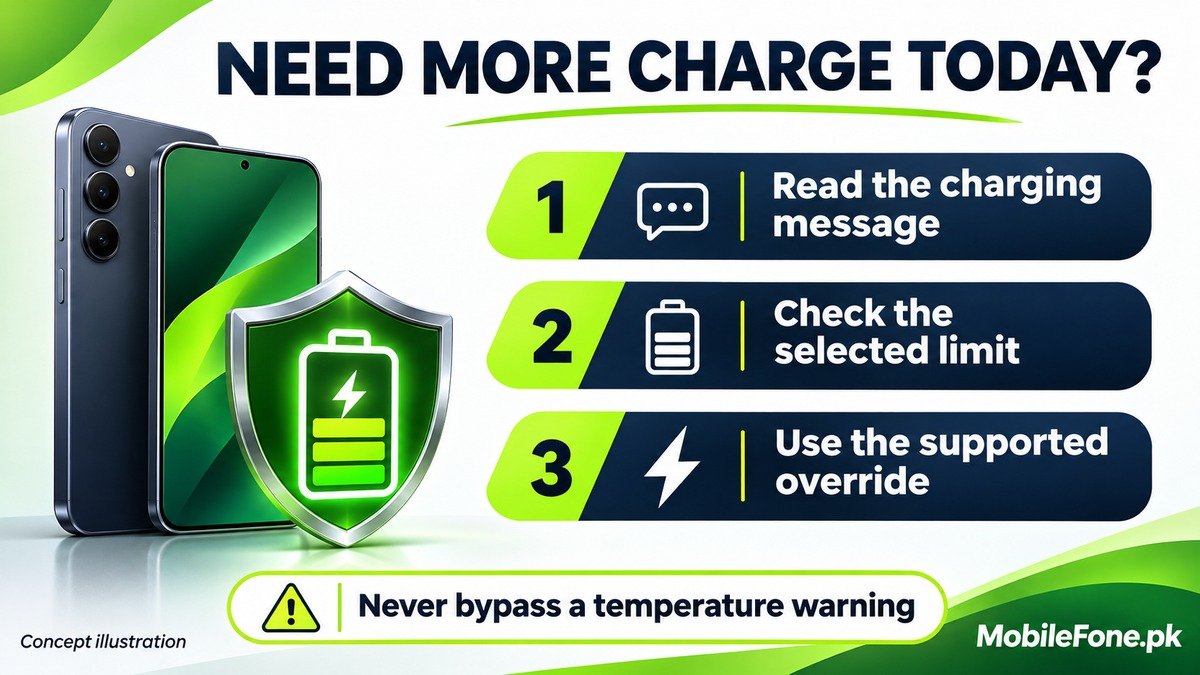
Do not try to bypass a temperature warning to force charging beyond 80%.
Apple documents Charging On Hold when an iPhone or iPad becomes too hot or cold. Move it away from direct sunlight or an extreme environment, stop demanding use and let normal temperature return. The device can resume charging when the condition is suitable again.
The same percentage can therefore have different explanations on different days. Yesterday’s selected cap does not prove today’s pause is also the cap. Read the current message, particularly if the phone feels unusually warm or charging behaviour has changed.
A slower final stage is different again. Apple explains how its lithium-ion charging slows near full. A battery progressing above 80% at a lower rate has not necessarily stopped charging.
Need more charge today? Use the supported control
If you expect a longer day away from a charger, a higher target may be useful. Decide from the message and your actual needs rather than treating every protective feature as a fault.
- Check that the phone is at a normal temperature and that no moisture or accessory warning is present.
- Read the selected limit or scheduled completion setting in Battery settings.
- Use a temporary completion option if your software offers one, or adjust the documented user-selectable limit.
- After the exceptional day, decide whether to restore the lower limit or automatic optimisation.
Do not install an unlocker or enter undocumented service menus to remove a cap. If the option is absent, confirm the exact model and software before following another handset’s instructions. The MobileFone model directory can help distinguish similarly named phones, but only the actual device can show its installed settings.
80% charge is not the same as 80% battery health
The charge level describes the battery’s current reported fullness. Battery-health capacity describes how much charge it can hold compared with its original capacity. These answer different questions. A healthy battery can intentionally stop at an 80% charge limit, and an aged battery can still display 100% charge.
Apple explains maximum capacity in its battery and performance guidance. Do not use an upper charging cap as a reason to diagnose wear or replace the battery.
- A predictable cap with a matching setting usually calls for a preference decision.
- A scheduled finish calls for checking the schedule or supported temporary override.
- A thermal alert calls for cooling before further charging.
- An unexplained plateau, damaged connection or recurring abnormal heat calls for model-specific support.
If the phone stays below its chosen target while cool and idle with suitable accessories, record the target, message, battery level and software version for support. A factory reset is not the first response to a documented charging limit.

Related reading
 Battery & ChargingWhy Does My Phone Battery Drain Overnight?November 14, 2026
 Battery & ChargingFast Charging Not Working on AndroidNovember 14, 2026
 Battery & ChargingPhone Charging but Battery Percentage Not IncreasingNovember 14, 2026
 Battery & ChargingPhone Gets Hot While Using Mobile DataNovember 14, 2026