How to Check Battery Usage by App on Android

On this page
To check battery usage by app on Android, open Settings and look for Battery, then Battery usage or View details. The names vary by manufacturer and software version. Select the relevant reporting period, open an app’s entry and compare its activity with what you actually did. The highest-ranked app is not automatically faulty: a navigation or video app can reasonably use more power when you use it for longer.
Find the battery report on your version of Android
Begin with the handset’s own Settings rather than downloading a cleaner or granting a third-party app broad access. If the route below does not match, search Settings for Battery usage. Check the model and installed software before assuming a feature is missing.
| Phone software | Starting route | What to open next |
|---|---|---|
| Supported Pixel software | Settings, Battery, Battery usage | View by apps, then the app name |
| Supported Samsung Galaxy software | Settings, Battery | View details for app activity and screen-on/off information |
| Some Xiaomi software versions | Battery settings, Battery saver page | The usage chart and the detailed entries below it |
| A different Android interface | Search Settings for Battery usage | Read the available app and system views |
These routes come from Google’s Pixel battery-level guidance, Samsung’s Galaxy battery guide and Xiaomi’s power-consumption instructions. They describe supported interfaces, not one universal Android screen.
If you have a Galaxy A04, confirm the installed One UI version rather than expecting the latest flagship’s layout. The same applies to a Redmi 13C running a different release from another Redmi. A product listing helps identify the handset; Settings identifies the software you are actually using.
Choose the period before blaming an app
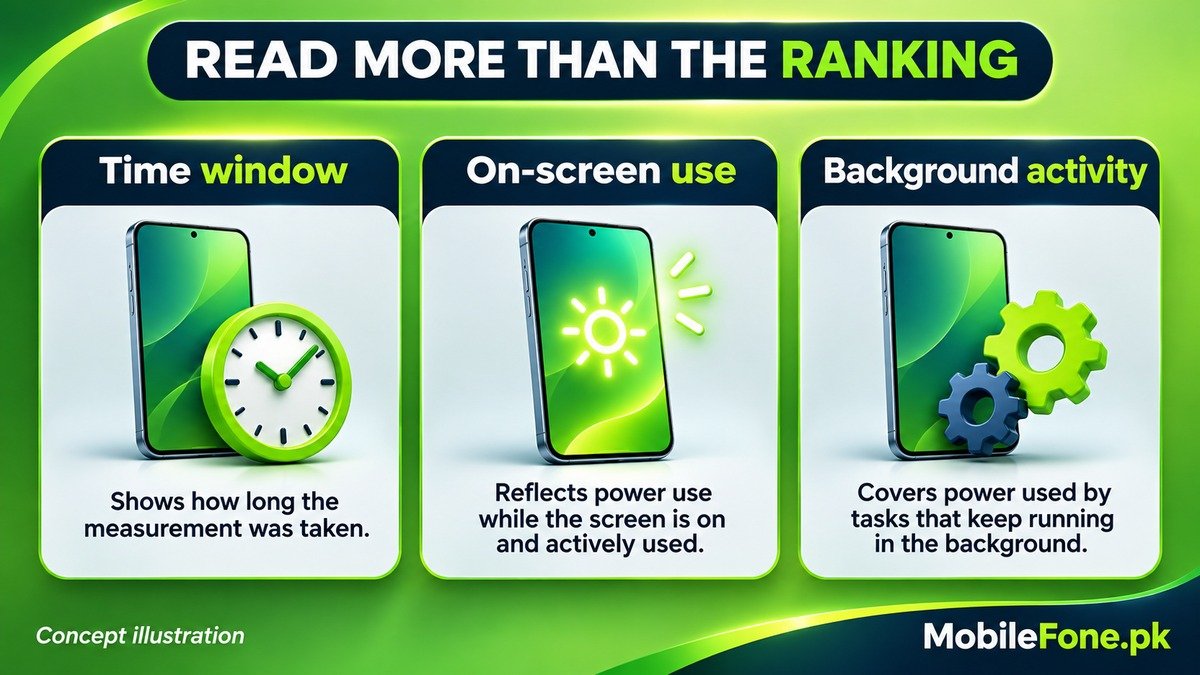
The report may cover a selected day, a period since a charge, or another interval defined by the phone. Read that label first. Google’s documented Pixel chart shows battery level since the last full charge; other brands and versions can present different periods. A record covering a long video session will look different from an idle night.
- Note the report’s start and end period or the interval described by its label.
- Look for the battery drop or time you want to investigate.
- Switch to the app view if the phone offers separate app and system lists.
- Open a relevant app and read any foreground, background or activity-duration information available.
- Record what the app was doing before you change its settings.
A percentage in an app breakdown should be interpreted using the report’s own description. Do not automatically read it as the number of percentage points removed from a full battery. Rounding can also stop displayed entries adding neatly to 100%, as Google notes. The ranking is a starting clue, not a calibrated measurement of battery capacity or an app’s efficiency.
Match the activity to something the app actually did
Long use on screen can explain a high ranking. Background use needs context too: music, route guidance, file uploads and photo backups may continue when the display is off. Ask whether the work was expected, not just whether the app appears near the top.
- Expected foreground use: compare the entry with time spent watching, calling, navigating or playing.
- Expected background work: check an active upload, download, backup or audio session.
- Unexpected background work: review the app’s own sync, notification and download settings.
- A system entry: investigate its function rather than assuming it is an unwanted installed app.
Google’s battery troubleshooting distinguishes app and system views. Screen or mobile-network activity may point toward display use or reception rather than one downloaded app. Restricting a messaging app will not necessarily address a poor-signal problem.
Choose one targeted action and preserve essential alerts
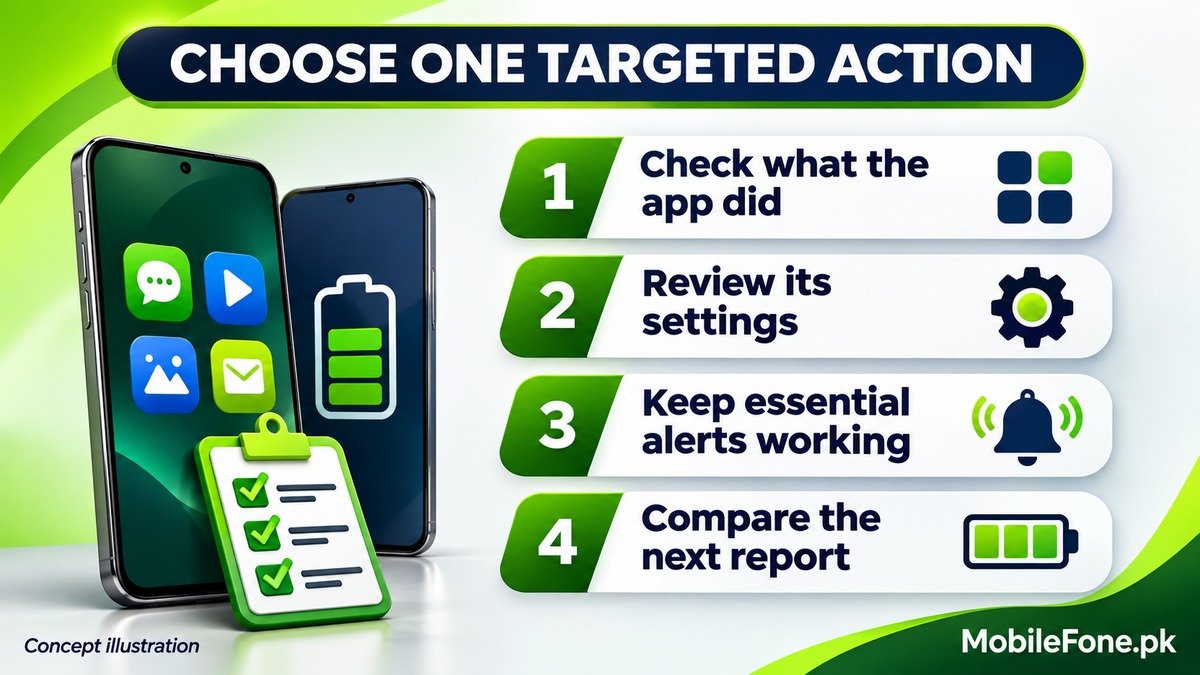
For an app doing unwanted work, check for an official update and review its own controls first. Stop an unnecessary task, adjust the relevant setting and compare another report under similar use. Changing several restrictions at once makes it harder to identify what helped.
On supported Pixel software, Google recommends keeping app battery usage optimised. Its optimisation guidance cautions that power-saving behaviour can delay notifications. Samsung also offers model-dependent background usage limits. Inspect the effect on an app you rely on before using a strong sleep restriction.
Do not disable essential services simply because they appear in the report. Google’s battery-drain guide warns that force-stopping essential apps or services can prevent normal operation. Uninstalling an app or clearing its storage can also remove local information, so verify important data before taking that step.
Confirm improvement in the next comparable report
Write down the app, reporting interval, observed activity and the single change you made. Check the next comparable period and whether important functions still work. A lower app ranking alone is not enough if you also used the phone much less or missed required messages.
If the battery still falls quickly while app activity appears modest, broaden the investigation to reception, temperature, recent updates and battery condition. Share the model, software version and relevant report with support after removing personal details. The useful result is an explained pattern and a tested next step, not a list of apps disabled without evidence.

Related reading
 Battery & ChargingWhy Does My Phone Battery Drain Overnight?November 14, 2026
 Battery & ChargingFast Charging Not Working on AndroidNovember 14, 2026
 Battery & ChargingPhone Charging but Battery Percentage Not IncreasingNovember 14, 2026
 Battery & ChargingPhone Gets Hot While Using Mobile DataNovember 14, 2026