Phone Gets Hot While Using Mobile Data

On this page
A phone can get warm on mobile data because the radio, processor and screen are working together, especially during video, downloads or hotspot use. Weak reception and a hot environment can add to the load. If it becomes uncomfortable to hold or displays a temperature warning, stop the demanding task, disconnect charging and let it cool in a shaded, ventilated place. Then investigate the conditions instead of assuming the battery or network modem is faulty.
Cool the phone before changing settings
A temperature warning or uncomfortable heat is a reason to pause, not to push through another test.
Google lists hotspot use, large transfers and resource-intensive tasks among reasons a Pixel may feel warm. Its heat-management guidance recommends reducing demanding activity, avoiding direct sun and using Wi-Fi when possible. Those are useful starting checks, but they do not mean every warm phone has the same cause.
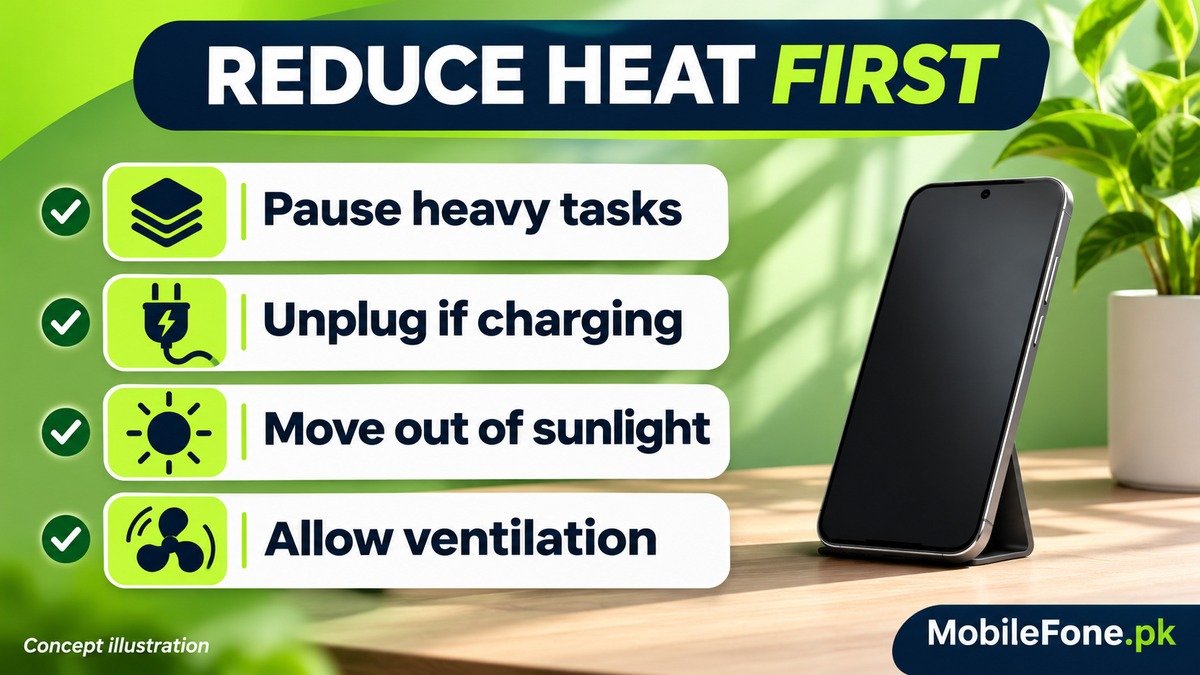
- Pause streaming, gaming, video calls, large uploads or the hotspot when they are no longer needed.
- If the phone is charging, unplug it and allow it to cool before charging again.
- Move it away from direct sunlight, a hot vehicle or an enclosed space. Put it somewhere uncovered with room for air to circulate.
- Follow any on-screen cooling instruction and wait before resuming normal use. Do not immediately repeat the task that produced a warning.
Samsung’s operating-temperature guidance also advises stopping use and disconnecting the charger when a device feels too warm. If it remains too hot to touch, contact support. Cooling should be a break from use, not a reason to install an app that promises to override protection.
Separate mobile reception from the activity using it
Turning on mobile data is not the same workload as uploading a video, navigating with a bright screen or sharing internet with another device. If heat appears only during one of those tasks, note the task first. The network connection, display and app activity are changing together, so the timing alone cannot identify which part contributed most.
Xiaomi’s heating-scenarios guidance describes downloads, setup work, changing signal conditions and outdoor brightness as factors that can increase power use and warmth. Its older location-specific network discussion should not be treated as a current coverage map for Pakistan or a universal menu path.
A 4G handset can also warm up during a demanding mobile-data session. For example, the Redmi 13C model page helps distinguish that phone from similarly named devices; a heat complaint does not establish that it is using 5G. Confirm the actual connection and model before following network-specific instructions.
Use the pattern to choose the next check
| When it happens | What to investigate | A useful comparison |
|---|---|---|
| During hotspot use | Connected devices and ongoing transfers | Stop tethering when finished and check whether heat settles |
| During video or a game | App workload, screen brightness and network use | Pause the task before changing network mode |
| Mainly in poor reception | Coverage at that location | Try a location with more reliable signal after cooling |
| While charging and using data | Combined charging and usage load | Use the phone unplugged after it has cooled |
| While apparently idle | Background activity, updates or a persistent fault | Review the battery record and recurring warnings |
These routes narrow the investigation; they do not diagnose a defective component. A phone can have poor reception and a demanding app running at the same time. Start with the condition you can change safely and observe what happens.

Compare Wi-Fi and mobile data without recreating overheating
Once the phone has cooled, repeat a normal, short activity in a moderate environment. Keep screen brightness, the app and the type of content similar. Compare a reliable Wi-Fi connection with mobile data only if both are available. Stop if discomfort or a warning returns; do not keep the phone hot to produce a longer measurement.
- Compare the same task, not a low-quality video on one connection and a higher-quality stream on the other.
- Keep charging out of the comparison so it does not add another changing condition.
- Record the location, signal indication, hotspot status and what the app was doing.
- Change one factor before deciding whether a setting helped.
If the phone stays cooler on Wi-Fi, that suggests the connection conditions or associated activity deserve attention. It does not prove the cellular hardware is damaged. Apple identifies low signal as a battery-use factor in its battery guidance; a battery record can therefore be more informative than a single signal-bar observation.
Read network controls as model-specific options
Supported phones may offer automatic network selection, a 5G-saving option or an LTE preference. Availability depends on the phone, software, SIM and carrier. Do not assume every Android has the same switch, and do not disable a line you rely on for calls without considering the effect.
On a supported iPhone 12 Pro Max, Apple explains that 5G Auto can switch to LTE when 5G does not provide a noticeable benefit. That is an optional network-management tool, not a treatment for a phone that is already overheating. Check the actual installed software and carrier options before changing it.
Review app and system updates through official channels too. If an app shows unexpected background transfers, inspect its own download or backup settings rather than restricting essential system services indiscriminately.
Know when a recurring heat problem needs support
Thermal protection can reduce performance, pause charging or disconnect wireless connections. Samsung describes these behaviours in its cooling-warning guidance. A temporary data interruption during a warning may therefore be a protective response, not a separate carrier fault.
If heat returns during light use in a moderate environment, or warnings and shutdowns recur, stop experimenting and contact the manufacturer. Give support the model, software version, task, signal conditions and whether charging or hotspot use was involved. Include the wording of any warning. Swelling, damage or persistent excessive heat needs qualified inspection; a cooling app or factory reset cannot establish that the hardware is safe.

Related reading
 Battery & ChargingWhy Does My Phone Battery Drain Overnight?November 14, 2026
 Battery & ChargingFast Charging Not Working on AndroidNovember 14, 2026
 Battery & ChargingPhone Charging but Battery Percentage Not IncreasingNovember 14, 2026
 Battery & ChargingWhy Does a Phone Stop Charging at 80%?November 14, 2026