Mobile Internet Connected but Not Working

On this page

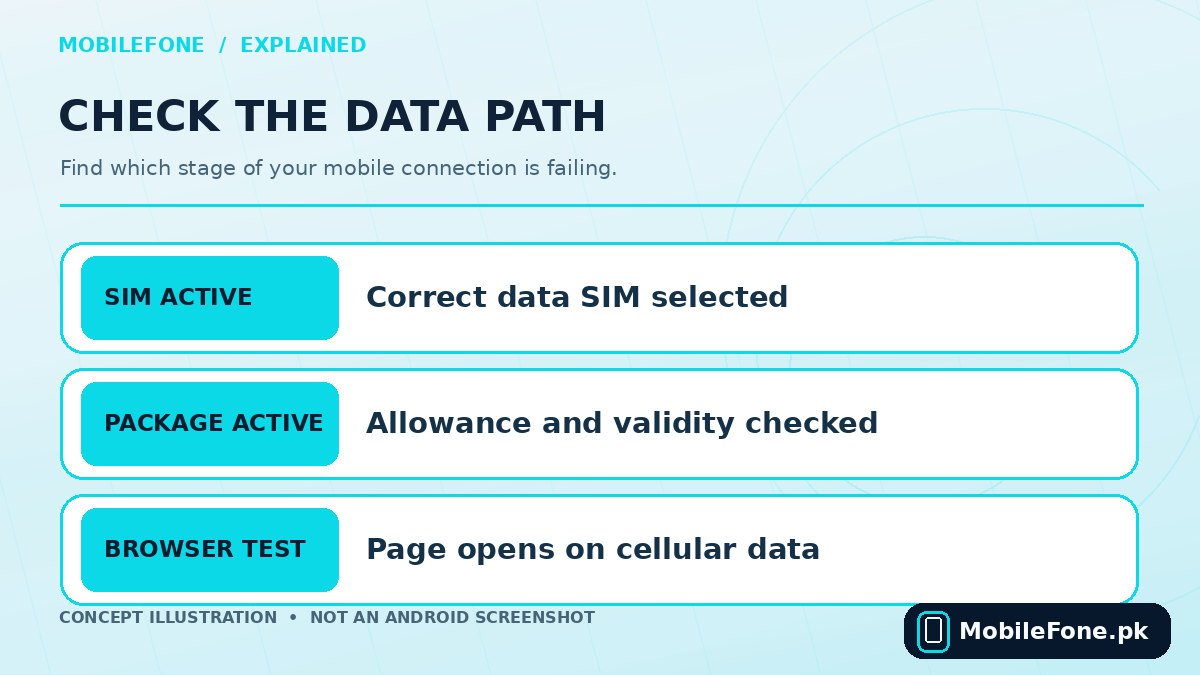
A 4G or 5G icon does not prove your phone can reach the internet. It can show that the handset is attached to a mobile network even while a data plan is exhausted, the wrong SIM is selected, or an access point setting is incorrect. If mobile internet appears connected but websites will not open, first switch off Wi-Fi and test one fresh page over cellular data. Then verify the preferred data SIM and active allowance before changing the APN or resetting anything.
Read the symptom before changing settings
“Connected” is a vague word. Some phones display a full signal icon while the network does not grant usable data access. Others browse in one app but not another because of app restrictions, a private DNS configuration or a VPN. First ask whether calls and SMS still work, whether every app fails, and whether the problem affects only one of your two SIMs. These observations narrow the fault considerably.
| Symptom | What it suggests | First safe check |
|---|---|---|
| 4G icon, no websites | Data provisioning, package, APN or routing | Balance, plan and correct data SIM |
| One app fails | App restriction or server problem | Try a browser and a different app |
| Data fails during calls | VoLTE or dual-SIM call behaviour | Test after ending the call |
| Works on SIM 1 only | SIM 2 plan, APN or network service | Select SIM 2 deliberately |
| Works in another phone | Original handset configuration | Review network settings on that phone |
Google’s Pixel mobile-connectivity guide recommends verifying Mobile data and Use SIM before trying more disruptive actions. Samsung and Xiaomi use different menus, but the underlying questions are the same. Do not start by clearing all phone data.
Run a five-minute connectivity check
- Disable Wi-Fi temporarily. Open a new browser tab with an ordinary website that is not already cached; do not rely on a homepage previously loaded on Wi-Fi.
- Turn airplane mode on, then off, and allow the phone to reconnect. If that changes nothing, restart normally.
- Verify the correct SIM handles mobile data, especially if one number has the package and another handles calls.
- Use the official Jazz, Zong, Ufone or other operator app or support channel to check whether your bundle is active and has usable data remaining.
- Try another browser or a small app request. If one application is broken while others work, investigate that application rather than the SIM.
When diagnosing a dual-SIM phone, a data icon beside SIM 2 may still reflect the wrong selection after you recently swapped preferences. Reopen the SIM manager instead of assuming the last choice was saved. Google’s documented defaults show how one primary SIM is chosen for data on Pixel, although other Android skins present this differently.
Check APN settings only after confirming the data plan
An Access Point Name tells Android how to connect to a mobile operator’s packet-data service. An incorrect or stale APN may leave signal and voice service intact while data fails. But manually editing APNs should not be the first step: many operators provision them automatically, and one wrong field can stop a working connection.
Go to your SIM’s mobile-network settings and find Access Point Names or APN. First use Reset to default if the option exists and the provider has supplied settings. If you must enter information manually, copy the operator’s current official instructions rather than an unofficial list. Jazz and Zong publish different access point values, and Jazz distinguishes prepaid from postpaid service. Keep unrelated fields at their default values unless your operator specifies them.
Do not copy a proxy, username, password or MMS configuration from a random website. Such fields are not interchangeable between networks. If a phone was imported or a SIM has been transferred, the operator may need to reprovision service regardless of how carefully you type the APN.
VPN, private DNS and restricted app data
If the bundle and APN look correct, temporarily disconnect a VPN or turn off an experimental private DNS setting, provided you can do so safely. A VPN profile or DNS hostname that cannot resolve may block websites while the status bar still shows an active 4G connection. If the problem started immediately after installing a VPN or traffic filtering app, the timing is a useful clue. You can re-enable security tools once the test ends.
Also inspect per-app mobile data restrictions or Data Saver settings when only one app cannot connect. Some background restrictions affect notifications rather than ordinary foreground browsing, so test the app while it is open. For phones with aggressive battery saving modes, distinguish a sleeping app from a total data outage. A clean browser test is more useful than repeatedly toggling every setting on the phone.
When to reset network settings and what you might lose
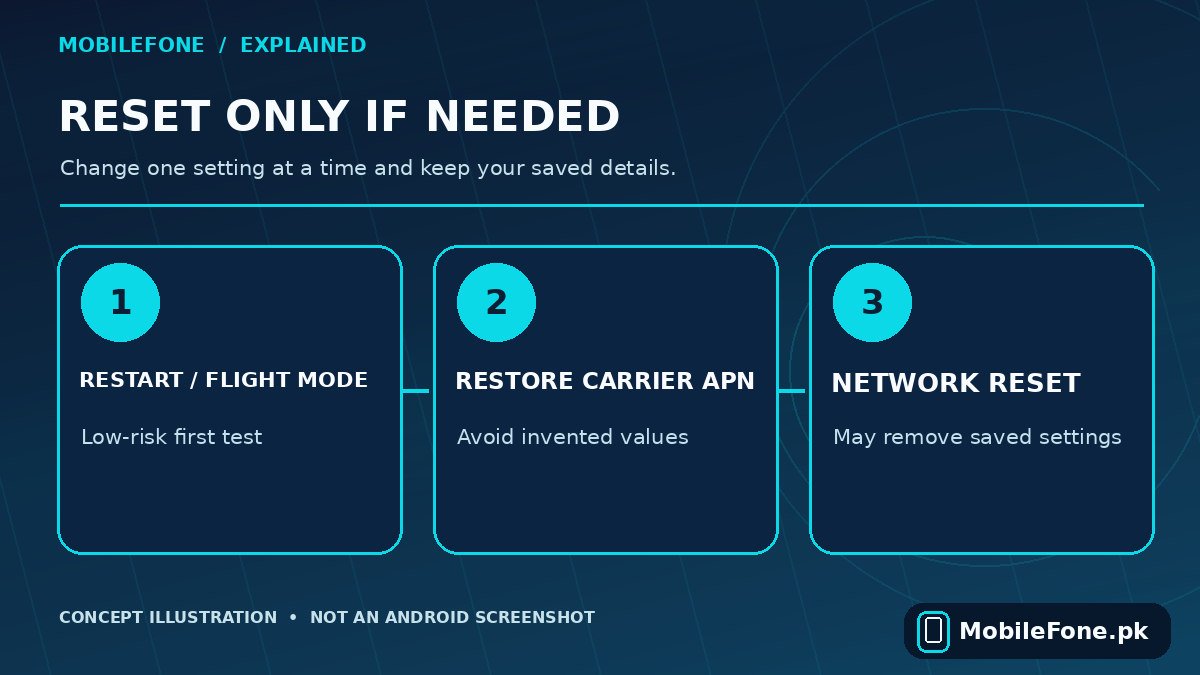
A network reset is a later troubleshooting step, not a magic fix. The exact reset menu and affected items vary by Android version and brand. Google documents options to reset mobile network settings and separately reset Bluetooth and Wi-Fi settings; the latter can remove remembered Wi-Fi connections. Record Wi-Fi credentials and any custom APN details before using these controls. Read the phone’s confirmation screen carefully instead of assuming all reset options do the same thing.
- Safe first: check Wi-Fi state, data-SIM selection, plan validity and airplane mode.
- Next: restore official carrier APN settings and test with VPN disconnected.
- Later: reset only the relevant network configuration after recording settings and reviewing the device warning.
- Carrier escalation: report persistent problems with exact SIM, location and test results.
What if the SIM works in another phone?
If another compatible, registered handset gets usable data from the same SIM in the same location, the first phone’s configuration or hardware becomes a stronger suspect. Compare exact supported LTE bands and check whether that handset is allowed to use local mobile service. A general product listing alone does not establish individual PTA compliance. You can start with MobileFone’s device specifications, but verify the regional variant with its manufacturer and the network provider.
Conversely, if the same SIM fails in two phones while another network works, contact the operator about provisioning, package status or an outage. Compare tests made at the same place and time. This simple cross-test is more revealing than resetting five settings at once.

Related reading
 Mobile Internet & SIMDual-SIM Settings Explained for Android UsersNovember 14, 2026
 Mobile Internet & SIMWhy Can’t My Phone Receive Verification SMS?November 14, 2026
 Mobile Internet & SIMJazz APN Settings for Android: How to ConfigureNovember 14, 2026
 Mobile Internet & SIMPhone Says Emergency Calls Only: What to CheckNovember 14, 2026