Mobile Data Works on One SIM but Not Another

On this page
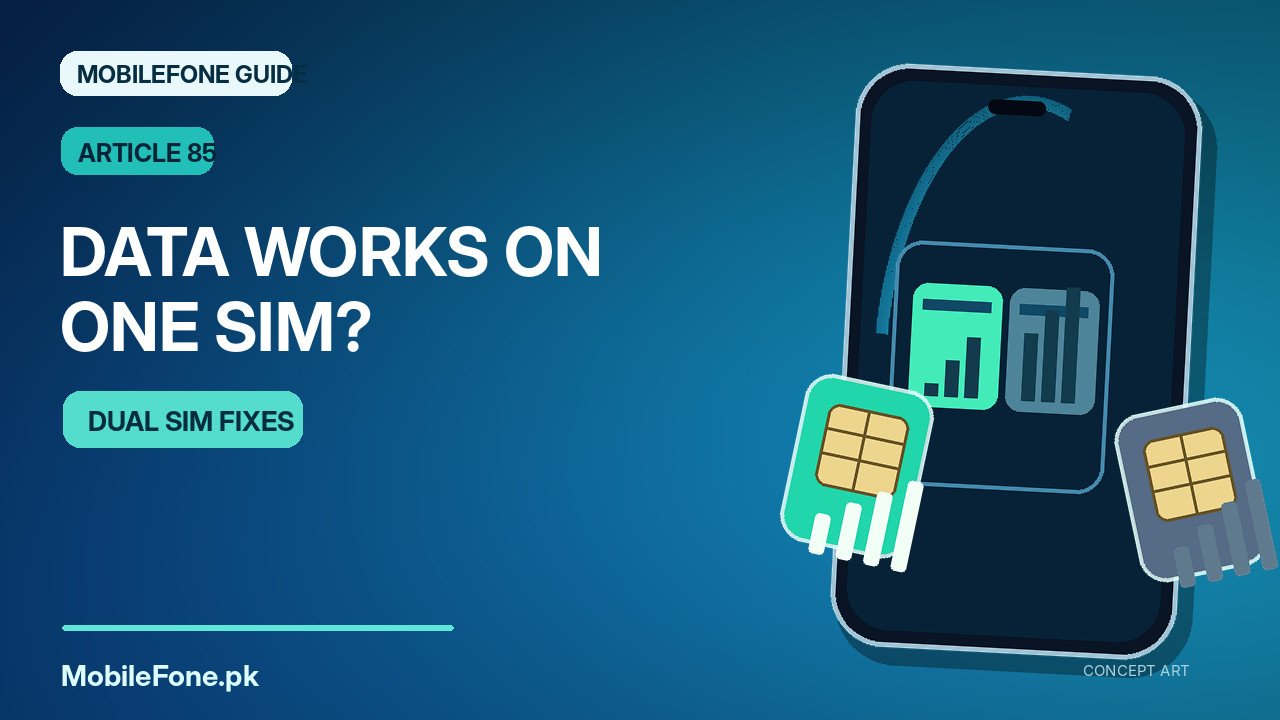
If mobile internet works on one SIM but not the other, first check which SIM is selected for mobile data. On many dual-SIM Android phones, one line is the primary data connection even though both can receive calls or messages. If the correct line is selected, the next checks are an active data plan, SIM enablement, signal, roaming rules and APN settings. You usually do not need to remove both SIM cards, factory-reset the phone or change an IMEI to solve this problem.
Find which SIM is actually providing internet
Open the phone’s SIM or mobile network settings and look for the option labelled Mobile data, Data SIM, Preferred SIM for data or similar. On Google Pixel devices running supported Android versions, Google’s dual-SIM guide documents Settings > Network & internet > SIMs and selecting the SIM for mobile data. It explains that one SIM is the default for data, with some special behaviours during calls or automatic switching on supported models.
On Samsung Galaxy, the option is often inside Settings > Connections > SIM manager. Xiaomi/Redmi, OPPO, Vivo and Infinix organise these screens differently. Do not hunt for an identical label on every phone; use the Settings search feature if necessary, and confirm which operator name appears next to the selected data line.
- Switch off Wi-Fi temporarily so it cannot hide a mobile-data failure.
- Open the SIM manager and check that both relevant lines are enabled.
- Select the affected SIM as the default for mobile data; note the prior selection.
- Confirm that mobile data itself is turned on, then try to load a small ordinary webpage.
- Switch back to the known-working SIM as a control test if internet still fails.
Changing the data default is reversible. Avoid making several changes at once; if you switch SIM, change APN and reset network settings together, you cannot tell which action helped.

Check the affected SIM’s plan and signal separately
Two active SIM cards can have very different balances, packages, account restrictions and coverage. Calls or text messages working on the affected line do not prove that a mobile-data bundle is active. Verify balance or plan status using your operator’s official app, website or help channel. If your affected line is Jazz, the Jazz package-checking guide describes general ways to inspect subscriptions, although codes and offers can change, so confirm current details directly with Jazz.
Look at signal quality with Wi-Fi off. A line showing little or no coverage may struggle with data even though the other SIM has full bars, because the two operators may use different towers or frequencies. Try the same line outside or in a location where it normally works. A roaming SIM may require the operator’s roaming settings and a suitable plan, but enabling roaming can incur charges. Do not turn it on casually while travelling.
| Symptom | Most useful check | Interpretation |
|---|---|---|
| The wrong SIM is selected for data | Choose the affected line as primary data SIM | If it works, the issue was the selected data line |
| Calls work on both lines; one has no internet | Check that line’s package, balance and data permission | Voice service alone does not prove data provisioning |
| One line has weak signal only at home | Try a different location or check carrier coverage | Operators may have different local coverage |
| Data fails on the SIM in another phone too | Ask the carrier about service activation and APN | The problem may follow the account or SIM |
| Data works until a call starts | Check dual-SIM calling/data behaviour for that model | Some devices switch or pause data under certain call conditions |
When the APN matters, and when it does not
An access point name, or APN, tells the phone how to connect to the operator’s packet-data service. A wrong or missing APN can affect mobile internet even with ordinary voice service present. On Samsung phones, the usual path is Settings > Connections > Mobile networks > Access Point Names; the menu may offer Reset to default. Samsung Pakistan’s network troubleshooting page documents this approach. If automatic settings fail, get the correct APN from your own carrier rather than copying a random configuration shared online.
Do not change APN values because another SIM on a different operator happens to work. Operators can use different configurations, and some plans or eSIM profiles provision them automatically. Write down the original setting before making an operator-approved change. APN problems are usually relevant to data, MMS or some provisioning features; they are not a fix for a line that is entirely undetected.
Run a clean swap test if settings look right
If the affected SIM still has no data, try it alone in the same phone if safe and supported, then in another compatible handset. Keep the plan active and test at a similar location. If internet fails on the affected SIM in both phones, speak with that operator about activation, package or account restrictions. If it works in the second phone, examine the original device’s network mode, SIM slot, software and radio compatibility.
Dual-SIM behaviour is model dependent. On some devices, data can pause during a call on another line; other phones support data switching or special call arrangements. Check the manufacturer documentation rather than assuming both SIMs have identical features. Google’s dual-SIM documentation includes examples of these differences, but its Pixel-specific menus should not be copied literally to every brand.

What if neither default SIM selection nor APN fixes it?
First confirm that the affected line is permitted to use data by the carrier and that any plan limit has not been exhausted. Ask whether there is a local outage or provisioning restriction. If you rely on a used or imported phone, consider whether the exact regional model and selected operator support the network bands you need. Browse current mobile models for general comparison, but check the manufacturer’s exact model code and network specification before concluding a phone is incompatible.
PTA IMEI status is a separate regulatory question. If an imported handset has unresolved device status, check official DIRBS channels instead of treating a working SIM in the other slot as proof that all identifiers are compliant. A model page on MobileFone does not independently certify an individual phone; our editorial policy explains this distinction.
Avoid unnecessary resets and choose the next useful action
After checking the correct SIM selection, active plan, coverage and operator-approved APN, a mobile-network settings reset may be reasonable. Read its description first: different manufacturers offer cellular-only and broader Wi-Fi/Bluetooth reset options, and you may need to re-enter certain settings. Do not choose a factory reset for a simple one-line data problem. Back up important information before any data-erasing procedure, and do not delete an eSIM profile without reactivation details.
For a reliable diagnosis, write down which SIM was selected, whether calls and data worked on each, whether the issue follows the SIM to another device, and which location you tested. That evidence gives your operator a clear starting point and helps you avoid paying for the wrong repair.

Related reading
 Mobile Internet & SIMDual-SIM Settings Explained for Android UsersNovember 14, 2026
 Mobile Internet & SIMWhy Can’t My Phone Receive Verification SMS?November 14, 2026
 Mobile Internet & SIMMobile Internet Connected but Not WorkingNovember 14, 2026
 Mobile Internet & SIMJazz APN Settings for Android: How to ConfigureNovember 14, 2026