Phone Charging but Battery Percentage Not Increasing

On this page
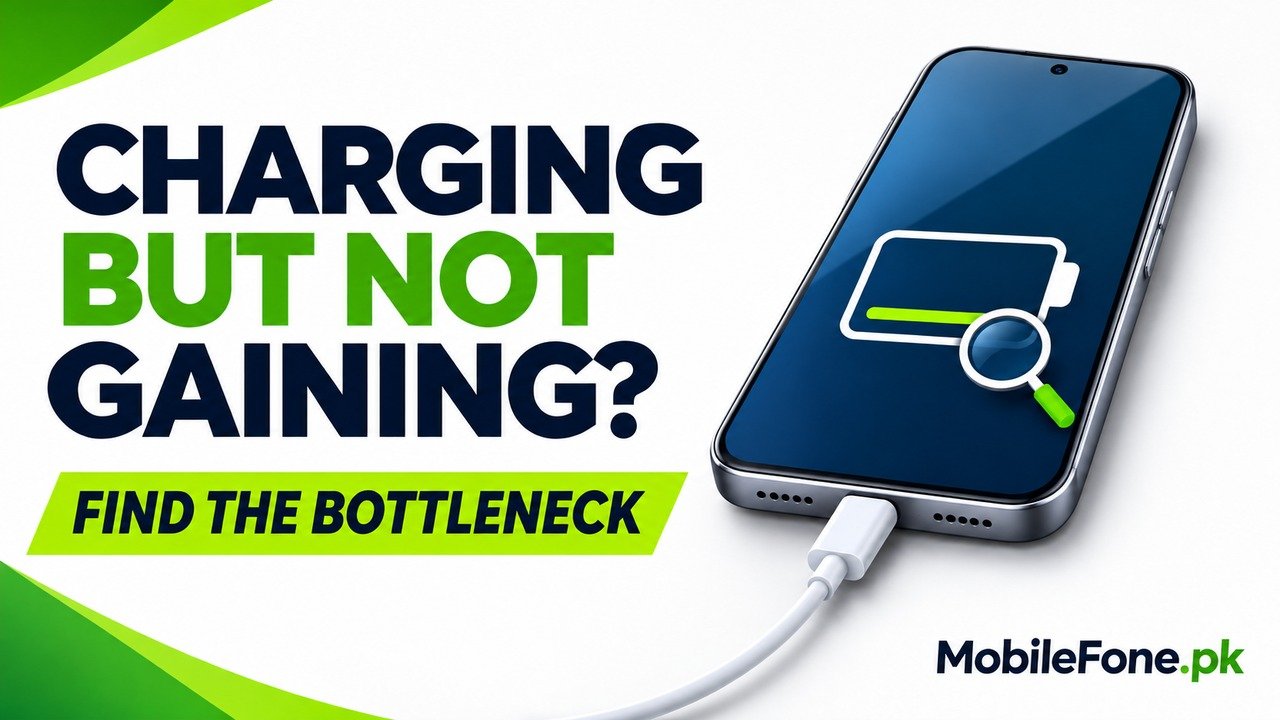
A charging symbol means the phone recognises a power connection; it does not guarantee that the battery percentage will rise immediately. The phone may be using much of the available power, charging may be paused by temperature or a configured limit, or the cable and adapter may not be supplying power properly. Start with a safe screen-off comparison using compatible accessories. Check any charging message before assuming the battery needs replacement.
Start with a safe screen-off comparison
First inspect the phone and accessories. Stop using a damaged adapter or frayed cable. If the phone is swollen, leaking, unusually hot or physically damaged, arrange qualified support instead of experimenting with repeated charging. Do not press a lifting screen or cover back into place.
If everything looks normal, note the battery level and use the following comparison. This is an observation method, not a timed promise that every phone must gain a particular percentage.
- Connect the phone to a secure wall socket with a known-good charger and cable compatible with that model.
- Check the lock screen or Battery settings for a temperature, moisture, charge-limit or accessory warning.
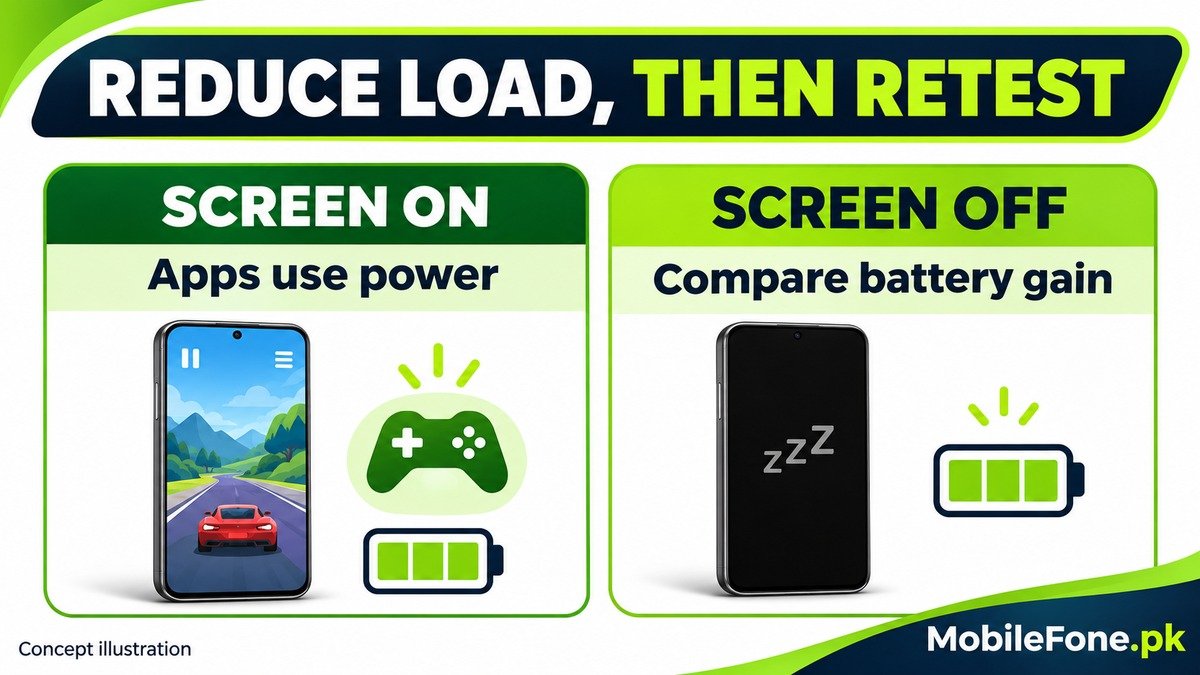
- Stop games, recording, navigation or hotspot activity if you do not need them. Lock the screen and leave the phone uncovered in a moderate indoor environment.
- Allow a reasonable observation period, then compare the percentage and charging message. If you repeat the check, use similar conditions and record the elapsed time.
Google’s Pixel charging guidance recommends a compatible wall adapter and limiting phone use for faster charging. Apple’s charging-speed explanation likewise identifies demanding apps and screen use as reasons for slower charging. These support a screen-off comparison; they do not establish one universal waiting time.
Understand the difference between power connected and battery gain
The phone uses power while plugged in. A weak supply and heavy use can leave little available to increase stored charge. If the level rises with the screen off but stays flat during a game, reducing that workload is more informative than repeatedly restarting the phone or installing a battery-repair app.
Samsung’s battery-protection explanation also describes circumstances where the phone runs on charger power at a selected limit. A stable percentage at that point can be intended behaviour. The pattern matters: staying near a chosen upper limit is different from remaining at a low level despite a suitable supply and a cool, idle phone.
| Pattern | Possible explanation | Next action |
|---|---|---|
| Rises with the screen off | Active use was reducing available battery gain | Reduce workload and check accessory compatibility |
| Stops near the same upper level | A charge limit or optimised schedule may apply | Read the configured battery setting |
| Shows charging on hold | Temperature protection may have paused charging | Let the phone return to a normal temperature |
| Connects and disconnects repeatedly | A cable, adapter or port connection may be unreliable | Test compatible accessories separately |
| Stays low while cool and idle | Supply or device trouble remains possible | Try a verified accessory pair, then seek service |
The table is a routing aid. A symptom can fit more than one cause, so it should not be used to pronounce a charging port or battery faulty without further checks.
Check for a charging limit or temperature hold
On supported Galaxy phones, open Settings, Battery, Battery protection and read the selected mode. Samsung documents adjustable Maximum-mode limits on supported One UI 7 devices. Earlier versions can behave differently. Its charging-limit guidance explains why an upper-level pause need not mean charging has failed. Keep protection enabled if its current limit suits your needs.
On supported Pixel software, Charging optimisation can offer Adaptive Charging or a limit to 80%. Google’s charging optimisation guide explains the settings; availability and menu labels depend on the model and software. Do not assume a limit is present simply because the level has stopped increasing.
On iPhone, read the actual charging message. Apple says Charging On Hold can appear when the device is too hot or cold. Move it away from direct sunlight or an extreme environment, lock the screen and allow normal temperature to return. Do not try to override thermal protection.
A model listing cannot reveal these current settings. For example, an iPhone 12 Pro Max and later iPhones do not necessarily offer the same battery controls. Use instructions for the actual handset and its installed software.

Test the cable, charger and power source separately
Try another suitable wall outlet, then a known-good compatible cable, then a compatible adapter. Change one item per attempt. Connecting through a computer, hub or shared multiport adapter can give a different result from using the intended wall charger. Check that adapter’s output information rather than relying only on its total advertised wattage.
Check the exact phone before assuming any accessory with the same connector is equivalent. The Redmi 13C model page can help distinguish it from similarly named Redmis; confirm charging requirements in the manufacturer’s documentation. Xiaomi’s charging guidance notes that incompatible charging protocols and poor contact can reduce performance.
With the charger disconnected, inspect the port in good light. Samsung’s wired-charging checks cover damaged accessories, port debris and moisture warnings. Do not insert sharp metal tools, apply cleaning liquid or keep charging a wet connector. Seek help if the port is blocked, corroded or loose.
Restart once, then judge the result
If there is no physical hazard or active update installation, restart normally and repeat the same charging check. A changed number after restarting is not proof that the battery has recovered its capacity. Watch whether it continues to rise and whether the problem returns.
A battery percentage is a reported estimate, not a repair diagnosis. Avoid repeated deep discharges, secret dialler codes or untrusted calibration apps as a generic cure. If the phone still shows no meaningful gain with suitable accessories while cool and idle, a technician needs to assess it. No setting can reliably distinguish a failed battery, port or internal charging circuit from this symptom alone.
- Record the model, software version, starting level and elapsed charging time.
- List the adapter and cable combinations you tested, including which were confirmed compatible.
- Include any temperature, moisture or charging-limit message and whether the screen-off check helped.
Back up important data while the phone is usable and ask whether the proposed service preserves it. A factory reset is a poor first experiment when the power supply or connector has not yet been ruled out.