How to Use Two-Factor Authentication on Mobile Accounts

On this page
- Understand the extra check before choosing a method
- Turn on two-step verification for your Google Account
- Set up two-factor authentication for an Apple Account
- Protect your recovery options before a phone is lost
- What to do when verification requests look suspicious
- Finish setup with a small recovery rehearsal

Two-factor authentication (2FA) adds a second check when someone tries to sign in to an account with a password. On your phone, start with the account you cannot afford to lose: primary email, Apple Account or Google Account, then financial and messaging services. Enable the provider’s official 2-step verification setting, choose a trusted method and set up recovery before you need it. A stronger second factor helps when a password is exposed, but it does not make phishing or account recovery problems disappear.
Understand the extra check before choosing a method
A password is something you know. A hardware security key, authenticator-generated code, or approval on a trusted device can provide an additional sign-in step. Some services also support passkeys, which rely on a device-held credential and local unlocking rather than the traditional password-plus-code flow. The terms differ by provider and so do the screens; do not assume every site offers the same options.
An SMS code is better than relying on a password alone in many common situations, but it depends on access to your phone number and the mobile network. Authenticator apps can work without a cellular signal after they are set up, though losing an unbacked-up phone can complicate recovery. Hardware security keys and passkeys can resist common phishing tricks more effectively when configured properly. Use the strongest option that the provider supports and that you can recover reliably.
| Method | Useful advantage | Main planning issue |
|---|---|---|
| SMS or voice code | Simple on a registered phone number | SIM access, roaming, reception and number recovery |
| Authenticator app code | Often works without mobile network reception | Transfer and backup before replacing the phone |
| Device approval prompt | Easy on an already trusted, signed-in phone | Need a backup route if device is lost |
| Security key or passkey | Strong device-bound verification support | Compatibility and backup device planning |
| Recovery code | Emergency access when normal method is unavailable | Must be stored privately away from the phone |
Turn on two-step verification for your Google Account
Google’s official setup guide says to open your Google Account, go to Security & sign-in and find Turn on 2-Step Verification under How you sign in to Google. Follow the displayed steps. Account-managed school or workplace users may need an administrator’s assistance; the exact flow can also vary as Google changes its sign-in experience.
- Open your Google Account from the genuine Google settings or website.
- Select Security & sign-in and locate 2-Step Verification.
- Follow the prompts to turn it on and register the available methods.
- Add a supported backup method, such as another trusted device, security key or securely stored backup codes.
- Review the account’s recent security activity and trusted devices.
- Test your recovery plan without signing out of your only trusted device.
Google may use different challenges depending on the sign-in situation. Its documentation explains that a passkey can provide a passwordless experience; it is not just a six-digit code sent by SMS. You should understand which method is actually active on your account before relying on it during travel or a device change.

Set up two-factor authentication for an Apple Account
On a supported iPhone, Apple’s account security guide gives the route Settings, your name, Sign-In & Security and Two-Factor Authentication. If the account is not already protected, follow the prompts to enter and verify a trusted phone number. Once enabled, other trusted Apple devices signed in to that account may also display verification codes.
Keep trusted phone numbers current. A number you no longer control should not remain a recovery route indefinitely. Apple also lets users inspect trusted devices and remove those they no longer own. The presence of a code on a familiar-looking phone screen is not enough reason to approve a sign-in; check that you initiated it.
Some Apple accounts already have two-factor authentication enabled, and account types, regions or device versions can change the available setup screens. Use Apple’s current account settings rather than unofficial guides that promise a workaround for identity checks.
Protect your recovery options before a phone is lost
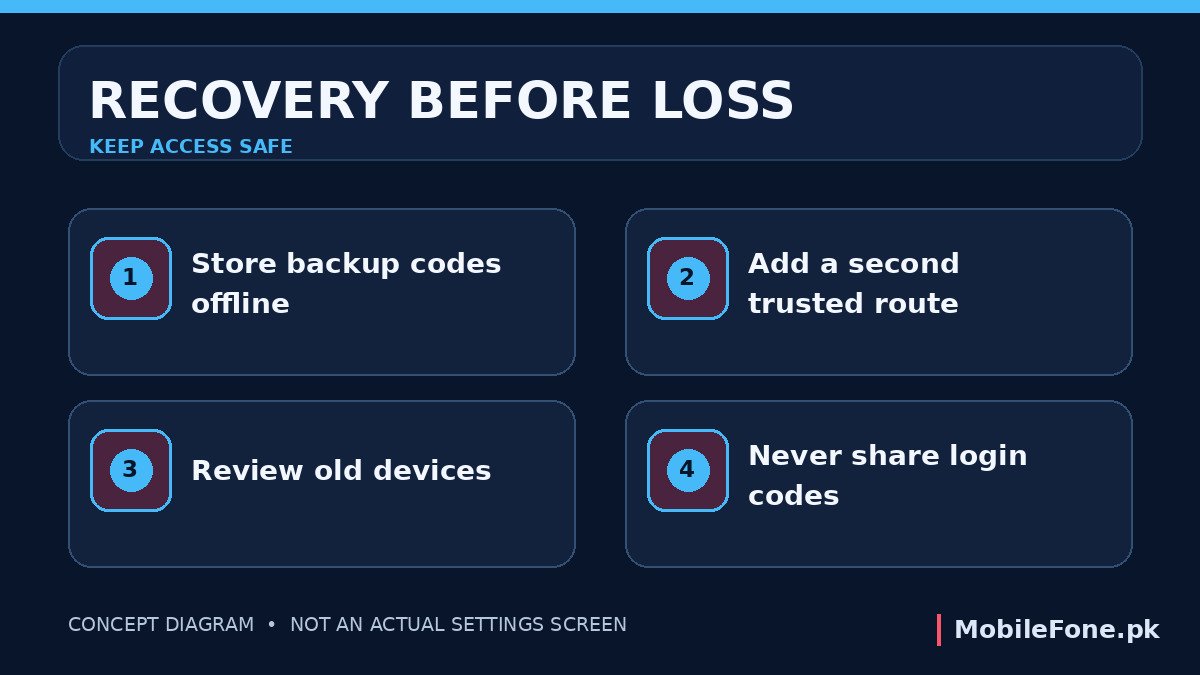
For Pakistani users, a change of SIM, loss of a phone, time abroad or a number registered to another person can interrupt SMS-based verification. That does not mean SMS is useless, but it makes a second recovery method important. A code saved only as a screenshot on the same device is not a reliable backup after that device is stolen or wiped.
Google’s 2-Step Verification recovery guide lists options such as backup codes, another signed-in phone, another registered number, security keys and passkeys on another device, depending on what was prepared beforehand. Do not publish, message or hand your backup codes to anyone, including someone posing as account support.
- Keep your primary email and recovery email current, with separate secure passwords.
- Register more than one legitimate recovery route if the provider supports it.
- Store one-time backup codes privately, outside your everyday phone and photos.
- Review old phone numbers and remove devices you have sold or lost.
- Do not approve an unexpected login prompt or disclose a code during a phone call.
What to do when verification requests look suspicious
An unexpected sign-in notification may mean someone knows or is guessing your password. Reject the request, open the service directly through its official app or typed website, and review its security activity. If your credentials may be exposed, replace the password from a trusted device. Never read a verification code to a caller claiming to be a bank agent, delivery representative or technical support; such a request can be an attempt to capture your login.
Do not confuse an account’s two-factor authentication with your phone’s screen lock. The screen lock protects local access, while account verification protects sign-in to a remote service. You need both. Likewise, an old Android device may still receive SMS, but that fact alone does not establish current software security. If replacing an unsupported handset, you can compare model information using MobileFone’s mobile phone directory and latest device listings, then check official software support before deciding.
Finish setup with a small recovery rehearsal
After enabling a second factor, write down which methods are active, where you stored recovery codes, and how you would regain access if the device disappeared tomorrow. Do not record actual passwords or codes in an unprotected note. Test that a second trusted device is genuinely registered where supported, and verify your recovery email and phone number. This short rehearsal matters more than choosing a complicated method you cannot use during an emergency.
Protect accounts in a deliberate order: primary email first because it often controls password resets, then financial and messaging services, then shopping and social accounts. Each provider may use different names for its controls. Use official account settings, keep recovery methods current, and treat any unsolicited request for a code as a warning rather than an instruction.