What to Check Before Installing an APK

On this page
- Start with the source, not the install button
- Eight checks that answer the important questions
- Understand what Android’s security controls actually do
- Permissions, accessibility and notifications deserve separate attention
- What to do if you already installed a questionable APK
- A sensible decision for Pakistani Android users

Before installing an APK on Android, check who published it, where the file came from, what the app needs to access, and whether your phone warns about the installation. An APK is an Android application package, not a certificate of safety. An installer that opens normally can still contain unwanted code. If the app is available from its developer through a reputable app store, that is usually the simpler choice. If you genuinely need an APK, use the following checks before enabling installation from another source.
Start with the source, not the install button
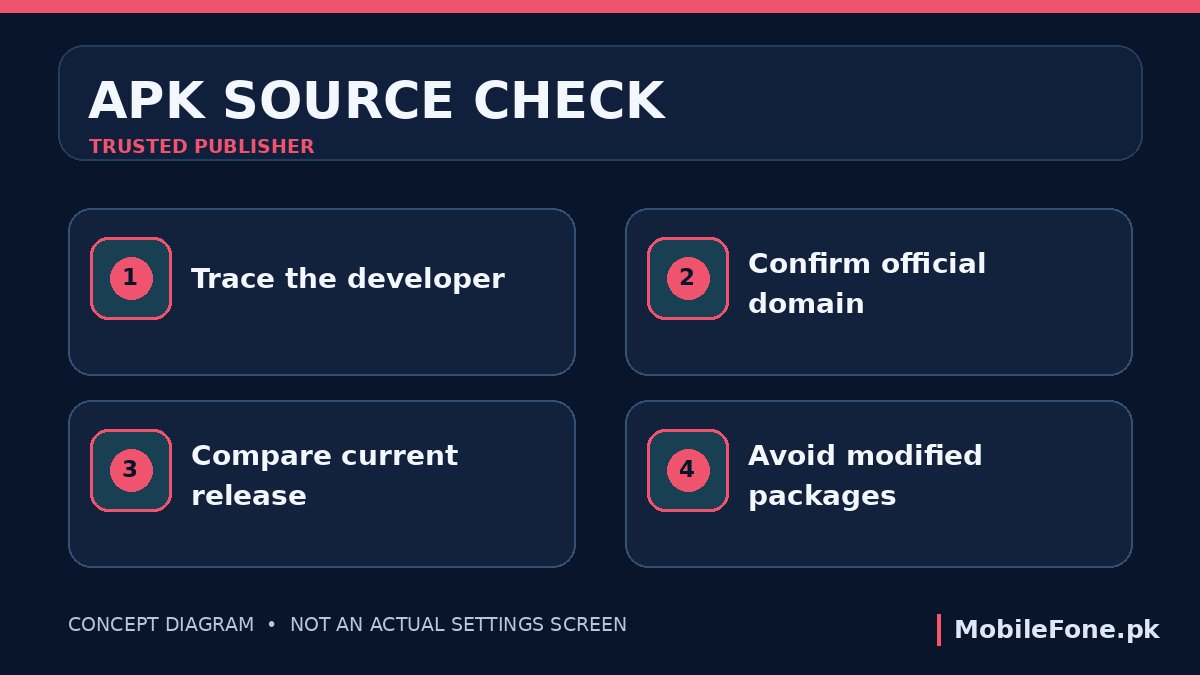
The most useful question is not whether a website calls its download “safe”. It is whether you can independently identify the publisher and find that same file through a channel the publisher controls. A developer’s official website or documented business distribution page is stronger evidence than a social-media attachment or a file-sharing link forwarded in a chat.
Be especially careful with “premium unlocked”, modified games, banking-app clones and downloads advertised as a way around an account restriction. Those claims are often designed to make an unusual installation sound normal. An APK sent by an acquaintance is not necessarily trustworthy: their account may have been compromised, or they may simply have forwarded the file without checking.
Google’s Android distribution guidance confirms that developers can distribute apps outside Google Play. That makes third-party distribution possible, not automatically safe. Official alternative channels and random mirror sites should not be treated as equivalent.
Eight checks that answer the important questions
Use this checklist to make a decision before touching Android’s installation controls. You do not need specialist software to complete most of it.
- Identify the developer. Compare the name, company website and support information with independent official references.
- Confirm the exact file source. Use the publisher’s own download page rather than a shortened link or a chat attachment.
- Check whether the app is still maintained. An abandoned version may miss security fixes even if it was once legitimate.
- Look at the file’s purpose. A calculator asking to manage SMS messages or accessibility services needs a convincing reason.
- Keep Play Protect enabled. Do not disable a security scan just because a page tells you to.
- Review the installer warning. An Android block, identity mismatch or unexpected update request is a reason to stop.
- Consider the update path. Ask how future fixes will arrive and whether they will come from the same publisher.
- Plan a safe exit. Know how to remove the app and withdraw permissions if its behaviour changes.
A useful distinction: an official APK may be necessary for enterprise testing or a developer’s legitimate distribution. That does not remove the need to inspect the software’s origin and permissions. Conversely, a suspicious APK does not become acceptable merely because it runs on an expensive phone.
Understand what Android’s security controls actually do
On Android 8.0 and later, permission to install unknown apps is generally assigned to a particular source app, such as a browser or file manager, rather than enabled for the entire phone through one universal switch. Older Android releases used a different Unknown sources setting. This difference is explained in Android’s official installation documentation. Exact menu wording varies between Samsung One UI, Xiaomi HyperOS, Oppo ColorOS, Vivo Funtouch OS and other interfaces.
If you deliberately allow your browser to install a trusted APK, return to the relevant setting afterwards and remove that allowance if you no longer need it. Leaving the permission active creates more opportunities for an unexpected download to trigger another install prompt.
Google Play Protect checks apps and can warn about harmful behaviour, including apps obtained outside the Play Store. Open Play Store, tap your account icon, and look for Play Protect to review its status. Google’s guidance recommends keeping scanning enabled. A scan without a warning is helpful, but it is not a guarantee that a file is harmless.
| What you notice | Why it matters | What to do |
|---|---|---|
| Developer cannot be identified | There is no reliable party to check | Do not install; locate the official publisher |
| “Turn off Play Protect” instruction | Asks you to weaken a protective check | Stop and find a trusted distribution channel |
| Modified or “unlocked” build | Changes may not be approved by the owner | Use the legitimate application |
| Unrelated sensitive permissions | Potential access to personal information | Decline and verify the need |
| Unexpected request to replace an app | Could affect an existing installation | Cancel and check the official update path |
Permissions, accessibility and notifications deserve separate attention
Not every risky capability is described as a standard camera or location permission. Accessibility access, notification access, device administration and the ability to appear over other apps can be particularly sensitive because they affect what an application may observe or control. These settings should not be granted casually just to finish an installation. A normal app requesting them is not automatically malicious, but the purpose must be clear and relevant.
On an Android phone, use Settings and open Apps, then the app’s Permissions screen to review ordinary permissions. Google’s Android permissions reference documents controls for the camera, microphone, contacts, location, notifications and more. On a device running a customized version of Android, search within Settings for the specific permission name rather than blindly following instructions meant for another brand.
There is a meaningful difference between an app needing a camera to scan a QR code and demanding access to the contact list, call logs and SMS history for a function that does not use them. Ask which feature would fail if you denied that request. If the publisher cannot explain it, do not grant the permission.

What to do if you already installed a questionable APK
Do not enter bank passwords, payment card details or recovery codes into an app you no longer trust. Disconnect from the workflow first. Review the app’s permissions, uninstall it through Settings if possible, and run a Play Protect scan. Check for unfamiliar device administrator, notification or accessibility access that the app persuaded you to grant, and remove it using normal Android controls. Avoid third-party “cleaner” apps that demand even broader privileges.
If you entered credentials into a suspicious app, change them through the genuine provider’s app or website on a trusted device. Review active sign-ins, enable account verification and contact the bank or service provider if financial details were exposed. Screenshots of the source and download instructions may help you describe what happened to support teams, but do not keep running the file to collect evidence.
Malware removal is not always solved by deleting one icon. If the device behaves abnormally or security features cannot be restored, seek manufacturer support. Back up important personal files before considering any reset; factory reset erases local data and should not be the first reaction to an APK prompt.
A sensible decision for Pakistani Android users
Some people turn to APK files because an app is unavailable in their region or their phone no longer supports its current release. Before sideloading, check whether the developer genuinely offers a compatible version, whether the operating system still receives security updates, and whether the feature is officially available in Pakistan. An APK cannot safely turn an unsupported device into a supported one.
If an old handset cannot install a provider-supported app, compare its software situation with the latest mobile listings and the wider phone specifications directory, then verify manufacturer update policies before buying. For everyday use, the safest practical rule is straightforward: if the publisher, download path or permission request cannot be justified, skip that APK rather than overriding the warning.