How to Change App Permissions on Android

On this page
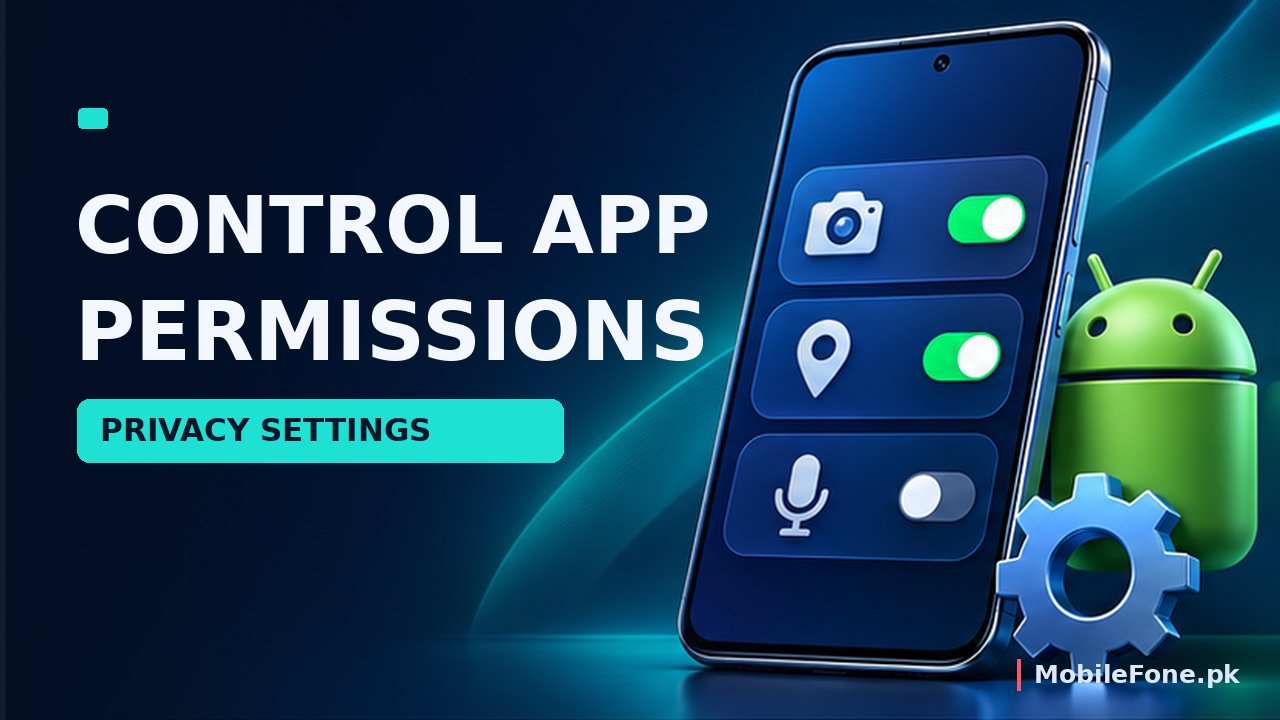
To change an Android app’s permissions, open Settings, find Apps, choose the app and tap Permissions. Select a permission such as Camera, Location or Microphone, then choose an available option, often Allow, Ask every time or Don’t allow. The labels vary by Android version and manufacturer, so treat this as the starting route rather than a promise about every Samsung, Redmi, Infinix or Vivo phone. You can also review permission access across all your installed apps from the Permission manager.
Change one app’s access without deleting its data
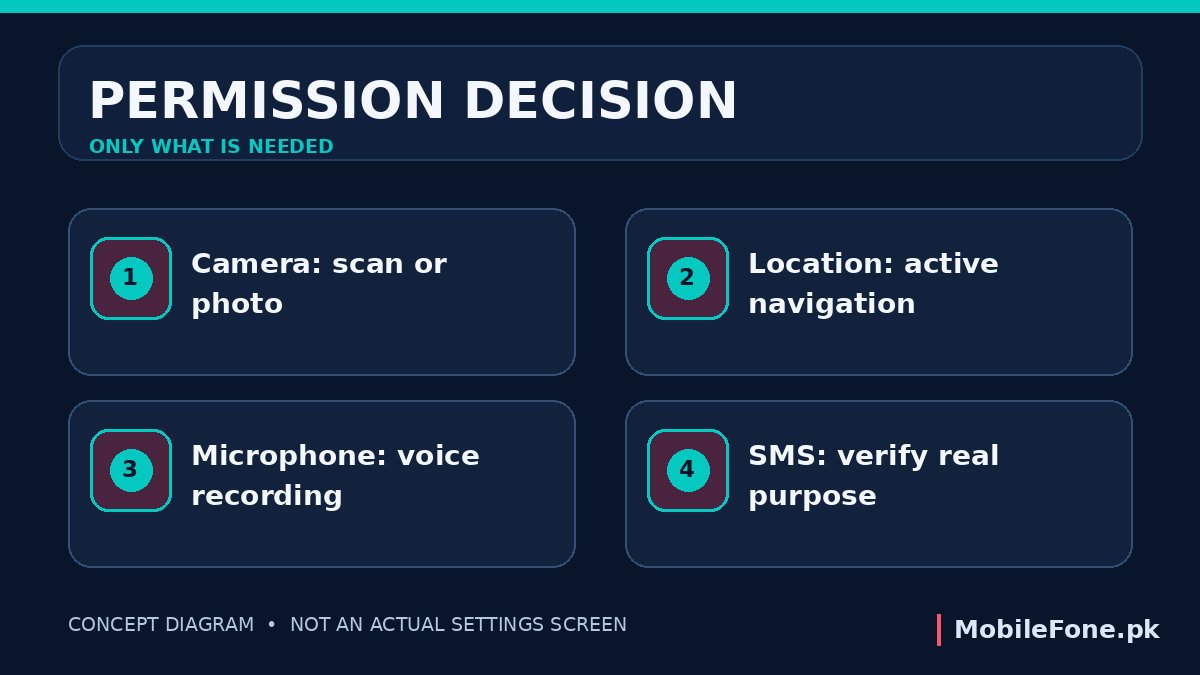
Permission management is a reversible privacy setting; clearing storage or uninstalling the application is not necessary just to deny camera access. Before changing several permissions, decide which function you want to limit. For instance, a shopping application may need the camera only when you choose to scan a product code. That is a different need from a navigation app requesting location while a route is running.
- Open Settings on the Android phone.
- Open Apps, or search Settings for the app’s name if the menu differs.
- Choose the relevant app; some devices require See all apps first.
- Tap Permissions and review allowed and not-allowed items.
- Choose one permission and select the least access that still supports your intended feature.
- Open the app and test the relevant function, then adjust only if the result is genuinely necessary.
These are the steps documented by Google’s Android Help. A menu may move under Security & privacy or a manufacturer-specific permission centre, and some options appear only for apps that request that capability.
Changing a permission stops or limits future access through that permission; it does not erase photographs, messages or other data already shared with an application. If you previously uploaded information to an online service, manage that information through the service’s account or privacy controls separately.

Use Permission manager to find every app with sensitive access
Checking a single app is useful when one application behaves unexpectedly. Permission manager is better when you want to answer a different question: Which apps are currently allowed to use my microphone or location? On supported Android devices, open Settings, then Security & privacy, Privacy and Permission manager. Select a permission group and review the applications shown under each access level. Some phones place Permission manager directly under Privacy.
Work through the categories that could expose personal information: location, camera, microphone, contacts, SMS, call logs, photos and videos. Android’s official permission list explains what each type covers. You do not have to deny everything. The sensible choice depends on the app’s actual task and whether access is needed all the time or just during a particular action.
| Android option | What it generally permits | Good use case |
|---|---|---|
| Allow only while using | Access while the app is active | Maps during navigation, camera scanning |
| Ask every time | New approval when needed | Occasional microphone or location use |
| Don’t allow | Blocks that permission | An app with no convincing need |
| Allow all the time | Background location access where offered | Only when a genuine background feature needs it |
“Allow all the time” is not a general option for every permission. Google documents it specifically for location on supported devices. Some apps also offer selected-photo access rather than the whole photo library; the exact choices depend on the Android release and the app’s implementation.
Understand the controls beyond the usual permission list
Privacy has more layers than camera and microphone. Some applications can ask for notification access, accessibility services, permission to install other apps, or the right to appear over other apps. These are often managed in Special app access or a similarly named menu. They may not appear alongside standard permissions, so absence from one list is not evidence that the application has no sensitive privileges.
For a basic torch app, microphone access would be difficult to justify. For a voice-note app, the microphone is central to its purpose. A messaging app may need notifications to alert you about new messages, but that does not mean it needs location at all times. Instead of looking for a universal “safe permissions” configuration, consider what the feature does and which personal information it needs to work.
Google also offers privacy controls that can disable camera or microphone access across the device on supported Android versions. These global switches are useful during a temporary privacy-sensitive situation, but they can interrupt video calls and scanning tools until turned back on. Avoid interpreting a global camera-off setting as proof that a camera module is faulty.
Why an app might stop working after a permission change
Suppose you deny location to a weather app. It may still show weather for a city you enter manually, or it may ask for location again when you request a local forecast. If you deny camera access to a banking app, QR scanning or identity verification may no longer work; basic account viewing might still be available. These examples describe expected feature dependencies, not tests of a particular bank’s software.
When something breaks, reopen the app’s Permissions screen and restore only the needed access. Do not grant every requested permission as a blanket fix. If an application repeatedly demands an unrelated permission, look for the developer’s explanation or use a more appropriate alternative.
On Android phones that support automatic permission removal for unused apps, a feature may stop working after months of inactivity. Google’s Play Protect and unused-app guidance describes these controls, which vary by Android version. Check an app’s unused-app setting if it suddenly asks for permission you remember granting previously.
Manufacturer menus, Android updates and privacy trade-offs
Samsung One UI, Xiaomi HyperOS, Oppo ColorOS, Vivo Funtouch OS, Tecno HiOS and Infinix XOS may group privacy options differently. Search Settings for “Permission manager”, “App permissions” or the particular app rather than following an old screenshot literally. A control shown in a tutorial for Android 15 may also be renamed or relocated on a newer Android build. Follow the phone manufacturer’s support instructions when the standard Android route does not match.
Do not install an unknown “permission fixer” APK or grant accessibility access to an untrusted utility simply to change an ordinary permission. Android already includes these controls. When a phone is no longer receiving updates or some privacy options are missing, examine the manufacturer’s supported software and compare devices through MobileFone’s mobile specifications directory. The latest-model listings can help narrow a replacement search, but an entry alone does not confirm an update commitment.
A useful monthly habit is to open Permission manager, examine the apps with microphone, location and contacts access, and remove permissions you no longer need. Test affected features immediately so you retain both usable applications and deliberate control over personal data.