How to Protect Your Data Before Selling Your Phone

On this page

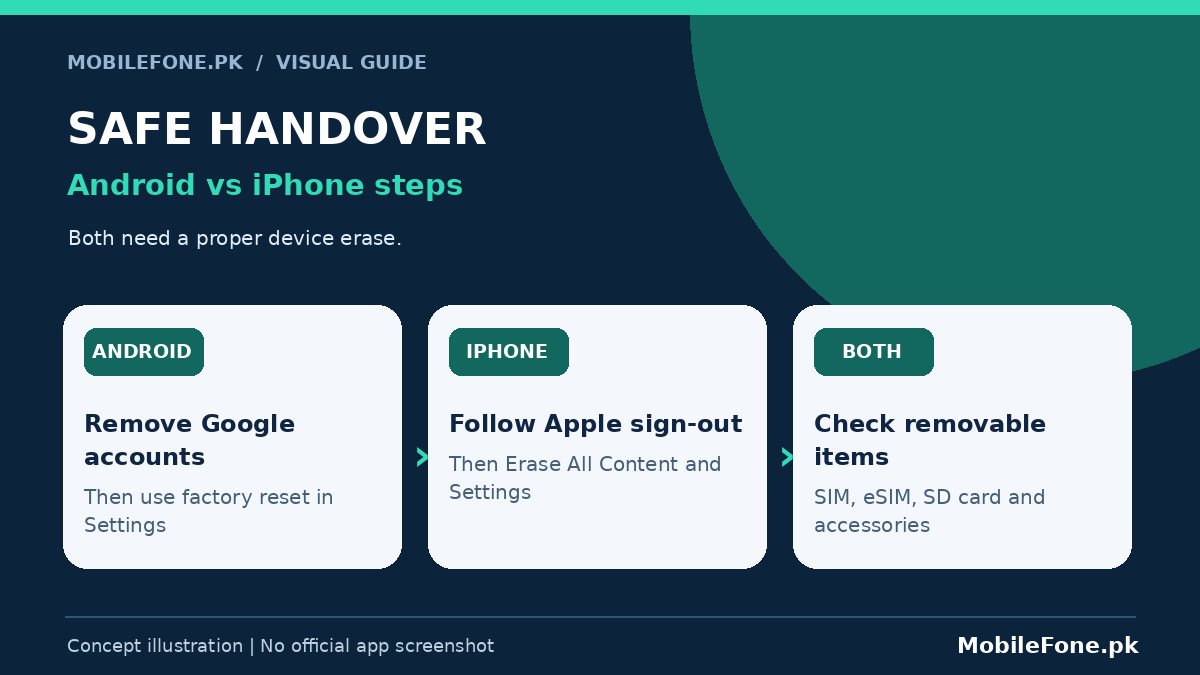
Before selling an Android phone or iPhone, transfer the information you want to keep, confirm it is accessible on your replacement device, sign out of relevant accounts, then erase the old phone using its built-in reset procedure. Remove any physical SIM and memory card before handover. Deleting photos one by one is not an adequate substitute for device erasure and can be risky when cloud synchronisation is enabled. This checklist matters just as much for a trade-in as for a cash sale to an unfamiliar buyer.
Back up and verify what cannot be replaced
Make a list of the information you would regret losing: family photos, contacts, documents, notes, saved passwords, authentication apps, banking access and messaging histories. Do not assume that one cloud backup contains all of them. For Android, Google’s backup documentation explains that data categories differ and that not every app restores all of its content. Some apps need a separate export or account-specific backup.
After copying data, open several photos and documents on the new device or a trusted computer. Check that contacts are present, important conversations have been restored using the relevant app’s method, and you can sign in to accounts. When you are switching operating systems, note that an app’s backup format or transfer method may differ; plan that migration before wiping the old handset.
- Confirm photos and videos in the intended backup location, not just in a sync queue.
- Test recovery methods for email, banking and authenticator accounts.
- Transfer notes and locally downloaded files that may not be synced.
- Check messaging apps for their own backup or transfer process.
- Keep the old phone until the new device passes these checks.
There is no prize for erasing early. If a critical app still needs the old phone to approve a sign-in, complete its migration first. A factory reset is generally irreversible for local data; having a backup that has never been tested is not the same as knowing you can recover your files.

Android: remove accounts, then factory reset
Google’s instructions for resetting an old Android device recommend backing up, opening the account settings, removing Google accounts and then using the phone’s factory reset function. On a Pixel-style interface, the path is often Settings > System > Reset options > Erase all data (factory reset). Samsung, Xiaomi, Oppo and other manufacturers may place the reset under General management, About phone or Additional settings.
- Finish verified backups and app transfers.
- Remove your Google account and any manufacturer account using the device’s normal account-management screens.
- Sign out of apps that require device-specific deactivation if their provider instructs you to do so.
- Run the manufacturer’s factory-reset procedure through Settings, not an unknown third-party tool.
- After restart, confirm the phone shows its initial setup screen rather than your private home screen.
Removing accounts before reset can help avoid handing the buyer a device that still asks for your Google account due to anti-theft protections. A normal reset from Settings, after proper account removal, is preferable to an improvised recovery-menu wipe. Do not give the buyer your Google password to solve an activation problem. If you cannot remove an account, resolve ownership and sign-in issues before arranging the sale.
iPhone: sign out and erase the device correctly
Apple’s current sell-or-trade-in guide starts with backup and transfer, then the removal of personal information. It distinguishes the sign-out flow on iOS 26 or later from earlier versions, so follow the prompts on your actual iPhone rather than a screenshot from an older tutorial. If you have paired an Apple Watch, unpair it as Apple advises.
Open Settings and follow the Apple Account sign-out instructions appropriate to your installed iOS version. Then go to Settings > General > Transfer or Reset iPhone > Erase All Content and Settings. Apple explains that device erasure turns off services including Find My and Activation Lock when completed normally, and may prompt for your account password. That is different from deleting individual items while still signed into iCloud.
If the iPhone uses eSIM, pay attention to the prompt about erasing its mobile plan. When selling or giving away the phone, make sure the cellular account or eSIM profile is removed or transferred as instructed by your operator. Do not remove a working eSIM impulsively if you have not arranged how to activate your number on the replacement phone.
| Task | Android | iPhone |
|---|---|---|
| Back up and verify | Google/device and app-specific backups | iCloud/computer and app-specific backups |
| Account removal | Remove Google and manufacturer accounts | Follow Apple Account sign-out flow |
| Erase | Manufacturer’s factory reset in Settings | Erase All Content and Settings |
| Mobile service | Remove SIM; transfer eSIM when applicable | Remove SIM; erase/transfer eSIM |
| Final check | Initial setup screen, no personal data | Hello screen, Activation Lock cleared |
Remove SIM, memory cards and personal accessories
Switch off the phone if its maker recommends doing so before removing a physical SIM. Remove the SIM card, any microSD card and any private accessory left in the case. Physical cards can still hold information that a phone’s factory reset does not touch. Keep the SIM in your possession until your operator completes any number or eSIM transfer.
Also check linked watches, earbuds, trackers and two-factor authentication devices. Unpair or remove them from account lists when the provider recommends it. If the phone is listed as a trusted device for your email or financial account, remove it after verifying that your replacement device has working access. Some account lists update more slowly than the local wipe, so check the cloud-account dashboard separately.
What a factory reset does not prove
A completed reset is the normal way to remove personal data from a modern consumer phone, but the exact data-security properties depend on device age, encryption and the manufacturer’s implementation. It does not guarantee that every file on an external SD card has been erased, that a cloud copy has been deleted, or that every online account automatically removes the phone as a trusted device.
Never manually delete synced photos or contacts from the old phone while it is still attached to a cloud account unless you understand the sync effects. Apple explicitly warns that manual deletions while logged into iCloud can remove content from the cloud and other connected devices. Your goal is to remove private information from the device being sold, not destroy the only copy of your memories.
Check the handover without revealing credentials
At handover, confirm that the phone starts at its setup screen and that no private notification, account or file remains visible. Keep purchase and transfer records as appropriate, and let the buyer verify basic hardware condition without giving them access to your accounts. For a device sold in Pakistan, the buyer should independently check the handset’s PTA registration status and warranty; a factory reset does not establish either fact.
If the reset will not complete, the phone asks for your old account unexpectedly, or there is physical damage that prevents wiping, do not promise the buyer that private data is gone. Resolve the issue through manufacturer support or a qualified service provider first. A safer completed sale is worth more than a rushed handover.