How to Spot Suspicious Android Apps

On this page
A suspicious Android app is not necessarily malicious, but an unknown installation, excessive permissions, frightening payment prompts or a Play Protect warning deserves investigation. Start by checking where the app came from, which permissions it holds, and whether Google’s built-in security scanner reports a problem. Do not immediately reset the phone or install another “cleaner” APK. A careful review can separate an unfamiliar but legitimate app from software that may expose your messages, money or personal files.
Look at the app’s origin before its icon
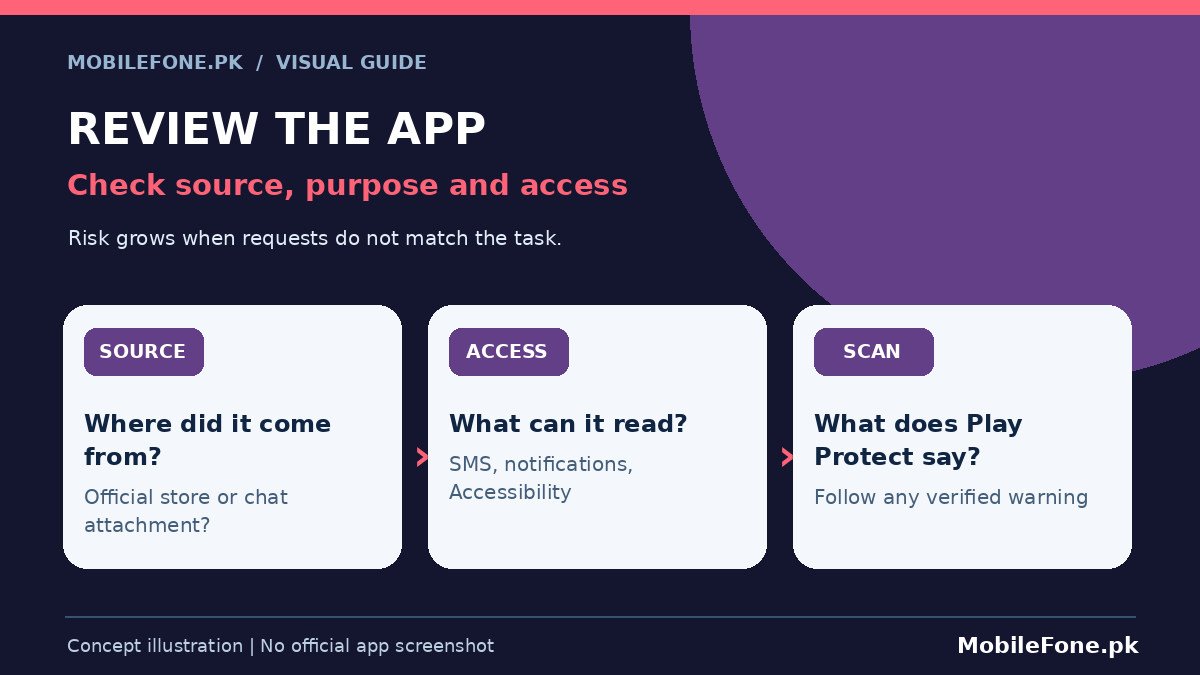
Open Settings, find Apps, and locate the app in the installed-app list. On many Android phones you can open its App info screen to inspect the package details and permissions. The menu may be labelled Apps, App management or Applications depending on Samsung One UI, Xiaomi HyperOS, Oppo ColorOS and other software versions. Note the app name, installation date if shown, and whether you remember installing it.
Be more cautious if the app arrived through a link in an SMS or WhatsApp message, a download site pretending to be a bank, or a pop-up promising an urgent phone update. An app installed from Google Play can also behave badly, so the store alone is not a guarantee. The important difference is that trusted distribution and active security checks give you better opportunities to identify and remove harmful software.
If the app claims to be essential for a service, search for that service through its established website or official app listing on a separate trusted browser session. Compare the developer name and stated function. Avoid relying on star ratings, a copied company logo or a convincing app name as proof of authenticity.
Run the built-in Google Play Protect check
Google says Play Protect scans apps for harmful behaviour, including potentially harmful apps from outside Google Play. On Google Play-enabled devices, open Play Store, tap your profile image, open Play Protect and start a scan if offered. Its settings also let you check whether scanning is enabled; Google recommends leaving that protection on.
- Open Play Store and go to Play Protect.
- Read the scan results and any specific warning carefully.
- Do not override an installation block for an unknown app just to continue a download.
- If Play Protect identifies a harmful app, follow its removal guidance.
- Afterwards, update Android and legitimate apps through official channels.
A clean scan is useful but not a certificate that every app is safe. Google describes detection and warning mechanisms, not a guarantee of finding every possible threat. Equally, one unusual battery spike does not prove malware. Combine scanner results with permission reviews and observable behaviour instead of making a diagnosis from a single sign.
Compare permissions with what the app actually does
Android lets users change many permissions in Settings. Google’s app-permission instructions describe opening Settings > Apps > [app] > Permissions, or using a permission manager to review every app that has access to one category. Exact options vary with Android version and device maker.
A calculator asking for SMS access, a wallpaper app seeking notification access, or a little-known game requesting Accessibility services warrants extra scrutiny. There are legitimate reasons for some unusual permissions, particularly for accessibility and automation apps, but the developer should explain them clearly. Consider whether the app can still perform its main function when the sensitive permission is denied.
| Clue | Why it matters | What to check |
|---|---|---|
| SMS or notification access | May expose codes or messages | Whether this access is essential |
| Accessibility permission | Can enable powerful interactions | Exact service purpose and developer |
| Installation from a chat link | Source may be impersonated | Official listing and publisher |
| Constant overlay or payment demand | Possible deceptive behaviour | Disconnect, avoid payment, seek support |
| Play Protect warning | Scanner detected a risk | Follow warning and remove app |
Permissions granted before an update may deserve another look after the app’s role changes. Review the list as a whole: an app might have been installed for a genuine task months ago but no longer needs access to contacts, location or microphone. Removing unneeded permissions is a sensible privacy step even if no malicious activity has occurred.
Remove an app safely when the evidence points to risk
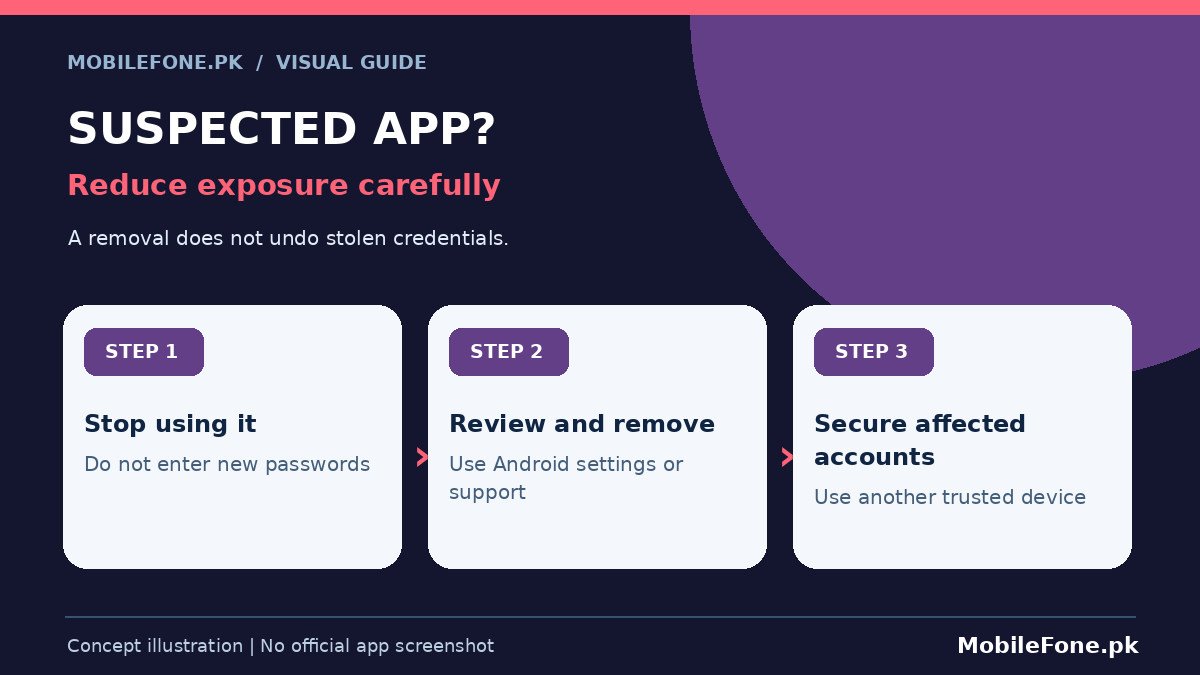
If you can identify an unneeded app, uninstall it through the normal Android settings or Play Store. If removal is blocked or the phone displays security warnings, do not download an unknown removal utility. Some applications have special device-administration or accessibility access that changes how removal works; use manufacturer or official Android help for your exact device. Avoid changing obscure system settings at random.
If banking passwords, email credentials or account codes may have been captured, change the affected credentials from a separate trusted device, not from the suspected compromised phone. Contact your bank promptly if financial access may be affected. Removing the app does not automatically reverse credentials already stolen or transactions already authorised.
Keep a short record of when the app was installed, what permissions it held and which warnings appeared. Screenshots of the app listing and warnings can help official support, but avoid distributing sensitive screenshots that show personal messages, account identifiers or verification codes.
Know when a reset is justified
A factory reset deletes locally stored app data, installed apps and settings. It can be appropriate in some serious incidents, but it is a destructive last step. Back up valuable photographs, contacts and documents first, without indiscriminately restoring the same suspicious APK afterward. Check that your Google account credentials and authenticator recovery methods are available before erasing anything.
If the device is managed by an employer or school, contact its administrator before making changes. If it shows repeated unauthorised payments, suspicious account sign-ins or inaccessible security settings, professional help may be more useful than repeated uninstalls. Follow the device manufacturer’s reset instructions only once you understand the data-loss consequences.
Make the next installation easier to trust
Check the publisher, source, permissions and reason an app needs sensitive access before installing it. Keep Play Protect active on supported Android phones and stay alert to banking or delivery messages that pressure you into downloading an APK. The best indicator is not an impressive icon or a low battery drain figure; it is a clear, credible source and permissions consistent with the app’s job.
Use the same standard for software shared by friends. A familiar sender could forward a harmful file unknowingly. If a new app seems wrong, stop using it, review its privileges, and remove it safely rather than hoping that a generic phone booster will repair the problem.

Related reading
 Mobile SecurityWhat to Do if Your Phone Is Lost or Stolen in PakistanNovember 14, 2026
 Mobile SecurityHow to Locate a Lost Android PhoneNovember 14, 2026
 Mobile SecurityHow to Secure Your WhatsApp AccountNovember 14, 2026
 Mobile SecurityHow to Protect Your Data Before Selling Your PhoneNovember 14, 2026