How to Protect Your Phone With a Strong Screen Lock

On this page
- Why the screen lock matters even when your apps have passwords
- Set or change your Android lock without wiping the phone
- Choose between PIN, password, pattern and biometrics
- Make the lock screen protect private information, not just the home screen
- What to do if someone might have seen your unlock code
- When an older phone needs a wider security review

A strong phone screen lock starts with a password or a hard-to-guess PIN, not a fingerprint alone. On Android, open Settings, find Security or Security & privacy, and select Screen lock or Device unlock. Choose a method you can remember without using an obvious date, repeated digits or a code someone nearby can guess. Google recommends a PIN of at least six digits for additional security, while a strong password offers greater flexibility. Fingerprint or face unlocking can then make everyday access more convenient on supported phones.
Why the screen lock matters even when your apps have passwords
Anyone who can unlock a phone may be able to read notifications, access saved accounts, reset passwords through email, or view files that were not protected separately. An app’s sign-in screen does not always protect a logged-in session. The purpose of the device lock is to make casual physical access much harder and give you time to secure accounts if the phone is misplaced.
A screen lock does not prevent every kind of theft or account takeover. It also cannot replace updates, careful app installation or two-factor authentication. But it is one of the simplest protections that works without mobile data or a strong signal, a practical benefit when travelling, commuting or leaving a handset on a desk.
Set or change your Android lock without wiping the phone
The standard Android process is straightforward, although menus differ between brands. Google’s screen-lock instructions use Settings, Security and Screen lock; some current Pixel models use Security & privacy, Device unlock and Screen lock. Neither route should require a factory reset when you know your current lock method.
- Open Settings and locate Security or Security & privacy.
- Select Screen lock, sometimes beneath Device unlock.
- If prompted, enter the existing PIN, pattern or password.
- Choose a longer PIN or password and complete the confirmation prompts.
- Lock the screen with the power button and verify that the new method works.
- Review fingerprint or face unlock separately if supported and desired.
Before changing a lock that protects important files or backups, confirm that you know the existing method and that any applicable backup and account recovery steps are in place. Google notes that a PIN, pattern or password is relevant to protecting certain Android backups. Forgetting the new code can make data recovery difficult; do not experiment with random combinations or secret service codes.

Choose between PIN, password, pattern and biometrics
There is no single best method for every situation. A password can be strong but inconvenient to enter repeatedly. A longer random PIN is often easier to use on a small keypad. A simple visual pattern is easier for an observer to follow; avoiding predictable shapes matters. Fingerprint unlock reduces daily friction, but a backup credential still matters when the phone restarts or biometric recognition fails.
| Method | Main advantage | Watch out for |
|---|---|---|
| Long PIN | Fast keypad entry; less guessable than simple codes | Birth dates, repeated numbers, shoulder surfing |
| Strong password | More possible combinations | Needs careful entry and memorisation |
| Pattern | Easy to draw | Common shapes and visible finger traces |
| Fingerprint or face | Convenience on supported hardware | Requires a reliable fallback credential |
| None or Swipe | Little friction | Does not protect device access |
Google’s Pixel screen-lock guide recommends six digits or more for a PIN and describes passwords as the strongest standard option. Exact biometric capabilities vary substantially; do not assume face unlock on every Android phone provides the same level of protection for payments or sensitive actions.
Make the lock screen protect private information, not just the home screen
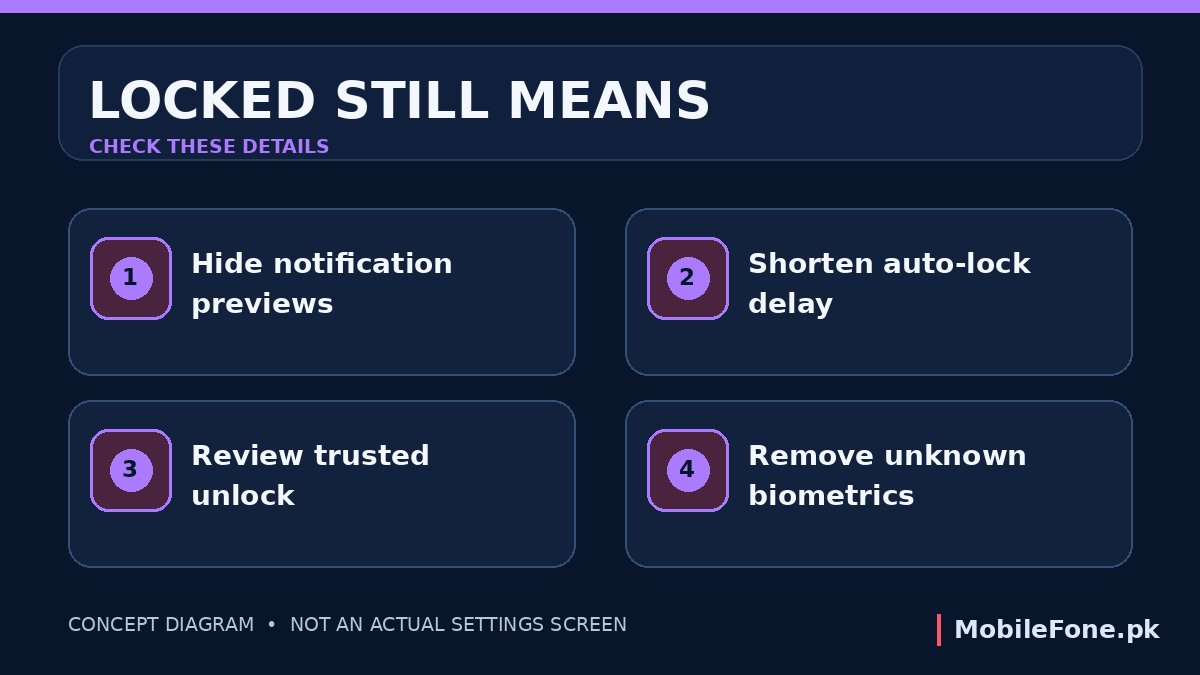
A phone can be locked while still showing sensitive information. Check notification previews on the lock screen. If messages contain banking codes, account reset links or personal conversations, choose a setting that hides sensitive content or limits which notifications appear when the device is locked. Different Android brands label this as Notifications on lock screen, Hide sensitive content or a similar option.
Also look at the screen timeout and automatic locking behaviour. A phone that remains unlocked for several minutes after being set down may expose more data than its owner expects. Shorten the delay to suit your usage. If the phone has a feature that keeps it unlocked at home, near a paired accessory or in another trusted situation, understand what that convenience costs before enabling it.
Some compatible Android devices offer theft-protection controls, including Identity Check. Availability depends on the handset and Android implementation. Google’s device theft protection guidance explains that certain sensitive actions may need biometric checks when supported. Such features supplement a strong lock; they are not proof that a device cannot be stolen or misused.
What to do if someone might have seen your unlock code
If a code was observed in a queue, classroom or workplace, replace it promptly with a different, less predictable credential. Do not reuse your account password as the device password. Check whether unfamiliar fingerprints or faces are enrolled and remove any that you cannot account for. An attacker who can access both the unlocked device and account recovery channels may have opportunities beyond the phone itself.
Do not share your PIN or recovery details with a seller, technician or someone claiming to be support over a message. An authorised repair may sometimes require a user-assisted demonstration, but you should back up data first where possible and ask about the service procedure rather than giving away a permanent unlock credential. If the handset is lost, use the device manufacturer’s legitimate find-and-secure tools and immediately review important accounts.
When an older phone needs a wider security review
Security depends on more than the fingerprint scanner printed on the box. The phone’s supported Android version, security updates, physical condition and storage protection all influence the risk. Before buying an older used model in Pakistan, confirm its exact software version and support status directly with the manufacturer. The MobileFone phone directory can help identify models for comparison, and recently launched devices can help you research alternatives; neither directory guarantees a particular security patch schedule.
For most people, a memorable but non-obvious long PIN, a reasonably short auto-lock delay, hidden sensitive notifications and optional biometric convenience strike a useful balance. Set the lock today, test it once, and make sure you will still be able to unlock the phone after a restart.