WhatsApp Backup Stuck: Troubleshooting Steps

On this page
If WhatsApp backup is stuck on Android, first check whether the phone and the selected Google account have sufficient free space, then test a stable connection and keep the phone charged. A backup that pauses while preparing local files is not the same as one that fails during a cloud upload. Avoid deleting WhatsApp data or uninstalling the app as an early fix: a failed new backup may be the only recent copy of important conversations.
Identify the stage where the backup stops
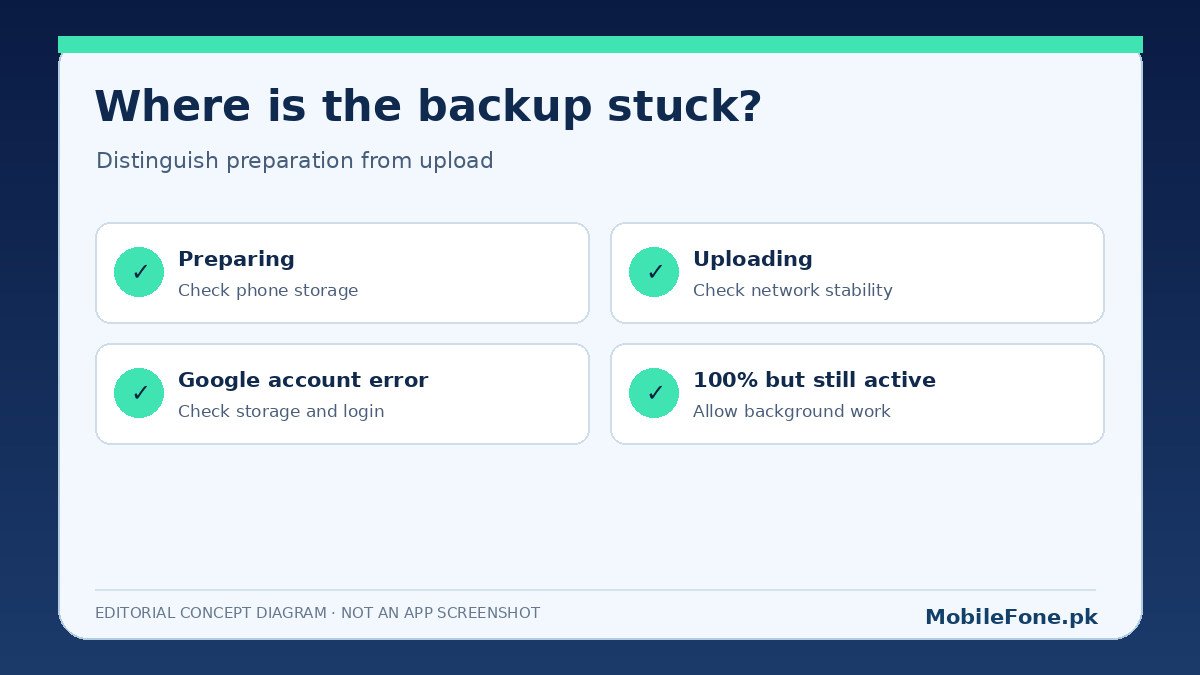
Open WhatsApp and review Settings → Chats → Chat backup. Note the date of the last successful backup, the Google account selected and whether the current task says preparing, backing up or uploading. Do not rely on the percentage alone. A visible 100% can sometimes remain while background processing finishes; WhatsApp’s backup troubleshooting guidance specifically discusses that situation.
| What is stuck | What to inspect | Practical next action |
|---|---|---|
| Preparing backup | Available local storage and media volume | Check space; review large videos without deleting chats |
| Uploading backup | Wi-Fi reliability, data restriction, power | Use steady Wi-Fi and charge the phone |
| Google account or permission error | Correct Google account, app permissions, services | Check signed-in account and official error guidance |
| Cloud storage full | Google account storage quota | Free room in the Google account if safe |
| 100% shown, notification still present | Potential remaining background activity | Allow appropriate time; verify the successful date |
Check both storage locations, not just phone memory
WhatsApp’s Android cloud backup uses Google account storage. That means a phone with plenty of free space can still fail if the selected Google account is full. Conversely, available cloud space cannot compensate for a device that is too full to prepare the backup. WhatsApp’s backup prerequisites list both requirements along with Google Play services and a stable connection.
- Check the phone’s available internal storage through Android Settings.
- Confirm which Google account WhatsApp is using for chat backups.
- Check free storage in that Google account; WhatsApp backup data counts toward the quota.
- Review unusually large WhatsApp videos or unrelated files if space is low, backing up anything important first.
- Try the backup again over a reliable Wi-Fi connection with the phone charging.
WhatsApp’s Google backup help explains that a new backup to the same Google account replaces the previous one. That is a crucial limitation: do not repeatedly experiment with incomplete backups while assuming you can recover any older cloud copy later.
Keep the network and power stable during an upload
A large first backup can take longer than subsequent backups, especially when media is included. If your Wi-Fi disconnects, the upload may stall or require another attempt. For Pakistani mobile connections, switching to mobile data can use a considerable share of a prepaid package; check remaining data before trying that route. The recommended starting point is stable Wi-Fi and sufficient battery or external power.
If an upload repeatedly stops after the network changes, test one connection consistently instead of jumping between hotspots. WhatsApp notes that switching networks during a backup can cause a timeout. You can restart the phone and retry a fresh attempt, but avoid looping through multiple resets without identifying what is failing.
Check the Google account and required services
Verify the Google account is available on the device and can access Google services. Where WhatsApp displays a specific error about backup permissions or the account, follow the corresponding instructions on its official troubleshooting page. App menu paths can differ by Android version. Changing or removing the account is a more disruptive step than checking connection and storage, so do it only after you understand what is synced and have current account credentials.
Keep Google Play services updated where your device supports updates. If the phone has unusual background restrictions, review whether WhatsApp can continue network operations while the screen is off. Battery-management menus differ across Samsung phones and Xiaomi/Redmi models; use the real phone’s software version before attempting any brand-specific procedure.

Never destroy your only available chat copy
Important: clearing WhatsApp app storage, deleting chats, reinstalling without a usable backup or resetting the phone can cause permanent data loss. Before any high-risk step, record the most recent successful backup date and confirm the phone number and Google account that own it. If the current phone still displays the chats, protect that copy while you investigate.
- Do not use random backup-repair apps or modified WhatsApp clients; chat databases contain private information.
- Do not confuse a pending upload with a completed backup; check the actual last-successful date.
- Do not remove a Google account merely because a progress bar has paused once.
- Do not assume you can restore an older overwritten Google backup.
- When switching phones, do not erase the old device until messages and media are checked on the new one.
If you use end-to-end encrypted backups, your restoration secret matters independently of the upload problem. WhatsApp supports protecting a backup using supported credentials such as a password, passkey or encryption key. Do not delete or replace those credentials in an attempt to move a stalled progress bar. A backup that completes successfully may still be unusable to you if you cannot satisfy its restore requirements. Check the security setting separately and keep recovery information somewhere private that you can access without relying solely on the phone being replaced.
Finally, distinguish a local device backup from the Google account copy. The existence of chat data on your current phone does not prove that a recent cloud backup completed, and an older cloud backup does not guarantee that today’s messages are present. If the phone is being exchanged or sent for repair, pause the handover until you have evidence of a successful backup or a supported transfer route. If that is not possible, tell the technician explicitly that the phone contains irreplaceable data and should not be reset without your approval.
When the backup is still stuck
After a stable network test, adequate space in both places, a restart and appropriate updates, write down the exact error text and step where the task stalls. Also note whether the last successful backup remains visible, whether the issue began after a phone update and which Google account is selected. Share this with WhatsApp support through the official app; it is more actionable than a vague report that backup never works.
For most readers, the decision is simple: protect the existing chats first, then troubleshoot storage and connection one variable at a time. Reinstallation should be considered only with a known restoration route, not as a routine first attempt at a stuck progress bar.