Google Account Sync Not Working

On this page
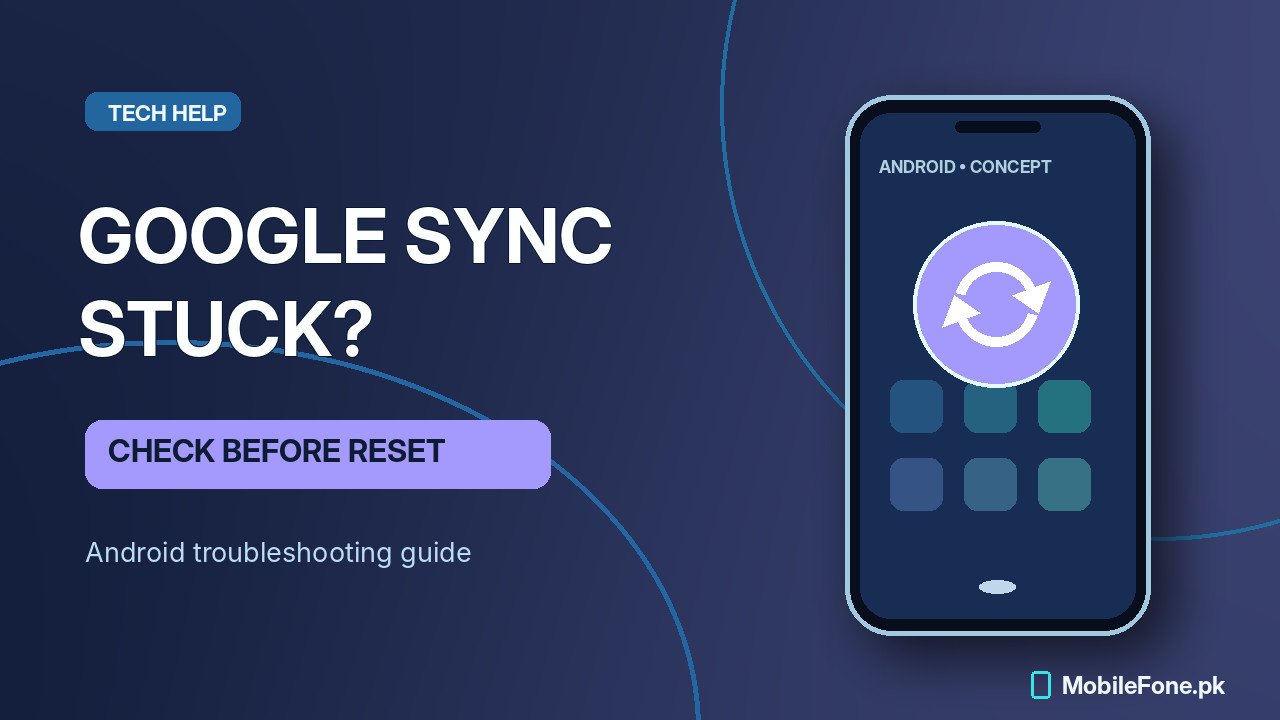
When Google Account sync stops on Android, check internet access, the account sign-in and whether automatic sync is enabled. Then request a manual sync for the affected account. Google notes that many sync errors are temporary, so a short interruption does not mean your contacts or email have been deleted. Avoid removing the account or clearing Contacts data until you know which information is stored locally and which has already reached Google’s servers.
Identify which Google data is not updating
“Sync is not working” could mean new Gmail does not arrive, a calendar appointment is missing or contacts added to one device do not appear on another. These are different problems. Some apps maintain their own sync settings, so a third-party application may fail even when the underlying Google Account is updating correctly.
Use a browser or another signed-in device to check whether the missing information appears in the corresponding Google service. This separates an upload issue from a download or display issue. For contacts, confirm the storage account: a phone-only or SIM-only contact is not automatically a Google contact.
| Symptom | Compare first | Next check |
|---|---|---|
| Contacts missing on web | Contact’s saved account | Device, SIM or Google storage? |
| Mail visible on web only | Gmail app and sync setting | Sync the selected account |
| Calendar differs on phone | Calendar and account selection | Check calendar visibility |
| All services show errors | Network, sign-in and time | Run account-wide basic checks |
Follow Google’s basic sync checks in order
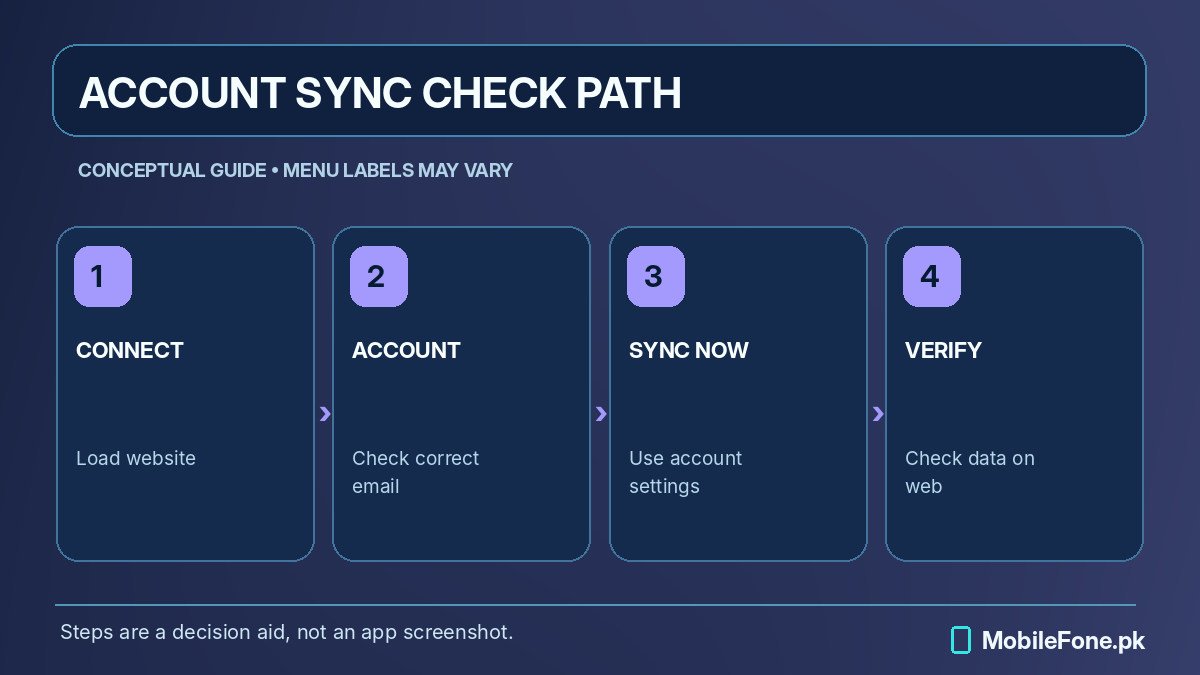
Android Help’s account-sync instructions recommend checking automatic sync, the connection, account access and system updates. A Wi-Fi symbol does not guarantee a working connection: load a website first. If you are on a Pakistani mobile-data package, verify that the connection is actually usable before changing the account.
- Open a website in the browser and make sure pages load normally.
- Open Settings and confirm the email address for the Google account you want to sync.
- Find Accounts, Passwords & accounts or Account sync, and enable automatic sync where supported.
- Select that Google account, open Account sync and choose Sync now if available.
- Restart, then install any suitable software update offered for your exact model.
Manufacturers place accounts under different Settings headings. On some versions, Google describes a path through About phone, while other handsets expose a direct Accounts menu. Use Settings search for “sync” rather than relying on a screenshot from a different model. On managed school or workplace devices, some synchronization switches may be controlled by an administrator.
After each action, return to the same data type and verify whether a recent item appears. Repeatedly toggling every account setting at once can hide the original cause and make later troubleshooting much harder.
Confirm the account and the relevant app
Many people keep more than one Google account on a phone. Contacts could belong to a personal account while Calendar is displaying a work account. Syncing one will not fix missing records owned by the other. Check the account selector inside Gmail, Contacts or Calendar before assuming that the Android-wide sync service has failed.
Try signing in to the same account through a browser. If browser sign-in also fails, follow Google’s account recovery flow rather than repeatedly removing the account from the phone. If it works, check that the phone uses sensible automatic date and time settings, then manually sync again. Time discrepancies can interfere with account authentication but should not be used as a reason to experiment with arbitrary dates.
A specific application may also have an independent setting that prevents data from displaying. For example, a calendar can be hidden from view without being deleted, and contacts can be filtered by account. Those presentation settings are worth examining before you attempt any data-clearing operation.
Protect local contacts before an advanced repair
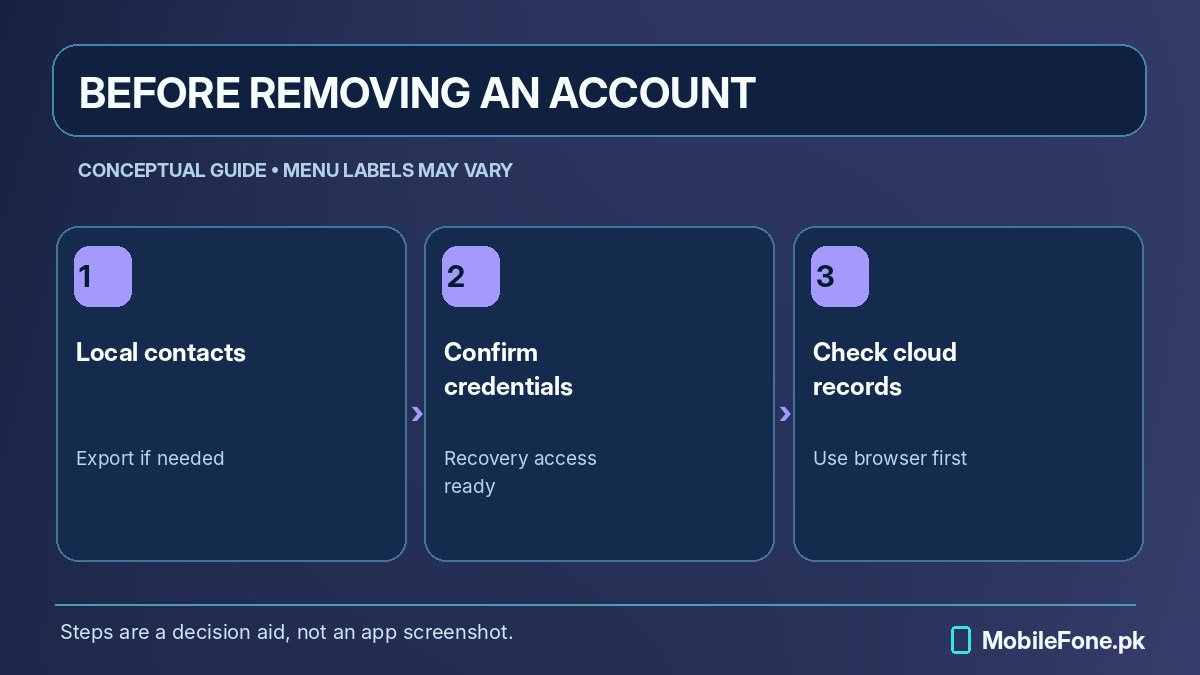
Some contacts exist only in local device storage or on a SIM card. Removing accounts or clearing the Contacts app’s data without checking can make that information temporarily or permanently inaccessible. Before any advanced fix, export important contacts through the official Contacts app if supported, and confirm that the export file is stored somewhere safe. Then inspect Google Contacts in the browser to see which entries are already synchronized.
The distinction between clearing cache and clearing storage matters. Cache clearing normally removes temporary files. Storage clearing can remove local app content and settings; consequences differ by application. If you have never checked where your contacts are saved, do not select Clear storage. A successful backup is one you can locate and restore, not merely a switch that appears enabled.
Remove and re-add the Google account only later
Google lists account removal and re-addition among advanced sync measures. Removing an account from Android can remove synchronized items from the device until you add it again. Before doing so, confirm the password, account recovery access and a separate copy of any important local data. On a phone used for work, the account may also provide access to managed services or a private profile.
A browser or second device can confirm whether important mail and contacts are actually present in the cloud. Be especially cautious with authenticator apps, organization-managed credentials and software that depends on this sign-in. Adding the account back does not automatically restore all third-party local files, and it is not a guaranteed fix for every sync error.
Test recovery rather than assuming success
Write down the exact error, affected data types, Android version and whether the account works on the web. If only Gmail is affected, contact Gmail support; if several Google services fail together, account or system support is more appropriate. Google’s Android update guide explains how to identify the installed release and available security updates.
You can research software versions through the MobileFone phone directory, and review the latest models directory if a very old phone no longer receives essential compatibility updates. A phone-directory listing cannot resolve a Google account problem.
Practical verification: save a small test contact into the correct Google account and check whether it appears in Google Contacts on the web. That verifies the particular data path rather than just the disappearance of an error icon.