How to Remove Unused Android Apps Safely

On this page

The safest way to remove unused Android apps is to identify what they store before pressing Uninstall. A disposable game with no important progress is one thing; a banking, messaging, authenticator or notes app is another. Uninstalling may destroy local information or complicate access. Android also offers alternatives such as archiving supported apps and disabling certain preinstalled apps, so freeing storage does not always have to mean permanently deleting everything associated with an application.
Choose what you need to remove, not just the biggest app
Installed apps use storage for program files, temporary cache and often personal content. Those categories are not interchangeable. A large app may contain files you need offline, while a tiny unfamiliar app may support account authentication or notifications. Ask what you would lose if the app disappeared before comparing storage figures.
Open Settings > Storage or Apps and review candidate apps one at a time. Menu labels vary by Android version and manufacturer. Do not assume every megabyte shown beside an app will return after uninstallation: cloud files, shared folders and system storage may be counted differently.
| Choice | What it changes | Best use |
|---|---|---|
| Uninstall | Removes app; local app data may disappear | No longer needed and backup verified |
| Archive | Removes software; retains supported personal data and icon | May need app again |
| Disable | Turns off certain preinstalled apps | Known optional app that cannot uninstall |
| Clear cache | Removes temporary files | Minor cleanup without removing app |
Check backups, sign-in access and subscriptions first
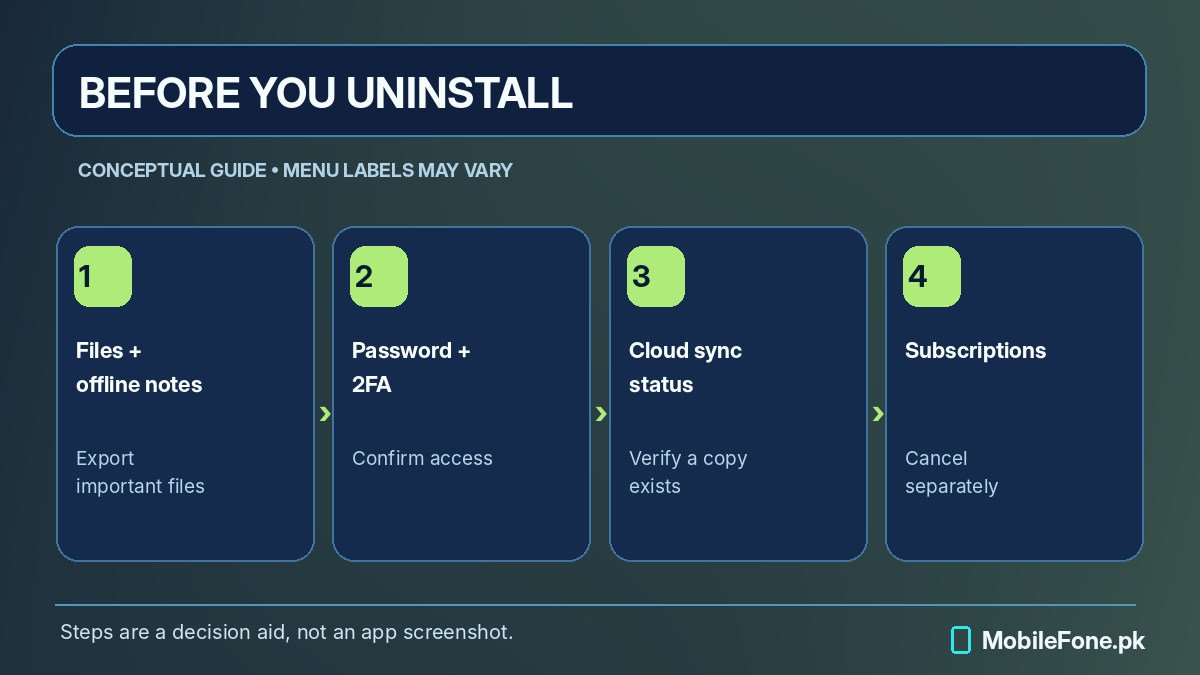
A messaging app can have its own chat-backup procedure. A password manager may need an account-recovery key. An authenticator may require a transfer process before removal. A photo visible inside an app might be stored online or only in private local storage. Verify the actual location rather than assuming the file is safely copied elsewhere.
- Confirm the account email or phone number and a working sign-in method.
- Export local notes, recordings, offline projects and other files you want to keep.
- Verify cloud backup content through the app or service’s legitimate website.
- Complete authenticator or account-transfer instructions where relevant.
- Check paid subscriptions separately: uninstalling is not cancellation.
A backup you have never verified may fail when you need it. At minimum, inspect its date and whether expected records appear on another authorized device or web interface. For a sensitive work app, ask the employer or administrator about its removal policy before deleting it.
Uninstall using an ordinary Android control
Google’s Play Store instructions describe opening the store, tapping your profile picture, selecting Manage apps & device, choosing Manage, finding the app and pressing Uninstall. Many phones also offer this through Settings > Apps or by long-pressing an app icon. Read the confirmation screen because the app name may resemble that of another installed program.
- Select one nonessential app and finish its backup checks.
- Open its trusted app-store listing or its entry in Settings > Apps.
- Choose Uninstall and read the warning before confirming.
- Check Settings > Storage again to measure the actual change.
- Confirm that your remaining important apps still work normally.
If the button shows Disable rather than Uninstall, it may be a preinstalled system application. Do not disable random Google services, launchers or security components simply to reclaim a small amount of space. Doing so can affect notifications, accounts and other features. Review the device manufacturer’s instructions when the purpose of a system app is unclear.
Why archiving may be better than permanent removal
Google documents app archiving on supporting Android devices. Archiving removes installed software and temporary components while retaining an icon and supported personal data. This can be a sensible compromise for a game or travel app you use occasionally. Availability depends on the phone’s Android version, hardware capability and app-store support.
An archived app can show a faded icon with a small symbol. Restoring it may require internet connectivity, sufficient storage and the application still being available through the store. Archiving is not an independent backup of personal data. If the app is later withdrawn or becomes incompatible, restoration might fail.
Review Settings > Apps for Archive, or inspect the supported Play Store automatic-archive setting. If neither appears, do not assume the phone is defective; the feature is not universal. Choose Uninstall only after completing backup checks, or keep the application if its local data matters more than the storage savings.

Skip risky cleaner apps and system-folder deletion
Some “one-tap booster” apps ask for broad file, accessibility or notification permissions without explaining the benefit. Android already provides native app and storage controls. Try those first. Avoid granting a cleaner privileged access merely because its advertisement promises a particular amount of freed RAM or storage.
Deleting unfamiliar system folders in a file manager or removing built-in apps with unsupported commands can destabilize Android. Removing Google Play services is not a normal storage-cleanup method. Clearing an app’s storage is also riskier than removing its cache: Google explicitly distinguishes temporary cache from app data that can be permanently deleted.
Downloads and offline videos are often worth reviewing after apps, provided you can confirm originals remain available. But do not erase messages, identity documents or private recordings just because a cleanup app marks them as “large.” The safest storage plan is selective and reversible wherever possible.
Make space without losing essential functions
After removing or archiving something, revisit Settings > Storage. If internal space remains critically low, review duplicate downloads or large media that you have safely copied. Keep essential banking, communications and two-factor-authentication apps accessible until any migration is tested. A successful cleanup should leave the phone easier to use, not lock you out of necessary accounts.
Some budget phones have limited built-in storage, so upgrading may be better than repeatedly deleting essential apps. Use MobileFone’s 256GB phone directory to research higher-capacity variants and the complete phone directory for broader comparison. Confirm the exact variant, price and app requirements independently rather than assuming a directory guarantees compatibility.
Next action: choose the least important app, confirm its stored data, then decide between uninstalling and archiving. Change one application at a time so any unexpected loss is easier to trace.