What Is Virtual RAM in a Smartphone?

On this page

Virtual RAM is a phone-maker’s memory-management feature, often described as using part of internal storage to help keep more app information available. It does not add physical RAM or make storage as fast as RAM. Names and implementations vary, so read the exact model’s documentation. The useful question is whether the supported setting improves your normal app-switching experience without unwanted trade-offs, not whether a combined advertising number looks larger.
Keep physical RAM, storage and virtual memory separate
Physical RAM is working memory used while programs run. Storage keeps apps, photographs and other persistent files. Google’s Android storage guide distinguishes those roles. Changing a virtual-memory allocation does not solder another RAM chip into the phone or increase its processor capability.
Phone brands use names such as RAM Plus and Memory extension for their supported features. Samsung’s RAM Plus explanation describes using internal storage and says it does not increase physical RAM. Treat the physical amount and the extension setting as different entries when comparing phones.
A combined total is a marketing description, not a new hardware specification.
| Term | What it describes | What it does not establish |
|---|---|---|
| Physical RAM | The installed working-memory hardware | That the processor or software has no other limitation |
| Virtual-memory allocation | A supported memory-management setting | An equal amount of additional physical RAM |
| Internal storage capacity | Space used for persistent files and software | The amount of working RAM |
| zRAM | Compressed memory used as swap space within RAM | That every manufacturer’s extension uses the same mechanism |
| Combined advertised memory | A headline that may add different categories | Direct equivalence to another phone’s physical RAM |

Understand why one explanation does not fit every Android phone
Android already manages memory in ways users do not normally configure themselves. Google’s memory-allocation documentation describes RAM, persistent storage and zRAM. zRAM compresses data within RAM; it should not be described simply as a reserved section of the phone’s flash storage. The newer Android memory troubleshooting guide likewise describes compressed anonymous memory and reclaiming file-backed pages.
Those operating-system mechanisms do not, by themselves, identify what every branded expansion setting does. Manufacturer documentation for the actual model is the appropriate place to verify a user-facing feature.
This distinction prevents two common mistakes: claiming every Android phone swaps to storage in the same way, and claiming a manufacturer’s storage-based extension cannot exist because generic Android documentation discusses zRAM. Avoid turning either broad description into an unsupported diagnosis of a particular handset.
Expect a possible app-retention benefit, not free processing power
The intended benefit is usually keeping app information available when memory is under pressure, which may reduce some reloads when switching tasks. That does not guarantee faster interaction in every app. Reopening an app, keeping it in the background and rendering a demanding game are different tasks.
Results depend on the device, its software and the app mix. If your ordinary apps already behave well, increasing the allocation may offer no useful improvement. A larger selectable amount is not automatically the best setting. Compare the result you care about rather than trying to maximise the number.
It also cannot guarantee that an app never reloads. An app can refresh its own content, and the system still needs to manage resources. Treat one retained screen as an observation rather than proof that every task became faster or that the phone now has flagship-class hardware.
Use only the supported setting for the exact model
On supported Galaxy software, Samsung’s Device Care instructions describe Memory, RAM Plus and restarting when prompted. Menus and available allocations vary. For a Galaxy A04, check the actual installed interface rather than assuming a newer model’s menu is present.
For the Redmi 13C, Xiaomi publishes model-specific Memory extension instructions, including Additional settings and a reboot. Its storage-availability requirements belong to that device’s documented setup; do not apply them universally to other phones.
Do not install an untrusted RAM booster, use a hidden swap command or delete important files just to reach the largest allocation.
- Check that the feature is supported on your exact model and software.
- Keep adequate usable storage for your actual files and updates.
- Follow the manufacturer’s restart prompt when changing the setting.
- Keep the default if normal use is already satisfactory.
Compare a normal workload before deciding whether to keep a change
- Choose a familiar set of ordinary apps and note the specific reload or response problem.
- Keep the app mix and other relevant settings consistent.
- Change only the supported virtual-memory option and restart if prompted.
- Repeat the same tasks and compare app retention as well as responsiveness.
- Keep the useful setting or return to the previous supported choice if the result is worse.
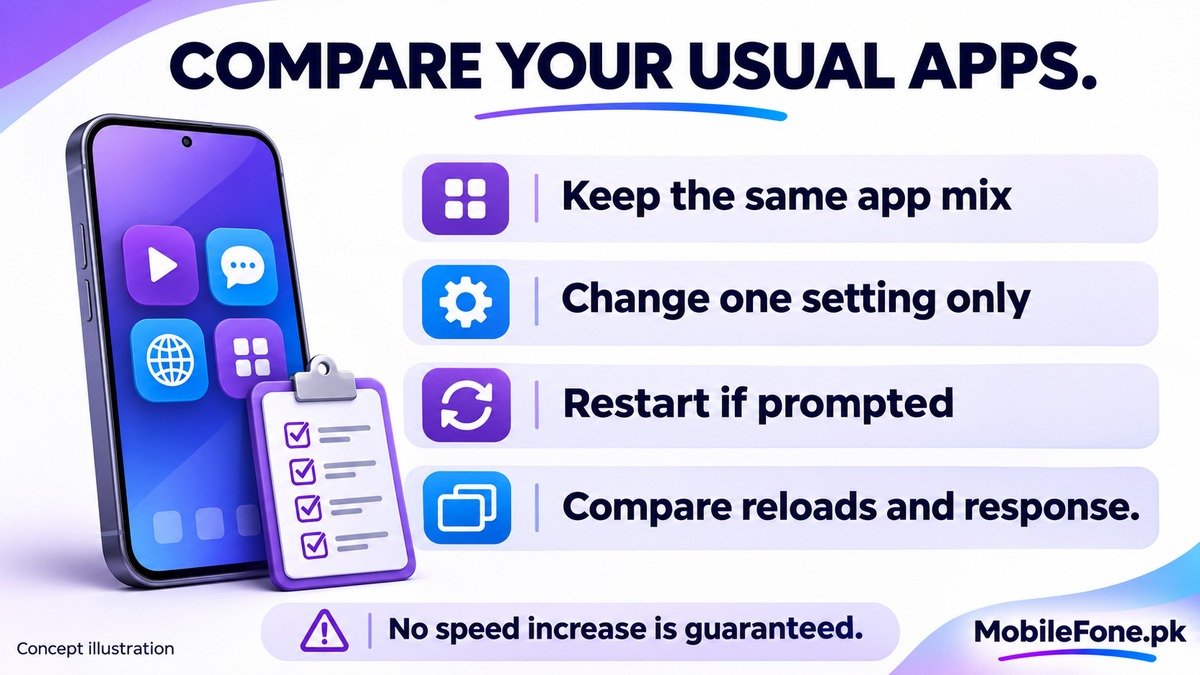
This is a practical observation, not a benchmark claim. If the problem is only one malfunctioning app, investigate that app rather than assuming the phone needs a larger extension. When buying, compare physical RAM first and assess the complete device. Virtual memory can be a useful tool on a supported phone, but it is not a substitute for adequate hardware.