How to Find an IMEI on Android and iPhone

On this page
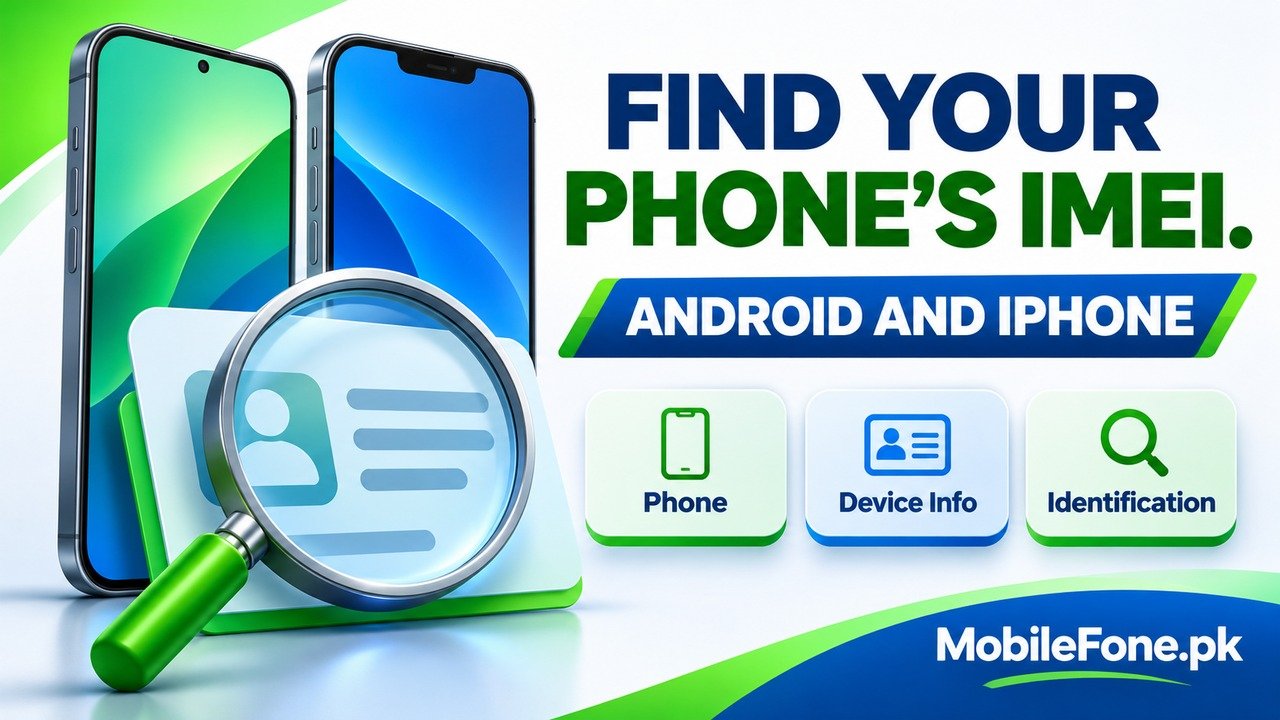
To find an IMEI on Android, open Settings and look under About phone; some models place it inside Status or IMEI information. On iPhone, go to Settings, General, About and scroll to the IMEI entries. The dialler code *#06# is another option on supported phones. Copy the value labelled IMEI, rather than the serial number, EID or mobile number. If several IMEIs appear, keep their labels with them.
You do not need a third-party identifier app or a factory reset to read this information.
Use Settings and copy the right identifier
An IMEI, or International Mobile Equipment Identity, identifies cellular equipment. The GSMA describes it as a 15-digit identifier used on a mobile network. Knowing the number is useful for support and official device checks, but merely displaying one does not establish a handset’s ownership, condition or PTA status.
On a Samsung Galaxy, open Settings → About phone. Samsung Pakistan’s instructions note that some older software puts further details under Status. Other Android manufacturers use different menus, so search Settings for “IMEI” if necessary. Check the manufacturer’s own support page when the labels differ rather than assuming a Samsung screenshot matches every Android phone.
For iPhone, use Settings → General → About and look below the main device details. Apple’s identifier guide describes where IMEI, EID and other identifiers appear and how supported fields can be copied. Read the label before copying: several long numbers can be visible on the same page.
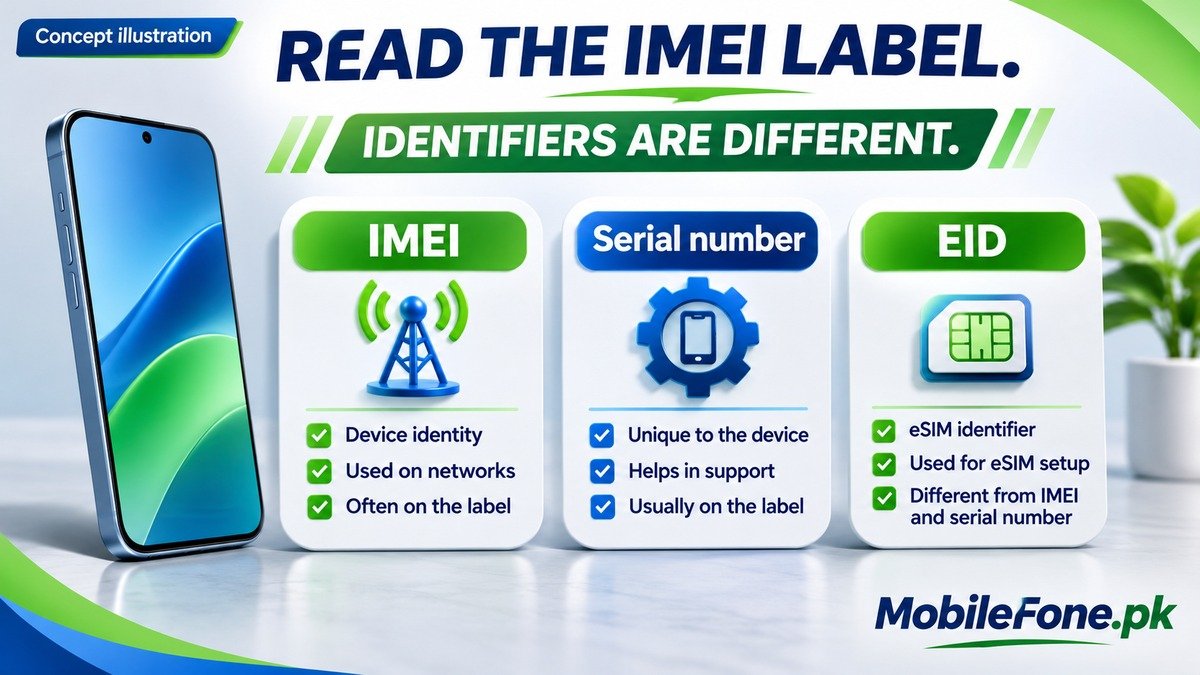
| Label | What it refers to | Practical check |
|---|---|---|
| IMEI or IMEI2 | Cellular equipment identity | Use the relevant IMEI for an official device-status check |
| Serial number | Manufacturer’s identifier for the unit | Do not substitute it in an IMEI field |
| EID | An identifier associated with eSIM hardware | Keep it separate from the IMEI entries |
| Phone number | The number attached to your mobile service | It is not the handset’s IMEI |
The distinction matters when you are standing at a shop counter. A number copied from the wrong field can produce an error or an irrelevant result, even though the digits were copied perfectly.
Try the dialler without changing phone settings
Open the phone’s normal dialler and enter *#06#. On supported devices, an identifier screen appears. Read the labels and compare the IMEI entries with Settings. There is no need to enter a factory-reset code, install an APK or give a shop access to your accounts for this check.
- Open Settings or the supported dialler display on the actual handset.
- Locate each field explicitly labelled IMEI, keeping IMEI and IMEI2 separate where shown.
- Copy the requested identifier and compare the complete value with the screen.
- Record the model and the identifier’s label in a private note.
- Use it only with the legitimate support service or official verification channel you intended to contact.
If the dialler code does nothing, return to Settings. Carrier, dialler and software differences can affect that method; an unsupported code is not proof that the phone is counterfeit. Do not experiment with unrelated service codes to force a result.
Keep multiple IMEIs separate
A phone can show more than one IMEI because of its cellular configuration. Preserve the labels rather than joining the numbers into one long string or choosing one at random. If your task is Pakistan device verification, check every relevant handset IMEI separately. A result for one identifier should not be silently applied to another.
The iPhone 12 Pro Max model page provides context for regional device differences, while the Redmi 13C listing helps distinguish that Android model from similarly named phones. Neither page supplies your individual handset’s IMEI. Use the unit itself or your own records for that information.
Keep the eSIM-related EID separate as well. If a support agent asks for an EID, provide that field through the genuine support channel; if the task requests an IMEI, use the IMEI field. Do not assume one identifier can replace all the others.
Find a record when the handset is unavailable
Start with the original packaging or purchase paperwork if it includes the handset identifier. Make sure the record belongs to this device, particularly if your household owns two phones of the same model. A box found in a drawer is supporting evidence, not an automatic match to whatever handset you are holding.
For an iPhone associated with your Apple Account, the Devices section of your own account may provide device identifiers. For Android, Google’s Find Hub instructions describe selecting the correct device and opening its settings to view the IMEI when available. These are account-authorised options, not ways to discover a stranger’s identifier from a phone number.
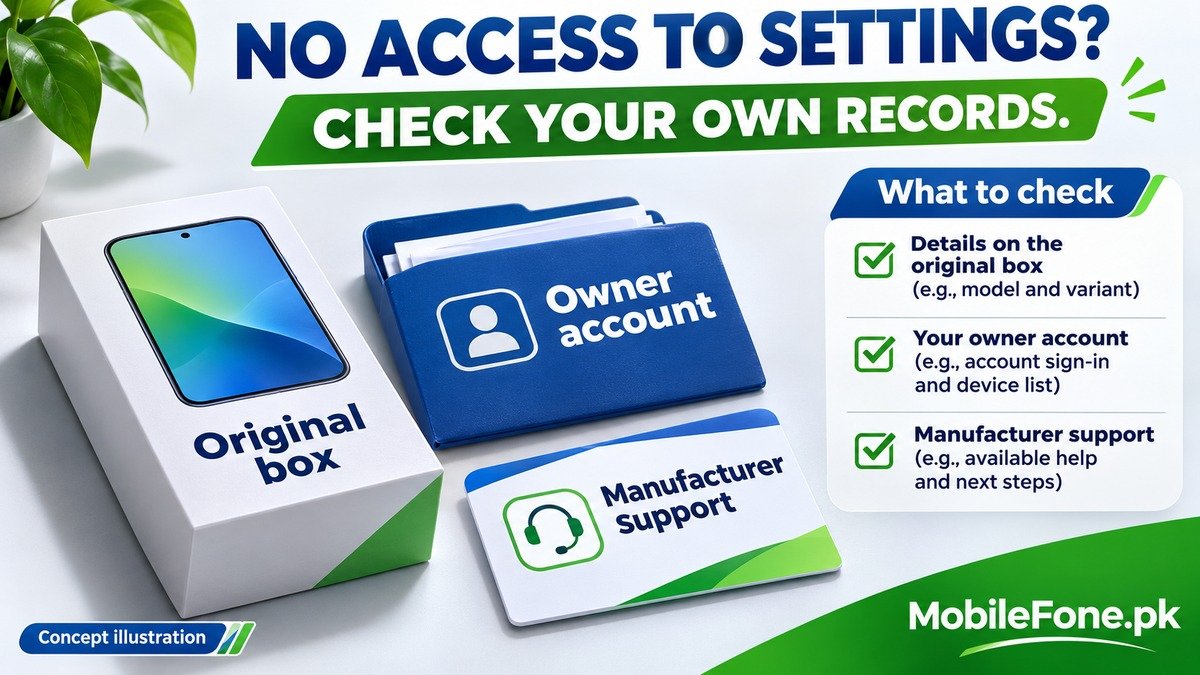
Do not erase or remotely reset the phone just to find its IMEI. If you cannot identify the device from legitimate records, ask its manufacturer or your operator what evidence they need. Do not open a sealed handset or remove a non-removable battery to search for a label.
Use the number privately for the next task
Save a private record while the handset is available, with these sharing boundaries:
- Hide complete IMEIs and other personal identifiers in public screenshots.
- Give the full value only where a legitimate service requires it.
- Keep account passwords, banking codes and unrelated identity documents out of identifier requests.
For Pakistan registration checks, Zong’s DIRBS guidance identifies the official SMS verification route, sending the IMEI to 8484. Retrieving the number is only the preparation stage. Read the resulting official response separately before making a purchase or deciding whether registration action is needed.

Related reading
 PTA & Mobile RegistrationHow to Check PTA Approval Using an IMEINovember 14, 2026
 PTA & Mobile RegistrationPTA Compliant vs Non-Compliant Mobile: What It MeansNovember 14, 2026
 PTA & Mobile RegistrationHow Mobile Registration Works Through DIRBSNovember 14, 2026
 PTA & Mobile RegistrationHow to Check an Imported Phone Before BuyingNovember 14, 2026