How to Choose a Phone for Work and Video Calls

On this page

For work and video calls, test the microphone, speaker, connection stability and front camera before comparing raw processor scores. A smartphone can have a sharp display and still be awkward for meetings if participants cannot hear you, background noise dominates or the connection drops. Choose around your real working environment: home Wi-Fi, mobile data during travel, email and document work, and the meeting platforms your employer uses.
Start with how and where you actually work
Someone joining a 20-minute weekly call needs less from a phone than a field salesperson taking customer calls throughout the day. Separate your work into voice calls, video meetings, writing, document review, scanning and hotspot use. If your company controls device enrollment, ask IT whether its apps support the model and current OS. A phone is not a laptop replacement merely because its product sheet lists a fast chip.
Before spending more for an expensive variant, check the selected model in the MobileFone specifications directory and confirm its actual memory, operating system, SIM setup and connectivity. A regional model might differ from the one pictured in a retailer’s advertisement, and used-phone condition can dominate a seemingly better specification.
A good meeting starts with sound, not megapixels
On a real test call, ask another person to judge whether your speech is clear, whether tapping the desk carries through and whether the microphone becomes muffled when you hold the phone naturally. Try the loudspeaker and a compatible headset. Check that the bottom charging port or wireless accessory does not interfere with the microphone. If your calls happen outdoors, test the headset in a suitably noisy place without compromising safety.
For video, look for natural exposure and usable framing in both window light and normal indoor light. Front camera resolution alone does not tell you how well automatic exposure works. Google lists a compatible camera, microphone and broadband connection among the requirements for Google Meet. Your own organisation may also require its preferred communication or device-management software.
| Work need | What matters | Practical check |
|---|---|---|
| Client voice calls | Clear microphone, earpiece and signal | Make a normal mobile call |
| Video meetings | Front camera, clear audio and stable internet | Join a brief test meeting |
| Long email threads | Readable screen, keyboard response and app switching | Reply to a draft and attach a file |
| Travel between networks | Local SIM compatibility and roaming arrangements | Test cellular data and Wi-Fi separately |
| Extended field shifts | Battery health and dependable charging | Inspect charge status and port behaviour |

Network stability beats a decorative 5G badge
Video calls need steady upstream and downstream transmission. Google notes that bandwidth problems can reduce meeting quality, and its Meet troubleshooting guidance advises evaluating the connection, latency and Wi-Fi conditions. A higher advertised mobile speed does not guarantee stable call quality in a particular office, stairwell or vehicle. You should test the actual network you expect to use.
If calls work on Wi-Fi but not mobile data, investigate the operator, local signal and settings before blaming the phone’s front camera. If the video looks fine but colleagues cannot hear you, focus on microphone permission, Bluetooth routing and the audio input selected by the app. These distinctions save money: replacing a phone will not fix weak office Wi-Fi or a blocked microphone permission.
Software, security and work continuity
A work phone may hold confidential documents, client contacts and one-time passwords. Prioritise ongoing security updates, a strong lock screen, dependable backup and support for multi-factor authentication. Verify your employer’s rules for work profiles, mobile-device management, VPN and access to banking or enterprise apps; do not promise that an untested imported variant supports a company’s enrollment system.
Enough physical RAM and storage matter for multitasking, but they are not a substitute for compatible software. A phone with 256GB may be convenient for offline files and recorded media, while people who rely on cloud documents might need less. Browse the 256GB storage models only after estimating how much data you really save locally.
Plan for a full day without inventing battery claims
Battery size, charge speed and real endurance are three different questions. A 5,000mAh listing does not guarantee a full workday because signal strength, screen brightness, hotspot use and video meetings vary. Test charging with a suitable accessory, confirm that the phone does not overheat during ordinary use, and consider whether you’ll have a safe charging point during travel.
The higher-capacity battery directory is a way to compare published capacities, not an endurance ranking. If power reliability is important, a well-supported model with a healthy battery and a good local repair pathway may be preferable to a poorly documented import with a bigger printed number.
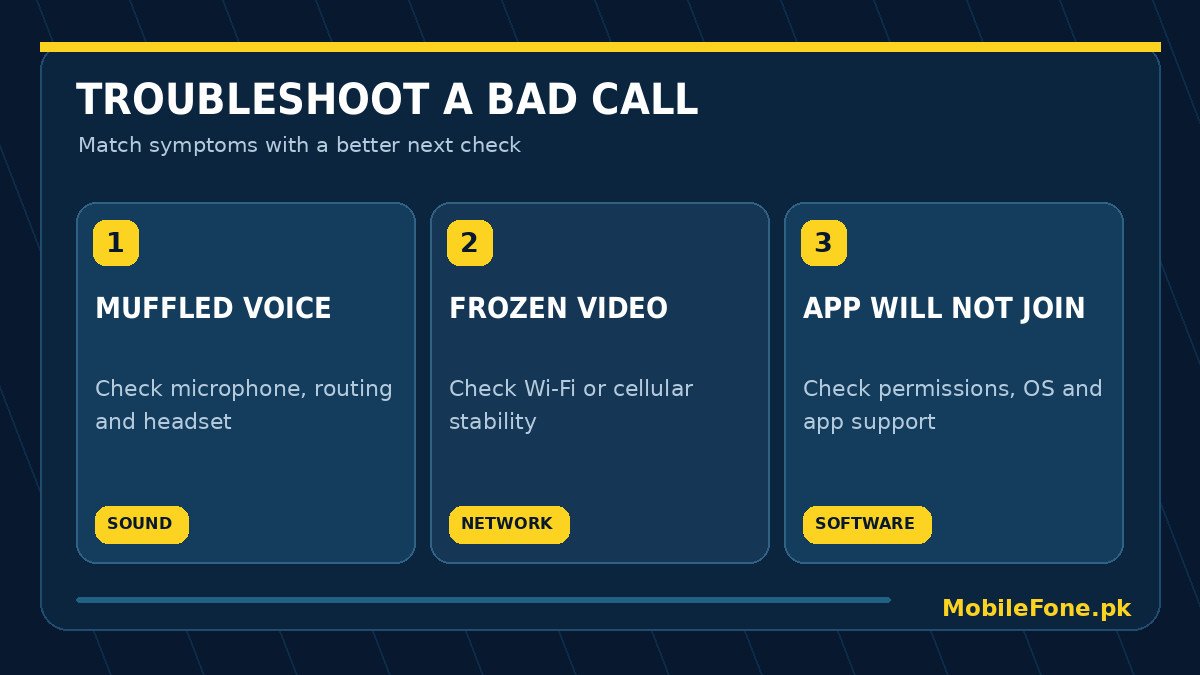
Dual SIM and eSIM support can be valuable if you separate personal and work numbers, but check the exact regional handset and your operator’s activation rules. Some employers require an approved device, work profile or enrolled authenticator; ask IT before purchasing, not after the phone arrives. Likewise, a ‘noise cancelling’ marketing label does not prove that a microphone will reject an office fan or traffic noise in the app you actually use. A short test call with an ordinary colleague is more persuasive evidence than a specification table for that single task.
A 15-minute pre-purchase work-call checklist
- Connect to the office or home Wi-Fi and load the work apps you need.
- Place a mobile voice call; check earpiece, loudspeaker and microphone clarity.
- Join a short video meeting and switch between the front camera, headset and speaker.
- Turn off Wi-Fi to check the actual mobile-data connection, where your plan allows it.
- Open a document, type a reply and attach a small file while another app is open.
- Inspect battery condition, charging and the warranty or return terms before payment.
If you’re comparing two models, record your notes in a simple pass/concern/fail table rather than ranking phones from marketing claims. For many workers, the best phone is the one that gives clear conversations and predictable access to work accounts, even if it is not the most expensive device in the shop.

Related reading
 Mobile Buying GuidesMobile Buying Checklist for Pakistani BuyersNovember 14, 2026
 Mobile Buying GuidesHow to Inspect a Used Samsung Phone Before BuyingNovember 14, 2026
 Mobile Buying GuidesHow to Inspect a Used iPhone Before BuyingNovember 14, 2026
 Mobile Buying GuidesRefurbished vs Used vs Open-Box PhonesNovember 14, 2026