App Installed but Icon Not Showing

On this page

An installed Android app can be missing from the home screen without being deleted. First open the full app drawer, often by swiping up from the home screen, and search for the app by name. A home-screen shortcut and an installed application are not the same thing. If the app appears in All apps or its Play Store page shows Open, there is usually no reason to reinstall immediately. Check for a hidden, disabled or archived state before changing anything that might erase its data.
An installed app and a home-screen icon are different
Your home screen shows shortcuts and widgets selected by you or the launcher. The All apps view, where available, lists a much wider selection of installed applications. Removing a shortcut normally leaves the app installed; uninstalling removes the application package and may remove local information. Confusing these actions can lead to lost progress, files or login settings.
Android Help describes swiping up to reach All apps on many devices. Some launchers instead have a separate Apps screen or a home-screen-only mode. A third-party launcher can apply its own hiding rules even when Android still recognizes the app.
| What you notice | Possible reason | What to check |
|---|---|---|
| Missing from home only | Shortcut removed | All apps and Add to Home |
| Absent from All apps too | Hidden, disabled, archived or deleted | Settings > Apps and store listing |
| Faded icon with marker | App may be archived | Restore through supported store |
| Visible under another tab | Work or private profile | Select the relevant profile |
Find the installed app without deleting anything
Do not start by clearing launcher storage. On some phones that resets screen arrangement and folders. Instead, go from the simplest reversible checks toward the application’s installed status. The exact menu appearance depends on Android version and launcher.
- Swipe up from the home screen to look for All apps, or open the phone’s Apps screen.
- Use the app drawer search field, if provided, and enter the app’s exact name.
- Examine home-screen folders, especially if you recently changed launcher or theme.
- Open Settings > Apps > See all apps, then find the application in the installed list.
- Open its official Play Store listing; compare whether the action says Open, Enable or Install.
If the app is in All apps, hold its icon and choose Add to Home when that option exists, or drag the icon onto the home screen. Some phones have a single-screen layout and do not expose a separate drawer. Search the launcher settings for App drawer or Home screen mode rather than assuming your handset is faulty.

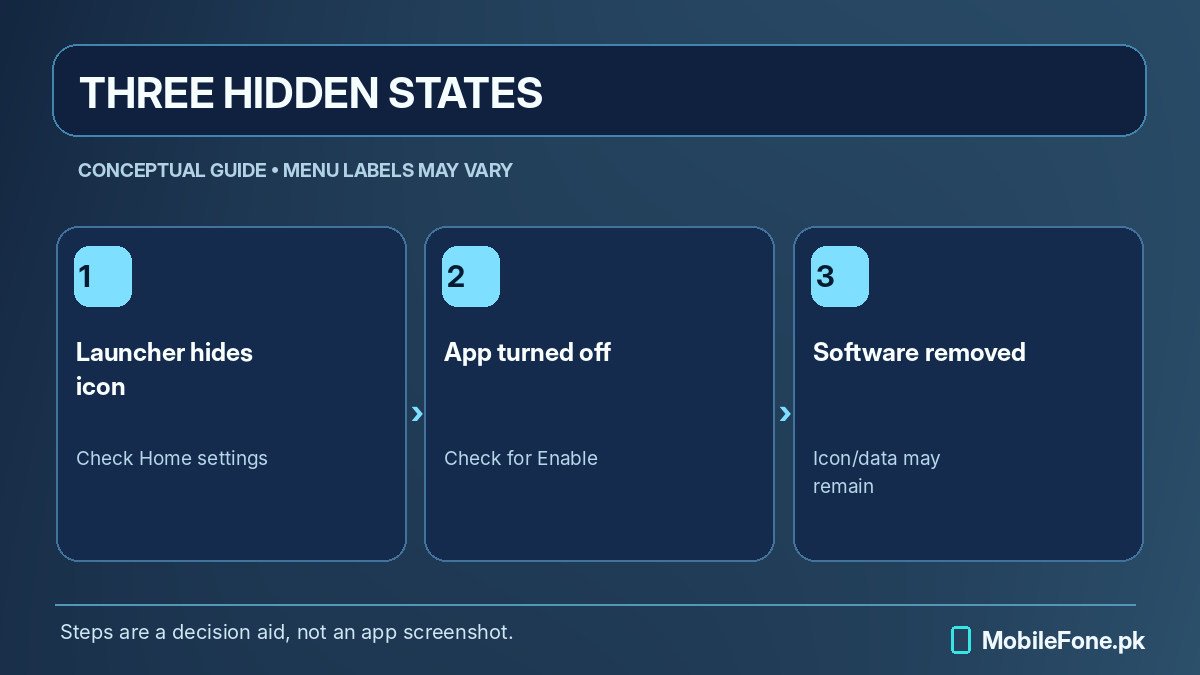
Check hidden, disabled and archived states
Launchers from Samsung, Xiaomi and other Android makers may offer a Hide apps control. The location can differ even between models running the same Android release. Search Home screen settings or your launcher settings for the feature. If you installed a third-party launcher, test the manufacturer’s original launcher before removing applications.
A disabled preinstalled application can appear in Settings > Apps with Enable rather than Open. This usually indicates it remains installed but is inactive. Do not enable unfamiliar system components just to experiment; make sure the name belongs to the app you actually want.
Archiving is another explanation. According to Google’s archive documentation, supported devices can remove an unused app’s executable software while retaining its icon and personal data. Archived icons can look faded and have a small marker. Restoration may require internet access, enough storage and continued store availability. The feature is not supported on every Android version and device.
What if Play Store says it is installed?
Open the app’s legitimate store page and inspect its action button. Open usually indicates that Play Store recognizes the current installation, while Install points toward an absent package in the current profile. With a work profile, private space or multiple users, the same app can have different installed states. Look for the relevant profile tab before making changes.
If the Play Store app itself has no icon, that is a separate case. Google advises checking whether Play Store has been hidden or disabled and restarting the device. Avoid installing a replacement from an unknown website just because the icon disappeared.
Some applications are designed without a conventional launcher icon because they provide a service or widget rather than a stand-alone screen. If the developer describes it that way, the lack of a normal app-drawer entry may be expected. Verify that behaviour through the official app page instead of using unrelated search results or a suspicious shortcut creator.
Do not reinstall before checking local data
Uninstalling can remove offline notes, downloaded maps, saved games, recorded files and credentials held only inside an app. Cloud-based content is not automatically a complete replacement, especially if the account was never synchronized. An authentication app may have special migration requirements. Check its backup or export options and confirm you can access the right account before using Uninstall.
If Settings cannot find the app and the trusted store listing shows Install, a normal installation may be appropriate. If the store says Open but nothing launches, inspect launcher settings, profiles and app permissions. For apps supplied by an employer or school, ask the administrator whether the icon is intentionally restricted.
Keep the shortcut visible after restoring it
After adding the shortcut, check whether it survives a phone restart. If the layout keeps changing, review launcher updates, theme changes and any device-specific home-screen lock setting. A screenshot of your home-screen layout can help you rebuild shortcuts, but it is not a backup of the installed apps or their private data.
If wider launcher trouble suggests unsupported system software, compare Android versions recorded in the MobileFone specifications directory. The newer mobile phones directory is a useful research starting point if the device is too old to run an essential app; it does not prove compatibility on its own.
Next check: locate the app under Settings > Apps. Whether it appears there is more informative than repeatedly restarting or reinstalling a package whose data you need.