Google Play Store Not Opening

On this page

When Google Play Store will not open, start with a reliable internet connection and a phone restart. If the store still freezes, closes instantly or shows an empty screen, clear its cache before considering more disruptive steps. You usually do not need to reset the entire phone. The safest route is to identify whether the problem is with connectivity, storage, the store app or the Google account, then change one thing at a time.
Identify what the Play Store actually does
“Not opening” can describe different failures. Tap the Play Store icon once and observe the result: does nothing happen, does it flash and close, or does the app stay open but fail to load listings? These symptoms point to different checks. A blank content area with the store still responding makes a connection problem more plausible than an immediate crash, although neither observation is a diagnosis.
If other websites and apps work over Wi-Fi but the store does not, test with mobile data where your package permits. Then try the reverse. Avoid buying a new data bundle simply because one app failed; first establish whether the browser loads a normal webpage on the same network.
| What you see | What to examine | Safe next action |
|---|---|---|
| Opens to a blank page | Internet or service response | Test a browser, then switch network |
| Closes immediately | App or system state | Restart; check for updates |
| Opens but downloads stall | Free space and connection | Check Settings > Storage |
| Account prompts repeat | Sign-in or account state | Verify the correct Google account |
Try low-risk fixes in the right order
Google’s basic troubleshooting guidance recommends checking connectivity and available storage before advanced repairs. The following sequence lets you stop as soon as the store works. Menu names differ between Samsung One UI, Xiaomi HyperOS, Oppo ColorOS, and stock Android.
- Open a website in your browser to confirm the connection is usable, not merely connected to Wi-Fi.
- Restart the phone normally and allow it to reconnect before opening Play Store again.
- Visit Settings > Storage. If space is critically low, remove only files or apps you know you do not need.
- Open Settings > System or About phone > Software update and check whether a supported update is available.
- Long-press Play Store, select App info > Storage & cache and use Clear cache first.
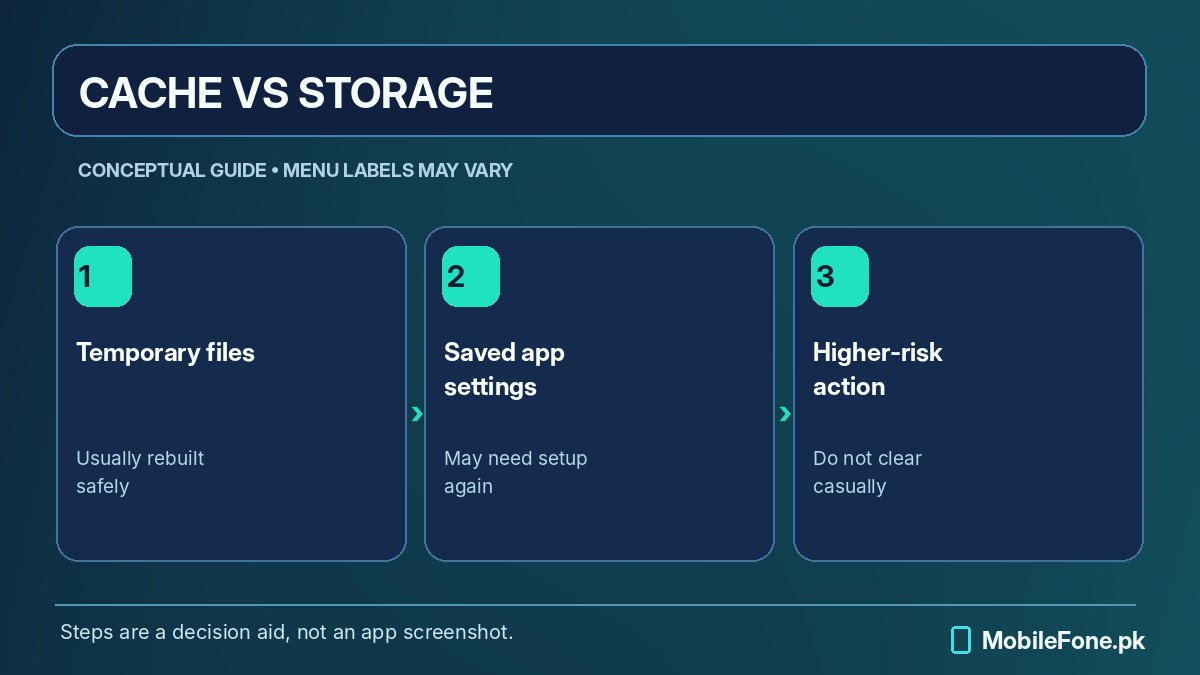
Cache contains temporary files. Removing it is less disruptive than clearing storage, and the first launch after clearing it may take longer. Test after each change rather than performing all steps together; otherwise you will not know what helped. A phone with very little free storage may behave poorly well beyond Play Store, because updates and temporary files need working room.

Clear storage and remove updates only when needed
If clearing cache fails, Google also documents clearing Play Store storage and, on supported devices, uninstalling Play Store updates. These actions have different consequences. Clearing store storage may reset store preferences, including parental controls and password-protection settings; you may have to accept terms again. It is not the same as deleting every file from your phone, but it is more intrusive than clearing cache.
To try it, long-press the Play Store icon, choose App info, open Storage & cache, and select Clear storage or Clear data. Confirm only after reviewing the warning on your phone. If an overflow menu offers Uninstall updates, it rolls the store back to the preinstalled version rather than removing Android. Open Play Store later and look under Settings > About for its update control. Google’s official instructions describe both options.
Do not confuse Play Store with Google Play services. Google explicitly warns that clearing Play services data can affect saved information and require account or payment reauthentication. Leave that option until ordinary troubleshooting has failed and you understand the implications. Clearing individual app data at random is not a sensible substitute for tracing the actual failure.
Check the Google account without making things worse
A store that repeatedly requests sign-in can reflect an account-related problem. First confirm the intended Google account is selected and can sign in through a browser. If the password was recently changed, the phone might need fresh authentication. Automatic date and time should also be correct because authentication depends on reliable system time.
Removing a Google account from Android is not a casual refresh button. Locally synchronized items may disappear from the device until it is added again, and apps can ask you to sign in afterward. Ensure contacts, calendar entries, and other important information are safely available before considering account removal. Prefer Google’s supported sign-in recovery rather than third-party “Play Store fixer” APKs.
On a family phone with supervised access, additional parental-control settings may affect downloads. If an employer or school manages the device, restrictions may be intentional. Ask the relevant administrator before changing account or security settings to solve what may be a policy issue.
What not to do when your data matters
A complete factory reset is disproportionate for an isolated store problem. It erases local data and application state. Google lists resetting only after other troubleshooting has failed, and a verified backup is essential first. Also avoid deleting folders with unfamiliar Android names, flashing unofficial firmware, or installing a replacement Play Store from random file-sharing websites. Those steps add security risk without proving the cause.
If the phone is an imported model without official Google Play support, the store may legitimately be unavailable. Downloading a random package does not establish device compatibility. On a phone where Google Play was working yesterday, however, first look for a recent software update, low storage, a bad connection or unusual account prompt before assuming the feature has disappeared.
When to seek device or app support
Watch what happens beyond the Play Store. If Gmail, Maps, and other Google services are failing, the connection, account, device software or system storage deserves closer attention. If the phone is also randomly rebooting or overheating, stop repeatedly changing software settings and seek qualified device help.
Older Android phones can eventually lose compatibility with newer apps. Check the Android release and security patch level before deciding a fault is repairable. Compare operating-system details in the MobileFone phone specifications directory and see newer listed handsets in the latest phones directory. Neither directory guarantees that a specific app will run; confirm its minimum requirements independently.
Next step: if the browser works and Play Store still crashes after a restart, available updates and cache clearing, record the exact error, Android version and phone model. That gives the developer or device maker useful evidence instead of a vague report that the store “doesn’t work.”