WhatsApp Notifications Arriving Late

On this page
WhatsApp notifications arriving late usually require a targeted check of background activity, network access and notification settings. If messages appear only when you unlock the screen or open WhatsApp, investigate battery and background restrictions first. If messages arrive on time but do not make a sound, investigate alert settings instead. These symptoms feel similar but suggest different fixes, so a simple timed test is better than clearing app data or resetting the phone.
Measure the delay before changing anything
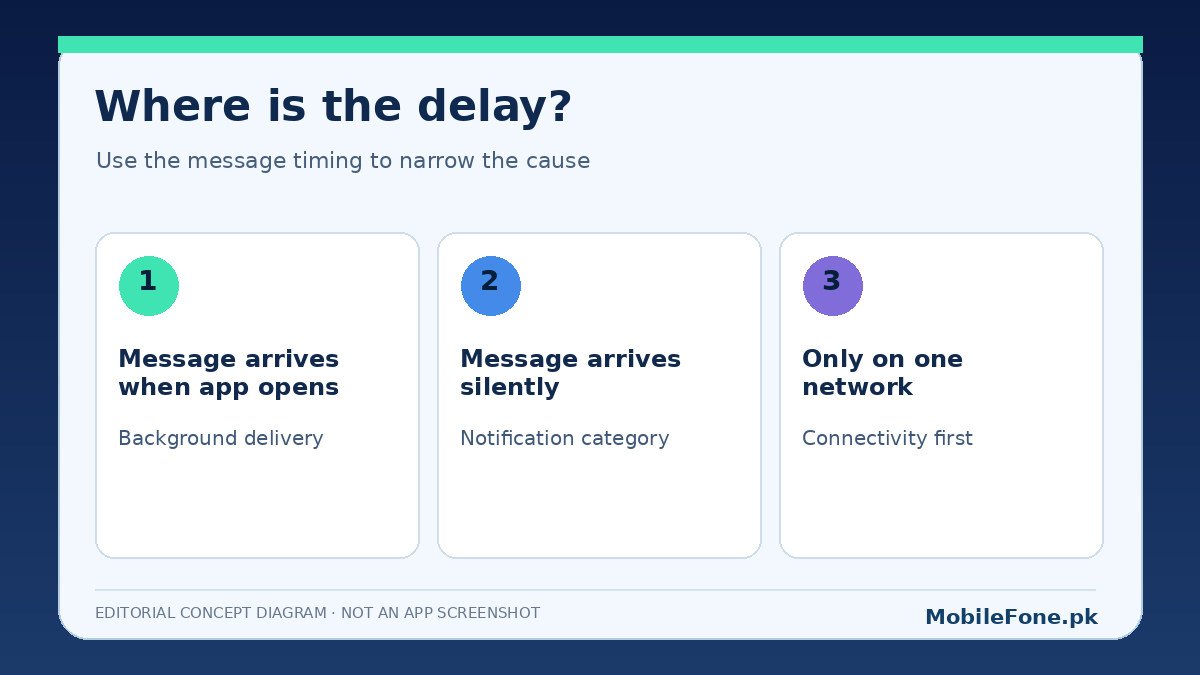
Use another phone to send two short test messages. For the first, keep the receiving phone unlocked with WhatsApp closed; for the second, lock it for a few minutes. Compare the message’s arrival in WhatsApp with the time of the alert. Repeat after switching from Wi-Fi to mobile data if you can. Note if the message is delayed, the alert is delayed, or only its sound is missing.
| Observed result | Likely area to inspect | Safest next move |
|---|---|---|
| Messages appear after you open the app | Background activity or connectivity | Review app battery and background data controls |
| Messages are in WhatsApp but alerts are silent | Notification category, volume or focus mode | Check Android and WhatsApp alert settings |
| Delays happen only on Wi-Fi | Specific Wi-Fi connection | Test a second trusted Wi-Fi network |
| Delays happen only during Battery Saver | Power-saving limits | Temporarily test without Battery Saver |
| Only one muted chat is affected | Chat-specific notification preference | Review the affected conversation |
Battery Saver and background access
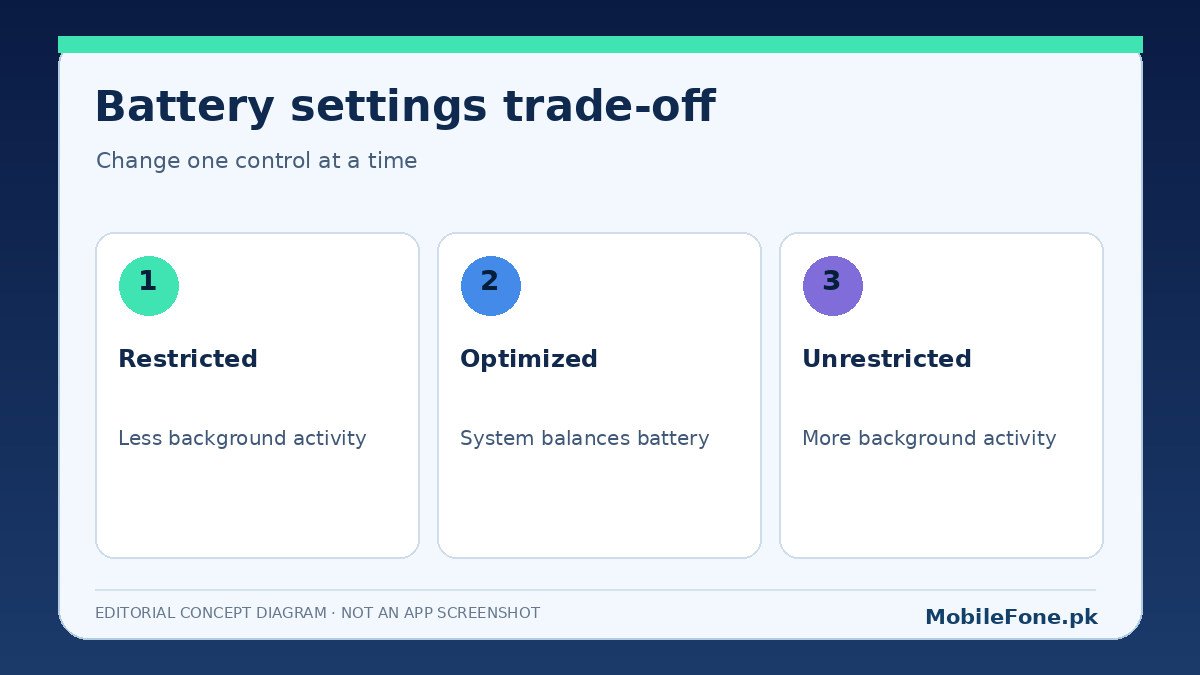
Battery-saving modes can limit what an app does while you are not looking at it. Google explains that Battery Saver may delay background activity. Pixel’s Adaptive Battery guidance also notes a possible notification delay as the system optimizes resource use. That is not proof the battery manager is causing your particular problem, but it gives you a clear hypothesis to test.
- Check whether Battery Saver or an extreme power-saving mode is active.
- Temporarily disable it for one timed message test and compare the result.
- Open Settings, find Apps and select WhatsApp; inspect its battery usage or background permission.
- Where available, allow an appropriate background-use mode and repeat the locked-screen test.
- Keep the least permissive setting that still delivers notifications reliably; unrestricted operation can use more battery.
Brand differences matter here. Android interfaces on Xiaomi/Redmi phones and Samsung devices may organize battery restrictions, sleeping apps and autostart controls in different places. Use the Settings search function and do not copy menu instructions from an unrelated software version.
Make sure the phone is allowed to notify you
Open Android Settings, go to Notifications, then App notifications and find WhatsApp. Confirm that notifications are allowed and that relevant types are alerting, not silent. The Android help page documents app-level and category-level controls. On some devices a conversation can have its own quiet notification settings, which makes one chat behave differently from others.
Within WhatsApp, inspect Notifications and any chat-specific mute setting. WhatsApp’s notification documentation points out that the device’s settings can override the app’s settings. Avoid resetting all phone notification preferences unless you understand the consequences for unrelated apps.
Check mobile data and Wi-Fi reliability
A message may be delayed because the phone is temporarily disconnected, not because Android has blocked WhatsApp. Try sending a message to another person, load a website, then switch between Wi-Fi and mobile data. A strong signal symbol alone does not guarantee steady connectivity. If the problem happens only on one Wi-Fi connection, investigate that router or access point.
For users on Jazz, Zong, Ufone or another Pakistani operator, check the data balance and whether other messaging apps can update in the background. Avoid guessing APN values or changing network registration settings without an operator-specific reason. Unverified fixes can create a second problem while leaving the original delayed notification unexplained.
What not to do when the delay is intermittent
- Do not uninstall WhatsApp or clear its storage before confirming a current usable chat backup.
- Do not disable every battery optimization on the phone; change the setting for the affected app only when useful.
- Do not install unofficial WhatsApp builds that promise instant notifications.
- Do not compare notification timestamps while one phone has poor internet and treat the result as a reliable battery test.
Update the official WhatsApp app and Android system components when offered, then restart and retest. If the issue persists, note the phone model, Android version, network used and exact test result. Whether messages appear only upon unlocking is one of the most useful details to provide to support.
Notification history, where supported, can provide another clue. Open Settings and search for Notification history. This feature is not available on every Android device, and it may need to be enabled before it records events. If the history shows a notification at the expected time but you did not hear it, the issue is probably alert presentation rather than message delivery. If the record itself appears later, look more closely at background app activity and the network. Treat history as diagnostic evidence, not a universal timestamp record.
It is tempting to grant WhatsApp every special permission available, especially on a phone that is aggressive about saving battery. That approach has a cost. A more useful comparison is to start with the default optimized mode, test reception, change only the app’s background allowance if the test supports it, and then repeat under the same conditions. This protects both battery life and personal privacy while giving you a result that can be reproduced. Avoid turning off unrelated system safeguards for a single messaging problem. For the comparison to be fair, keep the same Wi-Fi connection, sender, device location, and test interval whenever possible.
Keep the fix that matches the symptom
If turning off Battery Saver fixes the locked-screen delay, review the app’s permitted background activity rather than leaving every power-saving control disabled indefinitely. If messages are timely but silent, restore alerting notifications instead. If Wi-Fi is the only trigger, focus on that connection. One controlled change at a time makes it possible to know what helped and to reverse changes that did not.