WhatsApp Photos Not Downloading on Android

On this page

When WhatsApp photos will not download on Android, test the internet connection first, then check available storage, media permissions and WhatsApp’s media auto-download settings. A grey download arrow may mean a photo has not been downloaded automatically; it is not always an app failure. If text messages work but images do not, the problem may be an unstable connection, a restricted setting or a specific file rather than a complete WhatsApp outage.
Find out whether one photo or all media are affected
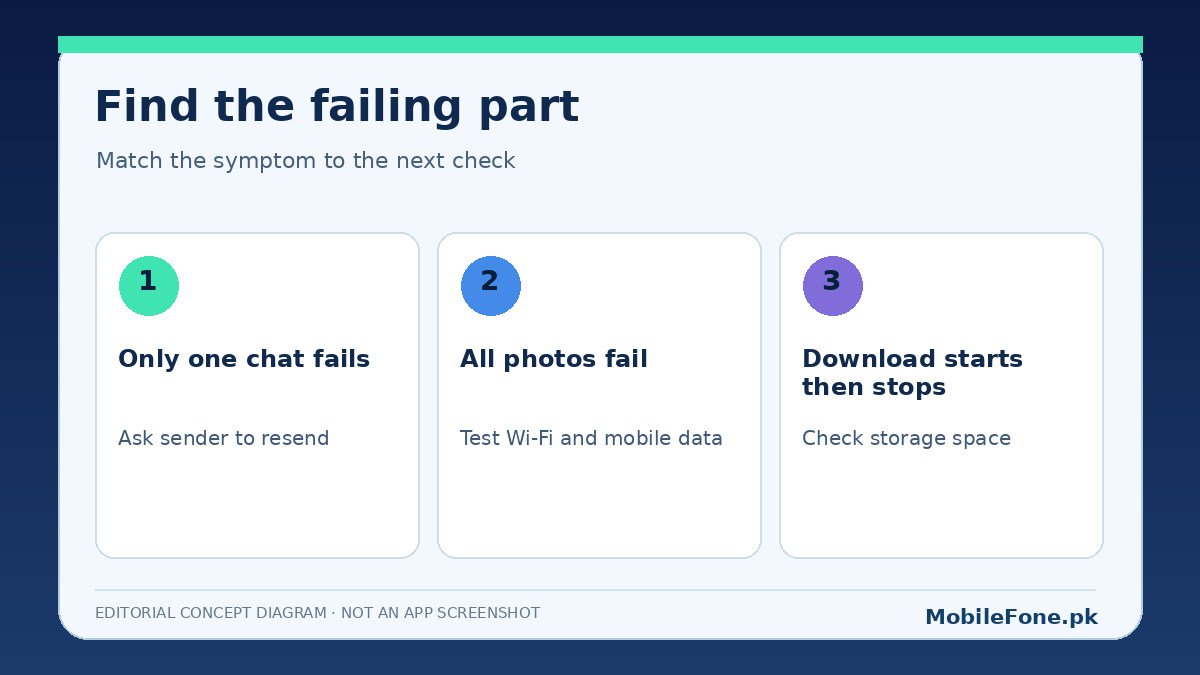
Open two separate chats and try downloading a recent, small photo in each. If only one older image fails, the original file or sender may be relevant. If new media fails in every chat, work through the phone’s network, storage and app settings. Do not start by deleting chats or reinstalling WhatsApp. That puts messages and media at risk without revealing the basic cause.
| What you see | Possible explanation | First safe test |
|---|---|---|
| Every new image fails | Connection, app access or device storage | Switch Wi-Fi and mobile data; check free space |
| Only older images fail | File may no longer be retrievable | Ask the sender to share a fresh copy |
| Images download only when tapped | Auto-download preference | Review Storage and data settings |
| Downloads start but do not finish | Unstable connection or insufficient space | Try another network and check storage |
| Downloaded images are absent from Gallery | Media visibility or indexing | Check in WhatsApp and file manager first |
Check the network without changing advanced settings
Try opening a normal website. Then, if possible, switch from mobile data to Wi-Fi or from Wi-Fi to mobile data and retry the same photo. A weak connection can affect image transfers while short text messages still appear to send. WhatsApp’s connection help points to connectivity as a common source of media problems.
- Temporarily disable airplane mode if it is on and confirm the phone has an active data connection.
- Load a website, then try a fresh image in WhatsApp.
- Switch networks and retry; note which connection succeeds.
- Check whether a data-saving mode, VPN or private DNS setup is preventing access; change only settings you recognize.
- Restart the phone once if the problem remains after those simple tests.
If the issue appears only on one Wi-Fi network, its restrictions or signal quality may be responsible. Avoid untrusted VPN services or modified WhatsApp apps as a workaround. On Pakistani prepaid connections, check that the current data package has usable data remaining; a package label alone does not prove the connection works.
Storage and permission checks on Android
WhatsApp needs sufficient free space to store incoming media. Inspect device storage in Settings and make room by removing files you have already backed up. Do not clear WhatsApp’s app storage/data: on many Android phones that action resets app data and can jeopardize local messages. Clearing temporary cache is different, but it is not a substitute for a verified chat backup.
Next, open Settings, find Apps, select WhatsApp, and review the available permissions. Depending on Android version, this may include Photos and videos or other media permissions. WhatsApp’s permissions guide confirms that denying an app permission can disable relevant functions. Permission names can differ on One UI, HyperOS and other Android interfaces.
Manual download versus media auto-download
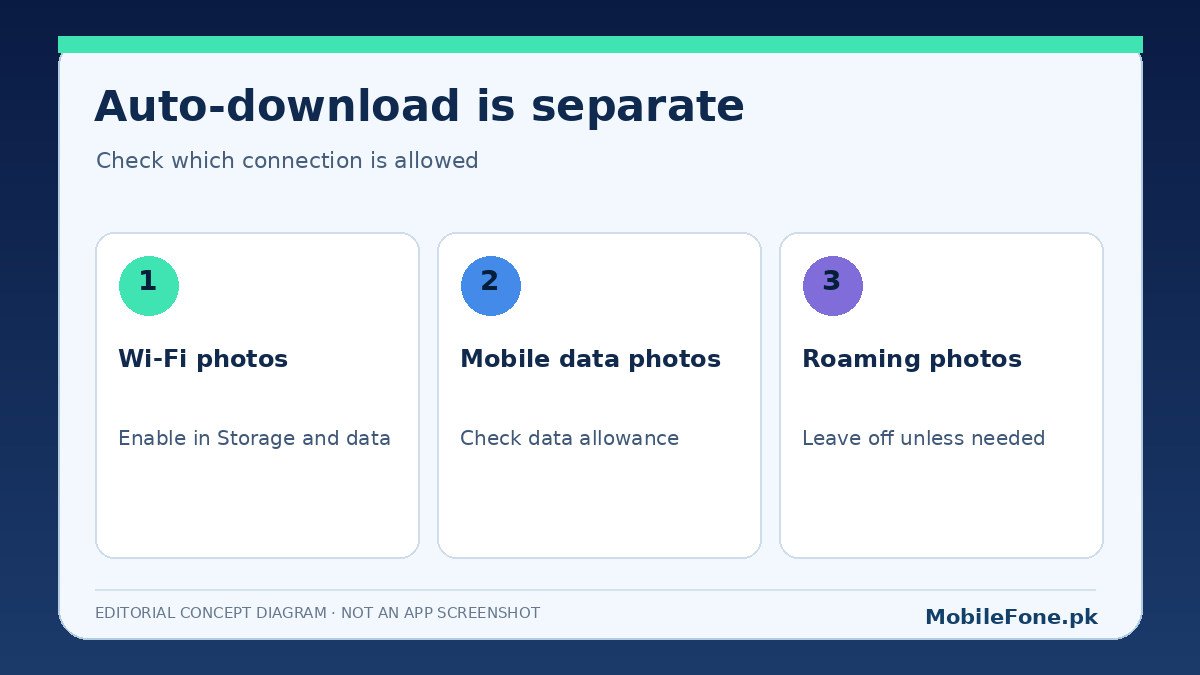
If a photo downloads when you tap it but not automatically, inspect WhatsApp’s own settings. On Android, open WhatsApp, choose the menu, then Settings → Storage and data. Under Media auto-download, review what can download over mobile data, Wi-Fi and roaming. The official auto-download instructions describe these separate connection preferences.
These options control convenience rather than fixing every failed file. For instance, disabling photo auto-download over mobile data should still allow you to tap a photo manually. On a limited prepaid package, enabling every media type for mobile data can consume your balance quickly, while roaming can cost more. Choose settings based on your data plan and which media you genuinely want downloaded without asking.
Why the photo may be missing from your gallery
A photo visible inside a WhatsApp chat but absent from the Gallery is a different problem from a failed download. Check WhatsApp media visibility and whether the Gallery app is showing the relevant folder. Certain devices organize downloaded images differently. A file manager can help determine whether the file is present before changing settings.
Avoid assuming that a missing Gallery thumbnail means WhatsApp erased the image. On phones with more aggressive background restrictions, gallery indexing may take time. Brand-specific menus differ; if you need to identify whether a Samsung or Redmi/Xiaomi phone is running a particular Android interface, check the exact model and installed software version before following device-specific instructions.
One useful distinction is whether the chat displays a blurred preview with a download icon, a full photo that simply is not in the gallery, or an error after you tap Download. Each points to a different part of the process. A blurred preview does not prove the original image still exists on a service that can deliver it today. Conversely, a photo fully visible in the chat may already be stored locally, even if the gallery does not index it. Identify the stage first; otherwise you can spend time changing storage permissions when the real problem is just gallery visibility.
If a particular photograph matters for school, work or a family event, ask its sender to resend the original file rather than forwarding an old compressed screenshot. For a critical document, request it as a document attachment and save an additional copy in a trusted location once received. Those are practical safeguards, not a promise that WhatsApp can recover a file after it becomes unavailable. If your phone’s internal storage is nearly full, preserve important photos elsewhere before removing duplicates or old videos.
What to avoid, and when to escalate
- Do not uninstall WhatsApp until you have confirmed a usable chat backup and know the account details needed for restoration.
- Do not use third-party repair APKs, media downloaders or modified WhatsApp clients to recover a chat attachment.
- Do not grant blanket file permissions to unrelated utilities just to retrieve a picture.
- If a single file has expired or is unavailable, ask the sender for a new copy rather than repeatedly changing phone settings.
If every new photo still fails after a stable connection, available storage, correct permissions and a current official WhatsApp update, use the app’s own support route. Record the exact error and whether it occurs on Wi-Fi, mobile data or both. That evidence is far more useful than a factory reset, and it keeps your conversation history out of danger.