What to Do Before Factory Resetting Your Phone

On this page
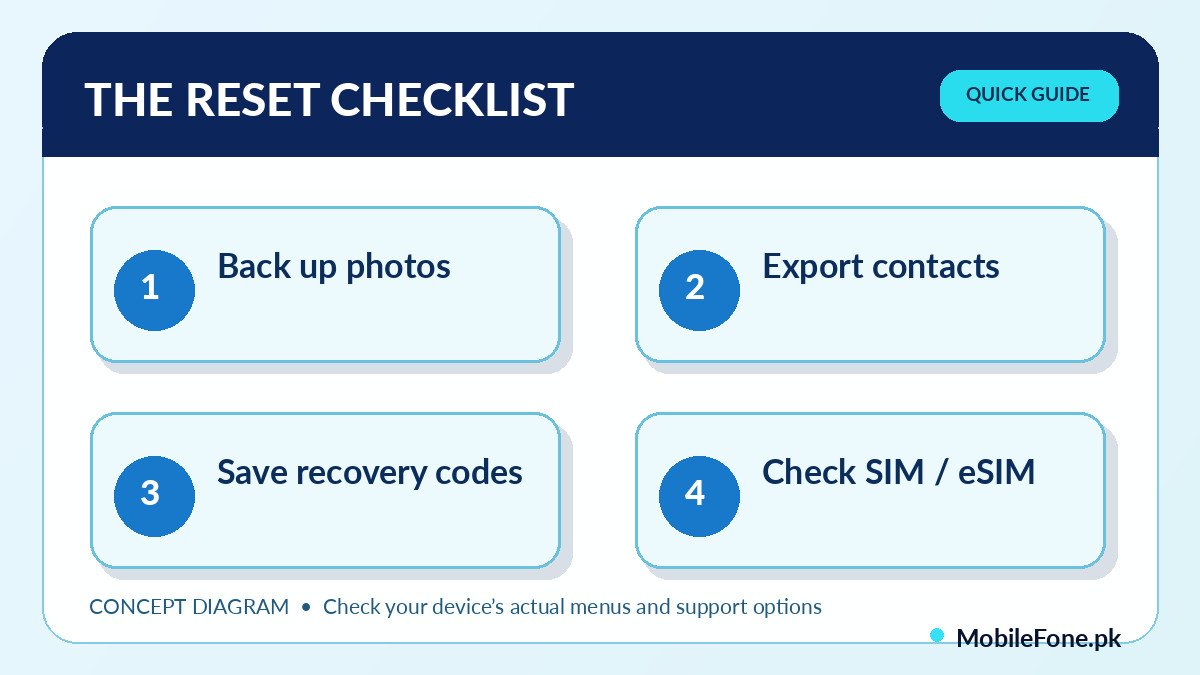
Before factory resetting your phone, make sure your backups can actually be opened, that you can sign back into the device’s main account, and that important files or app data have been moved somewhere safe. A factory reset removes personal data and settings from the device. It should not be your first troubleshooting step for ordinary slowness or app errors. The safest preparation is a written checklist covering photos, contacts, messages, authenticators, financial apps and your SIM or eSIM.
Decide why you are resetting the phone
There are two different situations. If you are troubleshooting your own handset, you normally intend to sign back in and restore as much data as possible. If you are selling, trading in or giving the phone away, you must ensure your information is backed up elsewhere and then remove it from the old device properly. These goals affect whether you should keep accounts signed in until after a backup or remove accounts before the handover.
Google’s Android factory reset guidance warns that a reset erases all data. Apple’s iPhone erase procedure similarly begins with a backup and then uses Settings > General > Transfer or Reset iPhone. Do not follow a screenshot blindly: menu labels and available choices can differ by OS release and model.
| Item | Safer check | Common oversight |
|---|---|---|
| Photos and videos | Open copies on a different device or computer | Cloud thumbnails mistaken for fully backed-up originals |
| Contacts and calendars | Verify correct synced account or VCF export | Phone-only or SIM entries |
| Chats and documents | Use each app’s supported backup/export | Assuming device backup includes every app |
| Passwords and 2FA | Check login, recovery codes and alternate factor | Authenticator only exists on phone being erased |
| SIM and eSIM | Record carrier reactivation plan | Deleting eSIM without a way to restore service |
| Work and banking apps | Check re-enrolment and secure sign-in | Losing registered device credentials |
Make a backup that you can test
Android users can review Google’s backup instructions to see whether app data, messages, settings and contacts are included. Google notes that not every app backs up or restores all of its data. Google Photos is a separate place to inspect photos and videos, and a local folder or SD card may contain items missing from cloud backup. Check the backup’s account, completion status and date.
- Confirm that your main Google or Apple account and password work on a separate browser or trusted device.
- Back up photos, videos and documents, then open a small sample outside the phone.
- Verify contacts and calendar entries in the account that will be used for restoration.
- Back up chats, saved files and app-specific data through each service’s supported method.
- Check authenticator apps, passkeys, banking re-enrolment and recovery codes.
- Document the SIM/eSIM transfer plan and any work-profile requirements.
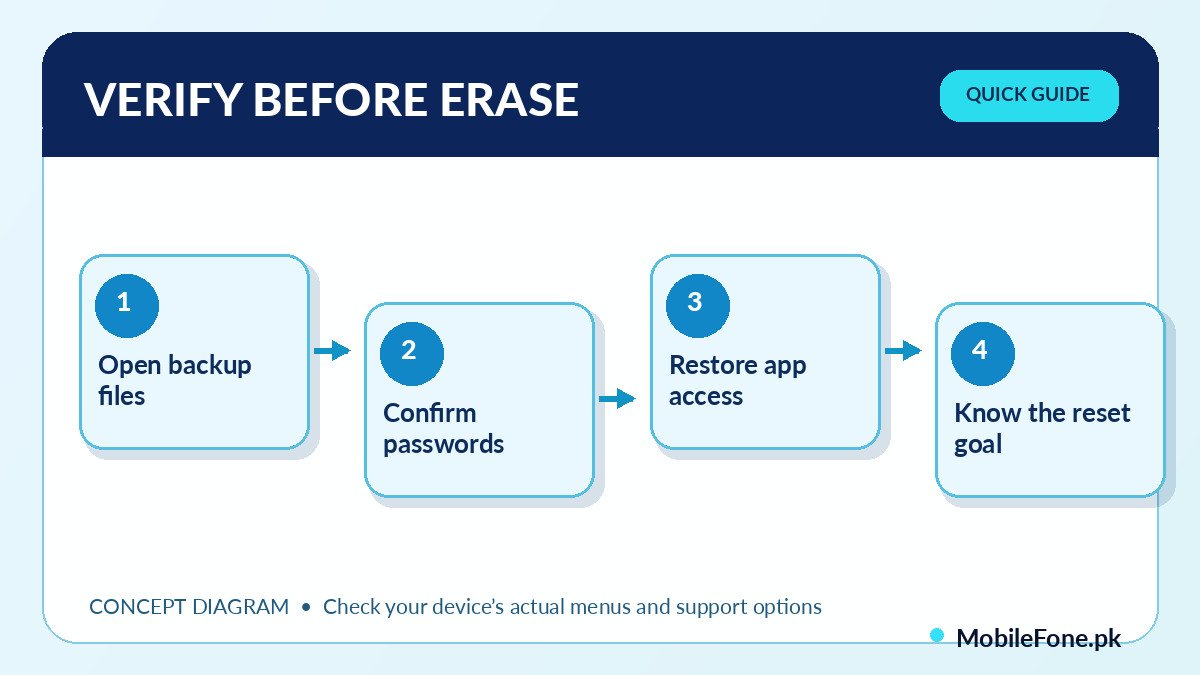
- Only after these checks should you choose the reset option.
Keep a backup outside the phone itself. A file stored only in internal storage will not help after that storage is erased. If the only spare copy lives on an SD card, verify that the reset method does not include erasing the card and consider making another copy on a computer or trusted account. Backup success messages deserve confirmation; opening restored items is a stronger test.
Check account recovery and theft-protection requirements
Before resetting an Android you intend to use again, make sure you know its Google account credentials and current screen lock. Google specifically advises checking this information as part of reset preparation because you may be asked for it when restoring or activating the phone. A reset is not a legitimate way around a forgotten owner’s account lock. Use the official account-recovery process if you cannot sign in.
For a phone being sold or given away, consult the manufacturer’s recommended handover sequence. Google provides separate old-device reset guidance that includes removing accounts for that scenario. An iPhone may ask for the Apple Account password as it erases and disables ownership-related protection. Keep these credentials private; a buyer or repair shop should not need to receive your personal account password.
Do not overlook WhatsApp, authenticators or eSIM
Messaging apps, secure authenticators and banking apps deserve a separate check because a generic device backup may not preserve their full state. Verify whether each service offers a cloud backup, transfer function, recovery code or new-device activation. If the service requires approval from the old phone, complete that process before the reset. Take particular care with accounts that use SMS verification: you need the correct number and active service after the wipe.
Apple says its iPhone erase process may offer a choice to keep or delete the eSIM. If the eSIM is erased, the carrier may need to reactivate the plan. Android behaviour depends on the manufacturer and reset options. With a Pakistani network, check operator guidance for your number and device rather than assuming an eSIM will restore simply because iCloud or Google data did. The MobileFone handset directory can help you look at replacement models, but an eSIM plan and PTA/DIRBS status require separate verification.
Try less destructive fixes if your goal is troubleshooting
If you are resetting because an app crashes, the phone feels slow or a network setting is wrong, consider a restart, supported app update, storage review or the manufacturer’s non-destructive troubleshooting steps first. Each addresses a narrower cause without wiping everything. A factory reset may remove troublesome settings, but it is not guaranteed to fix damaged hardware, network registration, an unsupported app or software that the manufacturer no longer maintains.
- Restart and check whether the issue affects one app or the whole phone.
- Check storage, available official system updates and app updates.
- Document the symptom and any error text before erasing diagnostic evidence.
- For a hardware problem, ask an authorized repair provider about data risks before service.
If you are moving to another device rather than repairing this one, compare the options and registered software versions in MobileFone’s latest mobile directory before starting the handover. Avoid using model listings as a substitute for official backup or account-recovery advice.
Make the final go/no-go decision
Proceed only if important data exists somewhere other than the phone, account recovery is possible, any transfer-critical apps are handled, and you understand how mobile service will be restored. Then follow the built-in reset procedure for your actual OS and device. After the reset, either restore and check your data if the phone remains yours, or confirm the handover screen and account removal if ownership is changing.
A factory reset is an erasure operation, not a backup method. Once local data is gone, an unverified cloud account or missing recovery code can turn a small software problem into permanent loss. The preparation checklist matters more than finding the fastest reset button.