How to Reset Network Settings on Android and iPhone

On this page
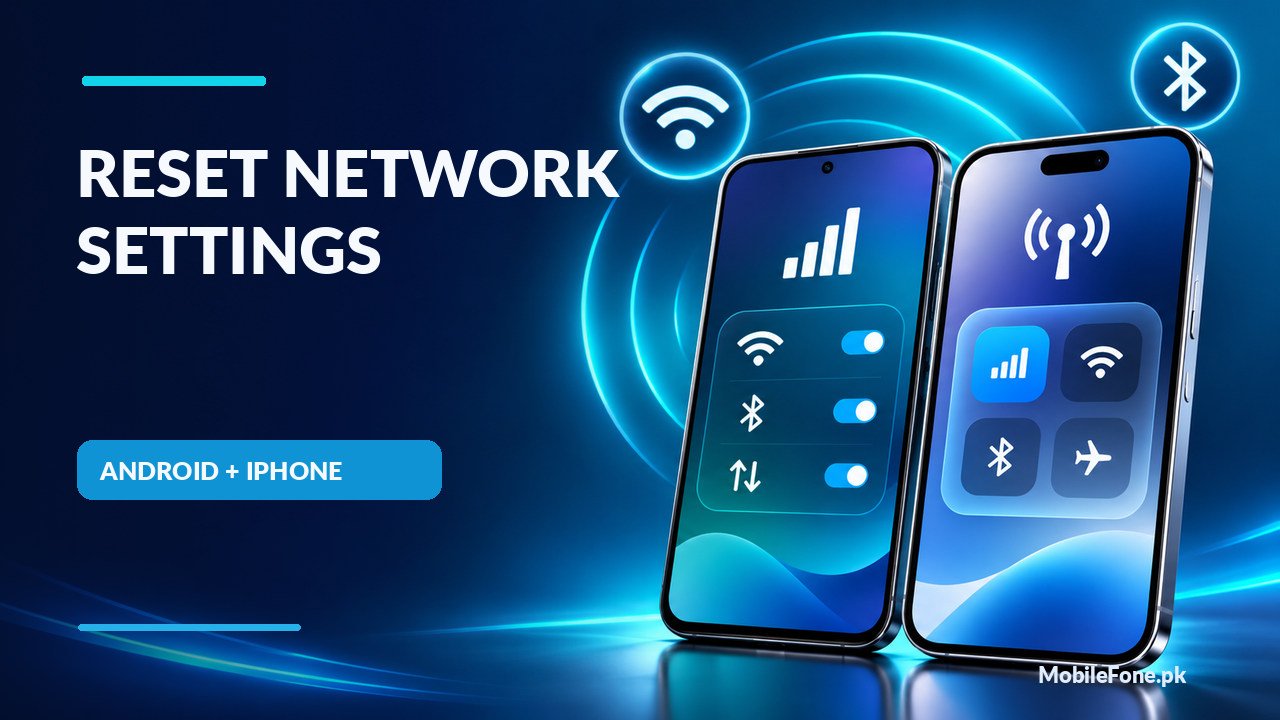
If Wi-Fi connects but webpages refuse to load, mobile data disappears after changing a SIM, or Bluetooth devices will not pair, a network-settings reset can help. It removes stored connection preferences so the phone can set them up again. It is not a factory reset, but saved Wi-Fi networks and other network details may be lost. First try airplane mode, a normal restart and a second network. Only reset once you know your Wi-Fi password and any VPN or carrier settings you need.
Decide whether a network reset matches the problem
A network reset is most useful when the phone appears to have a corrupted saved connection: it repeatedly fails to join a known Wi-Fi network, remembers an incorrect configuration or keeps dropping a pairing that works with another device. It is less useful when everyone in the house has lost internet service, the carrier has an outage or an imported handset cannot connect to a supported mobile band. The reset cannot improve signal coverage or change a phone’s hardware.
| Symptom | First check | When reset may help |
|---|---|---|
| One Wi-Fi network fails | Test another device and restart the router | Only this phone repeatedly misremembers that network |
| Mobile data fails | Confirm active SIM, package, coverage and data toggle | Connection preferences appear wrong after a change |
| Bluetooth cannot pair | Forget the accessory and pair again | Several known-good accessories fail on this phone |
| Everything is offline | Try another location or another Wi-Fi network | Other devices work and local checks fail |
There is a distinction between a password problem and a radio problem. A forgotten Wi-Fi password can be recovered through the router or through your own device’s supported sharing features; see MobileFone’s guide to checking a saved Wi-Fi password before you delete the saved network. Avoid untrusted Wi-Fi password apps.
Try these safe checks before resetting anything
- Turn airplane mode on briefly, then off. Make sure Wi-Fi or mobile data is enabled again.
- Restart the phone normally and repeat the exact failed action.
- Test a different Wi-Fi network, or check whether another phone on the same network works.
- For cellular trouble, verify that the correct SIM is selected for data and that the account has service.
- For Bluetooth, restart the accessory and remove its old pairing only if you know how to reconnect it.
These checks have a useful diagnostic result. If several devices fail on the same router, focus on the router or internet provider. If only one phone fails on several unrelated networks, investigate its settings. A phone unable to register on a Pakistani operator after a SIM change also needs a legitimate carrier and handset compatibility check; changing network settings does not confer PTA registration or fix blocked service.

Reset network settings on Android
On recent Google Pixel software, open Settings > System > Reset options. Google documents separate actions for Reset mobile network settings and Reset Bluetooth & Wi-Fi. This separation matters: resetting Bluetooth and Wi-Fi deletes saved Wi-Fi connections, while a mobile-network reset targets mobile connectivity. See Google’s official connectivity instructions for the current Pixel menu labels.
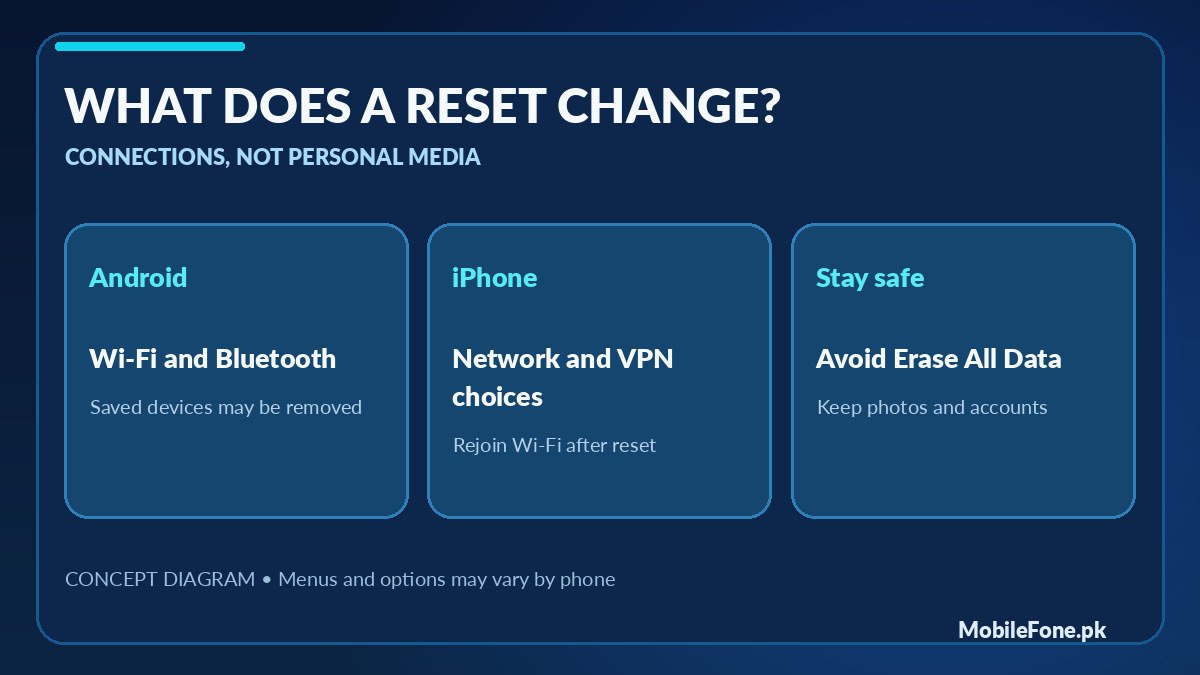
Samsung Galaxy and other Android brands may call the option Reset Wi-Fi and Bluetooth settings, Reset network settings, or something similar. Open Settings and search for reset network if the path differs. Read the confirmation screen on your own device before proceeding; manufacturers and Android versions do not all erase exactly the same types of stored preferences. Do not select Factory data reset or Erase all data.
- Open Settings and find the network-reset option.
- Read what the phone says will be removed, including Wi-Fi and Bluetooth details if listed.
- Confirm with your screen lock if prompted.
- Reconnect to a known Wi-Fi network and re-pair only the Bluetooth devices you actually use.
- Test a website, call or accessory that failed beforehand.
If you have a custom access point name (APN), corporate Wi-Fi certificate, static IP address or VPN profile, record its legitimate configuration first. A company’s managed phone may require its IT team to restore settings. Do not copy random APN values from social-media videos; use your operator’s or organisation’s instructions.
Reset network settings on an iPhone
On a current iPhone, go to Settings > General > Transfer or Reset iPhone > Reset > Reset Network Settings. Apple’s iPhone settings guide confirms this reset removes network settings without erasing personal media. It can remove remembered Wi-Fi networks and non-managed VPN settings. You will need to rejoin your networks afterward.
Choose the precise option. The Reset menu also includes Reset All Settings, and a separate Erase All Content and Settings action. Those are not interchangeable. Apple also lists an option to delete all eSIMs; do not choose it while troubleshooting ordinary Wi-Fi or mobile-data problems. Removing an eSIM can require reactivation through your operator, a particularly inconvenient surprise while travelling or after switching Pakistani carriers.
Reconnect carefully and verify the result
After the reset, enter the correct password for your own Wi-Fi network, then open a webpage in a browser. Test a second website if only one fails. For cellular data, switch off Wi-Fi temporarily and check a normal web page using the active SIM. For Bluetooth, use the accessory’s pairing procedure and confirm audio or another intended function. Test one connection type at a time so you can see what actually improved.
A saved Wi-Fi password or name alone does not prove internet access: a device can connect to a router while the router itself has no usable connection. Similarly, mobile signal bars do not verify a data allowance or working network service. If the problem persists after a reset, note the model, Android/iOS version, carrier, location, and whether the issue affects one network or several. That information is more useful to support staff than repeated resets.
What a network reset will not fix
It will not repair a cracked antenna connector, a damaged SIM tray, a faulty router, expired mobile package or coverage problem. It cannot substitute for legitimate PTA/DIRBS requirements on imported phones. For a phone that has both Wi-Fi and mobile-network trouble after impact or liquid exposure, avoid opening it yourself; ask an authorised service centre about hardware assessment.
If persistent connectivity faults make you consider another handset, compare the published phone specifications on MobileFone for network technologies and regional variants, then verify compatibility with your operator. Otherwise, stop troubleshooting once the original network works reliably. A reset is a targeted maintenance step, not something to repeat every time internet feels slow.