How to Transfer Contacts Between Two Phones

On this page
To transfer contacts between two phones, first find out where the numbers are saved. If they already belong to a Google account or iCloud, signing in and enabling contact sync is usually simpler than moving files. If the old phone stores numbers locally, export a VCF contact file and import it on the new device. Keep the old phone and its contacts untouched until you have checked the new phone’s list; moving the SIM alone does not guarantee the contacts will move.
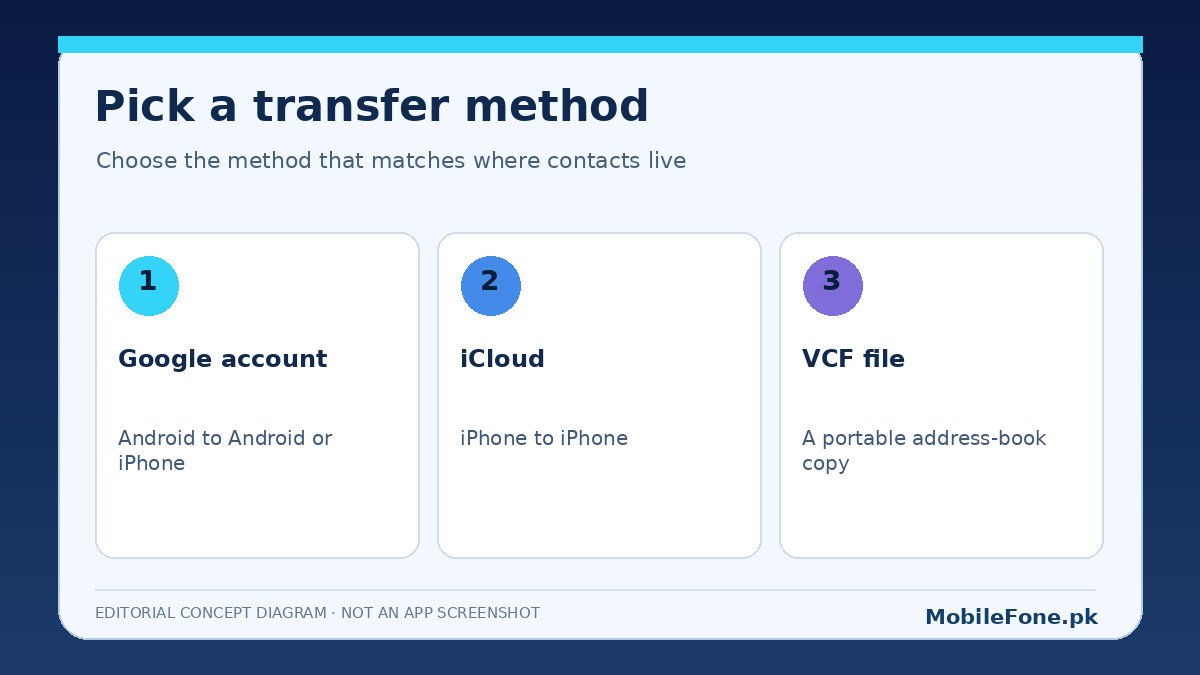
Choose a method based on the two phones
The right route depends less on the phone brand and more on the contact account. A contact saved under Phone or Device is not necessarily synchronized to the same cloud account as a contact saved under Google. Likewise, an iPhone may display contacts from iCloud, Google and a workplace account together. That is why signing into a new device can restore only part of what you remember seeing.
| Your situation | Best starting method | Important limitation |
|---|---|---|
| Android to Android, Google contacts | Sign into the same Google account and enable contacts sync | Local-only contacts must first be saved or exported |
| iPhone to iPhone, iCloud contacts | Use the same Apple Account with iCloud Contacts enabled | Contacts held by another provider may need that provider’s account |
| Android to iPhone | Sync Google contacts on the iPhone or move a VCF file | Confirm which account stores new contacts by default |
| Mixed sources or no cloud access | Export and securely import a VCF file | Importing over an existing list may create duplicates |
| Numbers only on a SIM | Use a supported SIM import, then check the entries | SIM contact fields and capacity can be limited |
For readers comparing phones during a switch, the iPhone range on MobileFone and the Samsung phone directory illustrate the two operating-system families. The contact procedure itself depends on the account setup, not a particular model in either directory.
Android to Android: sync the correct Google account
On the old Android phone, open Contacts and check where a few entries are saved. Some apps let you filter contacts by account; Google Contacts also supports management and export. If the entries are already Google contacts, connect the new phone to the internet, sign into that same account, and allow contact synchronization. Google’s contact-sync instructions describe this account-based approach.
- Confirm that a sample of contacts appears in the intended Google account on the old phone.
- Check whether device-only or SIM-only contacts need backing up to Google first.
- On the new phone, sign into that exact Google account and permit Contacts syncing.
- Open Contacts, wait for synchronization, and check names with multiple numbers.
- If entries seem missing, confirm the Contacts app is showing all intended accounts rather than one filtered list.
Android menu names differ between versions and skins. On Samsung, Xiaomi/Redmi and other brands, account and sync settings may sit under slightly different menus. Use Settings search for Accounts, Google Contacts sync or Sync rather than following a path that does not exist on your phone. Google’s device and SIM contact backup guide explains the distinction between local and account-stored contacts.
iPhone to iPhone: check iCloud and other accounts
When the contacts belong to iCloud, the new iPhone can show them after you sign in with the same Apple Account and enable Contacts in iCloud settings. Apple’s iCloud Contacts instructions provide the current steps. Remember that Contacts can display accounts other than iCloud: a Google or work account may still need to be added separately.
If two iPhones are signed into different Apple Accounts, do not merge or sign out of accounts blindly. Export the required entries or choose an authorized account-transfer method first. A contact list may contain personal and employer-managed data; work policies can prevent transfer or saving into a personal account.
Move contacts between Android and iPhone with a VCF file
A VCF, also called a vCard, is a portable contact file. It can be useful when the old phone has offline contacts, or when you want a clearly defined copy instead of changing cloud accounts. In Google Contacts on Android, the export control is commonly under Fix & manage or an export menu; select the source accounts and export a .vcf file. Google’s export and restore documentation covers this flow.
Transfer that file securely to the new phone, such as with a cable or a trusted private file transfer. On an iPhone, Apple’s Contacts guide explains importing a vCard attachment. On Android, the Contacts app generally provides an import option, although its wording varies. Import a small file first if you are worried about merging contacts from several accounts.
- Privacy: a VCF can contain phone numbers, addresses, email details and notes; do not upload it to random conversion websites.
- Duplicate risk: importing the same contacts into a second account can display duplicate entries until you review or merge them.
- Mixed data: photos, message history and WhatsApp chats are not automatically transferred simply because contacts are imported.
- SIM limitation: an iPhone can import supported SIM contacts, but it does not store contacts on the SIM card itself, as Apple explains.
Check that the new phone has the entire list
Verification is more reliable than comparing only the contact count. A single person with three numbers might appear as one record in one app and as separate entries in another. Check important family and emergency numbers, international dialing prefixes such as +92, a contact with several phone numbers, and entries from any work account.
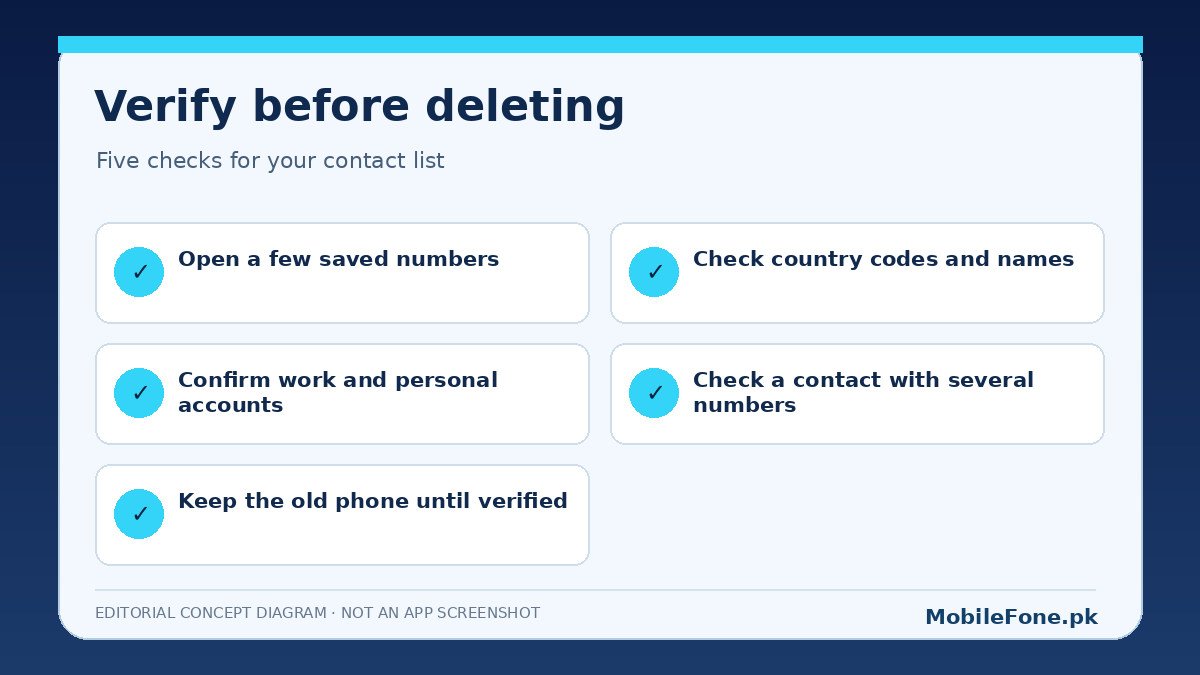
Open a few contacts and confirm the phone number is actually dialable rather than merely present as text. Check that WhatsApp can see the contacts it needs, but do not assume that changing contact permissions will restore deleted entries. If contacts look duplicated, identify which accounts own the copies before deleting anything; an account-linked deletion can sync to other devices.
What to do when contacts are missing or duplicated
First, look for a display filter in the new Contacts app. Then check that the right Google, Apple or business account is signed in and syncing. If local contacts were never exported from the original device, return to the old phone and make a copy rather than trying increasingly disruptive reset steps. For Google contacts saved in an account, a fresh sync is often safer than repeatedly importing VCF files.
Keep both devices accessible until the list is confirmed. Only after verifying essential numbers and account ownership should you consider wiping or selling the old phone. The safest method is the one that creates an identifiable backup and leaves the original intact while you inspect the result.