Auto-Rotate Not Working on Android

On this page
If an Android screen stays in portrait when you turn the phone sideways, first turn on Auto-rotate in Quick Settings and test a compatible app such as a video player. Many home screens and individual apps do not rotate, even when the sensor works. If the same problem appears in several supported apps, restart the phone and check Display settings before blaming a broken motion sensor. You do not need a factory reset for this first diagnosis.
Check the rotation tile and test the right screen
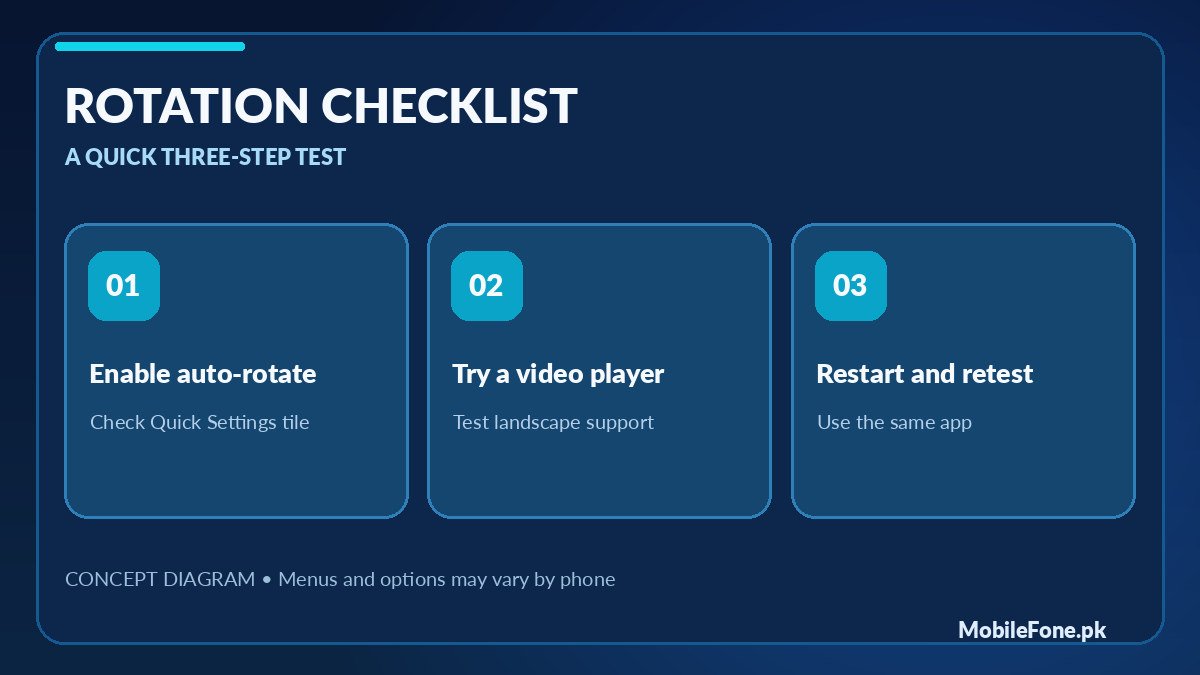
Swipe down from the top of your screen to open Quick Settings; you may need a second swipe to reveal more controls. Find a tile called Auto-rotate, Portrait or Rotation. Tap it until automatic rotation is enabled. The icon and label can change depending on the current lock state. Google’s Android navigation guide describes the Auto-rotate control; on Pixel software the equivalent setting also appears under Settings > Display & touch > Auto-rotate screen.
Now open a video in a player that supports landscape view or another app with a landscape layout. Rotate the phone slowly while holding it normally. Do not use the home screen as your only test: some manufacturers deliberately keep the launcher in portrait unless a separate Home screen rotation setting is enabled. Games can also lock their own orientation, regardless of the global switch.
| What happens | Likely explanation | Next action |
|---|---|---|
| Video rotates; home screen does not | Launcher-specific behaviour | Look for Home screen rotation settings |
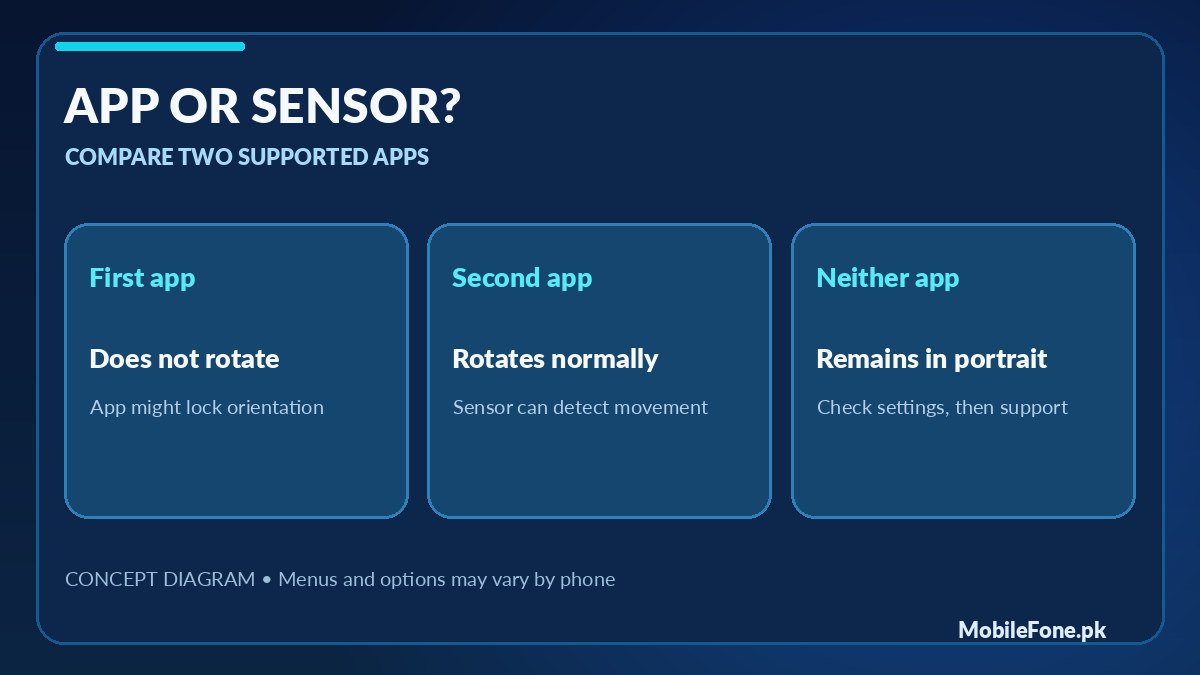
| One app never rotates | App restricts orientation | Test a second supported app |
| No supported app rotates | Rotation toggle or system issue | Restart and check display options |
| Rotation behaves erratically | App conflict or sensor issue possible | Test safe mode or seek service |
That distinction saves considerable time. A phone that rotates a video but not a banking app has demonstrated that orientation works somewhere. There is little reason to recalibrate sensors or install diagnostic tools merely because one app chooses a fixed layout.
Find the manufacturer-specific display setting
Google Pixel documentation uses Display & touch for its screen setting; Samsung Galaxy, Redmi/HyperOS, Vivo Funtouch OS, Oppo ColorOS and Infinix XOS can use different labels or positions. In Settings, use the search bar for rotate or orientation. For Galaxy phones, the notification-panel toggle is often the quickest route. On devices with a separate Home screen layout menu, home screen rotation is a different preference from the app auto-rotate switch.
If an accessibility feature changes how rotation behaves, consider whether it was enabled intentionally. Google’s accessibility guidance notes that screen rotation may affect the TalkBack experience. Do not turn off a needed accessibility feature just to make a single app rotate. Choose a setting that supports how the phone is actually used.
Restart the phone and rule out a temporary app conflict
- Close the app that refused to rotate and open it again.
- Restart the phone using the normal power menu.
- Test a different app that supports both orientations.
- Check for an official system update and updates to the affected app.
- If the problem appeared after installing a rotation-control or launcher app, temporarily disable or remove that app after reviewing its permissions.
A restart can clear a temporary orientation-service glitch, but it does not guarantee a fix. After updating, test with the same app and the same physical position. Avoid rapidly changing several unrelated settings: if the fault disappears, you want to know which action helped.
Third-party rotation apps sometimes draw over other screens or request accessibility privileges. They may be useful in specialised workflows, but they should not be the first repair attempt for an ordinary orientation problem. Be especially cautious of apps promising to repair a failed accelerometer with one tap. Software can change how a sensor reading is interpreted; it cannot repair physical damage.
Separate app behaviour from a sensor problem
Most Android phones use motion sensors to help the system determine orientation, but installed sensors differ by model and variant. An accelerometer commonly detects the direction of gravity; a gyroscope can help with motion tracking, but it is not correct to assume that every rotation problem means the gyroscope has failed. If the phone was recently dropped, affected by moisture, or also has unusual motion behaviour in supported apps, hardware becomes a more relevant possibility.
Safe mode is a diagnostic option on many Android phones because it temporarily prevents third-party apps from running. If rotation works in safe mode but not normally, an installed app or custom launcher may be involved. The button combination differs by manufacturer, so use the instructions for your precise model. If rotation still fails in safe mode, it is a reason to investigate further, not a definitive sensor diagnosis.
Do not reset your phone just to test auto-rotate
Before considering a factory reset, distinguish a limited launcher issue from a system-wide fault. Clearing a particular app’s cache, if documented by its developer, is less disruptive than wiping the device. Clearing app storage is different and may remove settings or offline data. A full reset erases local information and requires verified backups, account credentials and sometimes app-specific recovery. A normal rotation problem rarely justifies that as the first response.
If hardware support is needed, provide the repairer with the exact model, Android version and a short account of which apps rotate and which do not. The published Infinix Hot 40i specifications page illustrates the kind of device-specific sensor list worth checking; the actual list on your own model matters more than a generic Android tutorial. Do not assume another variant contains identical hardware.
When to seek a repair assessment
Contact the manufacturer or a qualified repairer when the phone never rotates in any compatible app after safe checks, the behaviour began immediately after physical damage, or several motion-based functions fail together. Back up important data before handing it over and ask how any repair may affect warranty coverage. Do not allow unverified firmware flashing to become the first proposed solution.
For an older phone where repair is uneconomical, compare the display and sensor listings in the MobileFone mobile directory rather than buying solely because a model has a larger screen. But for most readers, the useful first outcome is simpler: enable Auto-rotate, confirm the app supports it and test whether the problem affects the whole phone.