Android Update Downloaded but Not Installing

On this page
If an Android update has downloaded but will not install, start with the least risky checks: look for a pending restart, connect the phone to reliable power, free storage if the updater reports a shortage, and retry from the manufacturer’s normal software-update screen. A downloaded package is not the same as an installed update. Do not flash firmware from an unrelated website, wipe the phone or unlock its bootloader as an early fix; those steps can put your data or device at risk.
Work out where the update stops
“Downloaded” can describe several different states. On some phones, the update sits ready to install until you approve a restart. Other phones install most of the update in the background and activate it after a restart. A third situation is an error that appears before installation begins. Check the exact notification and any error wording before attempting a fix.
| What you see | Possible explanation | First action |
|---|---|---|
| “Restart to finish” | Installation waiting for restart | Save work and restart normally |
| “Not enough space” | Insufficient free storage | Back up and remove safe, unneeded files |
| Downloaded, then failed | Temporary update or package issue | Restart, reconnect and retry the official updater |
| Phone keeps rebooting | Installation or other software failure | Stop repeated retries and contact manufacturer support |
| No new update offered | Model/carrier rollout or support limit | Verify device model and maker’s update policy |
Google’s Android update guidance distinguishes between download failures, installation and restarts. Pixel updates may be prepared in the background and activated on reboot, while other Android devices use different installation behaviour. An update being available for a different handset does not mean your exact model, region and carrier has received it.
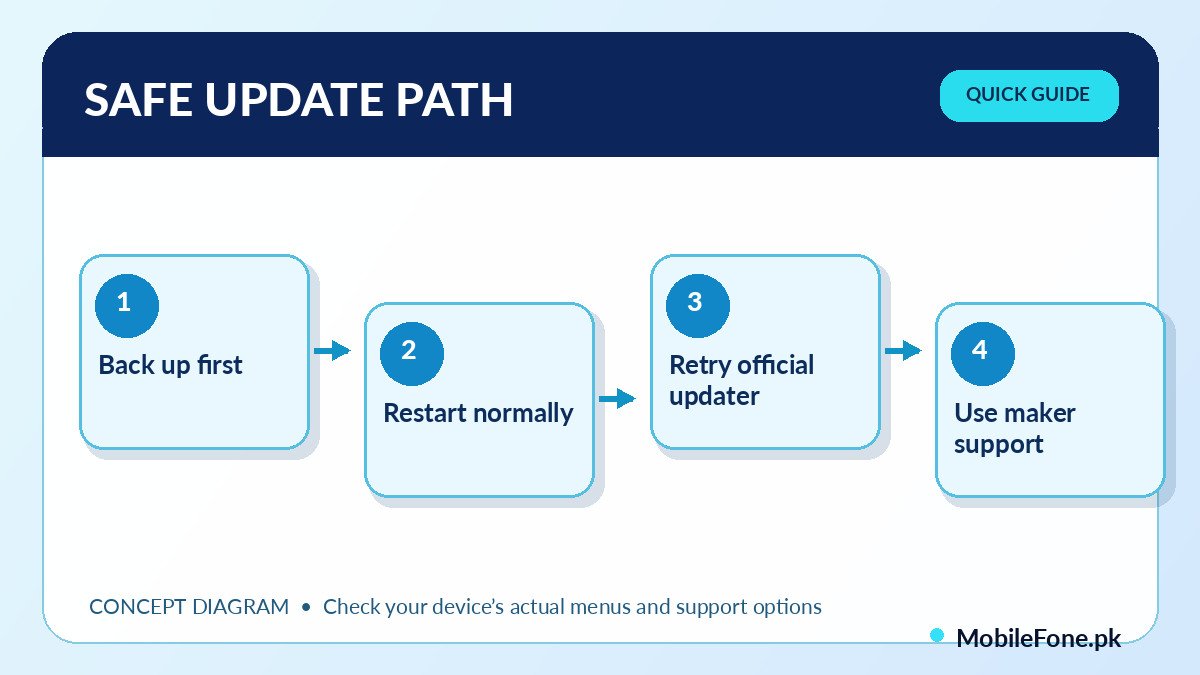
Try these low-risk actions in order
- Save anything you are working on and back up important photos, documents and messages.
- Connect to power and a reliable Wi-Fi network, unless the phone’s updater specifies a different requirement.
- Restart the phone normally and return to its official software-update screen.
- Look under Settings, System, Software update, or the manufacturer’s equivalent.
- Read the error message exactly; if it mentions storage, make room by removing only backed-up, unnecessary material.
- Retry only through the built-in updater and give the process time to finish.
Google shows a general path through Settings > System > Software update on many Android devices, but Samsung One UI, Xiaomi HyperOS, Oppo ColorOS and other interfaces use different labels. The official update menu on the phone is the authority for that model. If the updater requests a restart, that is different from a factory reset. A normal restart should not erase personal data.

Storage and battery are worth checking, but avoid arbitrary rules
A package may download successfully even though the phone later needs additional temporary space to unpack and install it. Android’s help pages explain that insufficient storage can prevent a device from updating. The amount needed depends on the package and device; do not treat an exact number of free gigabytes as universal. Review Settings > Storage and the updater’s own message. Move important videos to a verified backup before deleting them.
Battery requirements also vary. Using a stable charger and avoiding interruption is a sensible precaution, especially if an update is preparing to restart the phone. Do not open the device, disconnect its battery or experiment with low-level flashing just because an installation is slow. A hot, swollen or damaged phone needs qualified service rather than another update attempt.
Some phones let you schedule an installation for a time when the device is not being used. If your update screen offers that choice, verify the scheduled time and whether the phone needs to be charging. Also check that the time and date on the handset are sensible and that its network is stable. These checks do not repair a corrupted installation package, but they can explain why a downloaded update is simply sitting pending rather than actively failing.
Why an update may be blocked for your particular model
Manufacturers release updates by model, region, carrier and sometimes hardware variant. Two phones with nearly identical marketing names can receive different builds. Google notes that updates depend on the device maker and carrier, and older phones cannot always run newer Android versions. Read the full model number and current build in About phone before following a guide. A compatibility problem is not something a generic “force update” button can fix safely.
If you are deciding whether to keep using an older handset, compare its documented software-support situation against the alternatives, not simply the latest Android version number. The phone listings on MobileFone can help identify other devices and their recorded software versions, though support commitments still need confirmation with their manufacturers. A newer launch date alone is not a guarantee of a particular update schedule.
When to stop troubleshooting and get official support
If the device repeatedly restarts, shows a recovery or error screen you do not recognize, or fails in exactly the same way after a normal restart and storage check, note the full error wording and contact the manufacturer. A service centre may have a model-specific repair or recovery process, but it can involve data loss. Ask what will be erased and whether your backup is readable before agreeing to that process.
- Record the exact phone model, build number and Android version.
- Capture the updater’s error message without sharing personal identifiers.
- Note whether the problem began after a particular download or restart.
- Confirm that important accounts and data are backed up and recoverable.
- Use only manufacturer-provided tools or an authorized service provider for advanced recovery.
Do not confuse an app update from Play Store with an Android system update. They have different installation paths and failure causes. Google’s system-update instructions show how to check the Android version, security patch level and build number; use those details when describing the problem to support.
Confirm whether the update actually installed
After the phone returns to the home screen, open About phone and check the Android version, security update date and build number. Compare them with the manufacturer’s release information for the exact model. If you are considering replacing a phone solely because it no longer receives security patches, browse recent phone listings only as a starting point and verify each candidate’s published update policy. The right next action is determined by the error state, not by how many times the download button has been pressed.