How to Move Your Data From Android to iPhone

On this page
- Prepare both phones before starting
- Use Move to iOS while setting up the new iPhone
- What transfers, and what usually needs extra attention?
- If the transfer stops or the iPhone is already configured
- Handle SIM, eSIM, accounts and Pakistan-specific checks
- Verify the result before clearing the Android phone
Moving from an Android phone to an iPhone is easiest during the iPhone’s first setup. Apple’s Move to iOS procedure can carry over supported contacts, messages, camera photos, videos and other items, but it will not recreate every Android app or its private data. Keep the Android phone untouched until you have checked the iPhone. If the new iPhone is already fully set up, you may need to transfer items manually or erase that iPhone and restart setup; do not erase either phone without a verified backup.
Prepare both phones before starting
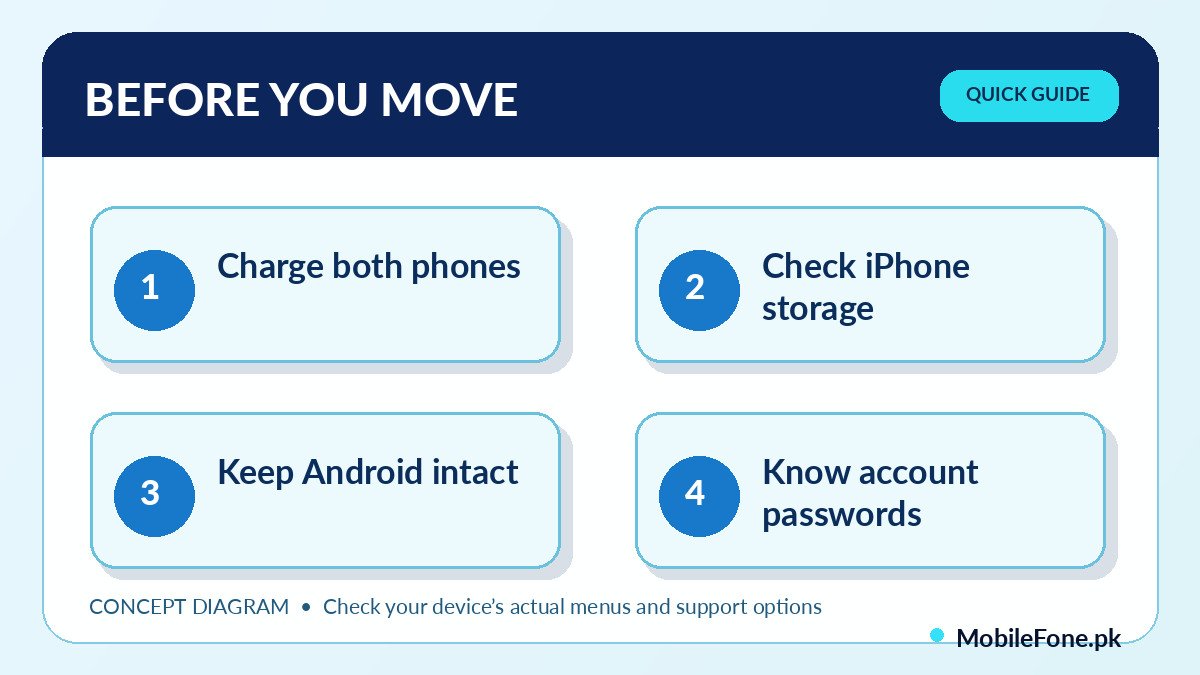
Use a working Wi-Fi connection, charge both devices and check the available storage on the iPhone. A gallery containing years of videos can be much larger than expected, especially if the Android phone also uses a microSD card. Apple says the content being moved, including items on external storage, needs to fit on the new device. Do not assume a 128GB iPhone will hold all data from a 128GB Android: operating systems and existing files use storage too.
- Update the Android apps you rely on, especially Chrome if bookmarks matter.
- Know the Apple Account credentials you plan to use, plus the Google account currently holding contacts and calendars.
- Check any two-factor authentication app, banking app, authenticator or work profile separately; those may need their own move or re-enrolment.
- For WhatsApp, follow the app-specific transfer offered during the supported migration process, rather than copying an app folder and assuming chats will appear.
- Keep the old SIM active until sign-ins and verification codes work on the iPhone.
Before you begin, make an independent backup of the Android phone. This is a safety net if Wi-Fi drops, the new phone fills up or an app needs a separate recovery method. It is also a good point to compare the replacement handset’s space and connection options in MobileFone’s phone directory, rather than deciding after the transfer has started.
Use Move to iOS while setting up the new iPhone
On the iPhone setup screens, choose the option to transfer from Android. On most supported Android devices, install Apple’s official Move to iOS app from Google Play, follow the prompts and enter the code displayed by the iPhone. The iPhone may establish a temporary Wi-Fi connection. If the Android warns that this network has no internet, Apple says that warning can be normal during the transfer.
- Place both phones near each other and connect them to power.
- On the iPhone’s setup screen, select the Android transfer option.
- Open the official Move to iOS app on Android and enter the pairing code.
- Select the supported data categories that you actually want moved.
- Leave both devices alone until the progress indicator on the iPhone completes.
- Finish iPhone setup, sign in to your accounts and check the transferred content.
Apple also describes a direct USB-C cable option for compatible devices, and a separate app-free approach for certain newer Android versions and supported hardware. Those are not universal features. Follow the options displayed on your particular phones instead of assuming every Android brand supports the same migration route.
What transfers, and what usually needs extra attention?
| Data | Expected route | What to verify |
|---|---|---|
| Contacts, calendar and messages | Supported by Apple’s migration flow | Counts, important conversations and correct account |
| Camera photos and videos | Supported content can move | Old albums, long videos and cloud-only items |
| WhatsApp conversations | Supported migration route during setup | Correct number, account and chat history |
| Free apps | Some eligible App Store matches | Reinstall and sign in; paid/licensed apps may differ |
| Music, books and PDFs | May need a manual transfer | Downloaded files and account purchases |
| Banking and authenticator apps | App-specific reactivation | Recovery codes and verified access |
Apple’s manual transfer guide offers alternatives for items that do not move through the app. Calendar and contacts already stored in a Google account may also become available once that same account is added to the iPhone. Do not count a contact as lost merely because it is not visible under the first account or list displayed.
If the transfer stops or the iPhone is already configured
A phone call, an app switch on Android, interrupted power or a network-change feature can interfere with migration. Apple recommends keeping the transfer app visible and letting the iPhone finish its own progress bar, even if Android appears done. If the process fails, restart both phones and retry after reviewing available storage and wireless settings. Do not start repeatedly deleting Android media to squeeze into the destination; transfer those files to a computer or trusted backup first.
If you have already used the new iPhone for a while, erasing it to return to the initial setup would also erase the data created on that iPhone. Back up its current contents before even considering that route. A manual transfer is usually safer when the iPhone contains material you cannot replace. The right choice is the one that leaves the original data on at least one verified, readable location throughout the move.

Handle SIM, eSIM, accounts and Pakistan-specific checks
Moving photos and contacts does not automatically move your mobile service. A physical SIM may be transferable if the iPhone supports it; an eSIM transfer depends on the model, carrier and available activation method. Ask your operator for the correct procedure if the activation screen does not provide a supported option. Verify calls, SMS and mobile data separately. An imported iPhone may also require its own PTA/DIRBS compliance check for use on Pakistani cellular networks; successful file transfer does not establish device registration status.
Passwords, banking access, passkeys and app-specific security checks can be more important than a complete-looking gallery. Keep your Android phone available to approve sign-ins until the new one receives codes and security prompts reliably. If you are comparing a different iPhone or Android alternative before committing to the move, the latest phone listings can help you review storage and model details; verify retailer and regional specifications separately.
Verify the result before clearing the Android phone
Check a few old contacts, a long message thread, recent and older photos, original videos, calendar appointments and important documents. Open apps that depend on another service and confirm their data is actually present, not just their icons. Check which Google or Apple account owns the synced material. Then try a normal call, mobile data and a password-reset or account-recovery route you control.
Do not factory-reset the Android phone simply because the migration app says “complete.” Retain it until you have checked backups, signed back into essential apps and confirmed local-only files were copied. If a work account or an unsupported app has no documented export path, get that data secured first. The safest successful transfer is one you can verify, not just one that reaches 100% on a progress bar.