How to Go to Next Line in WhatsApp: A Simple Guide

On this page
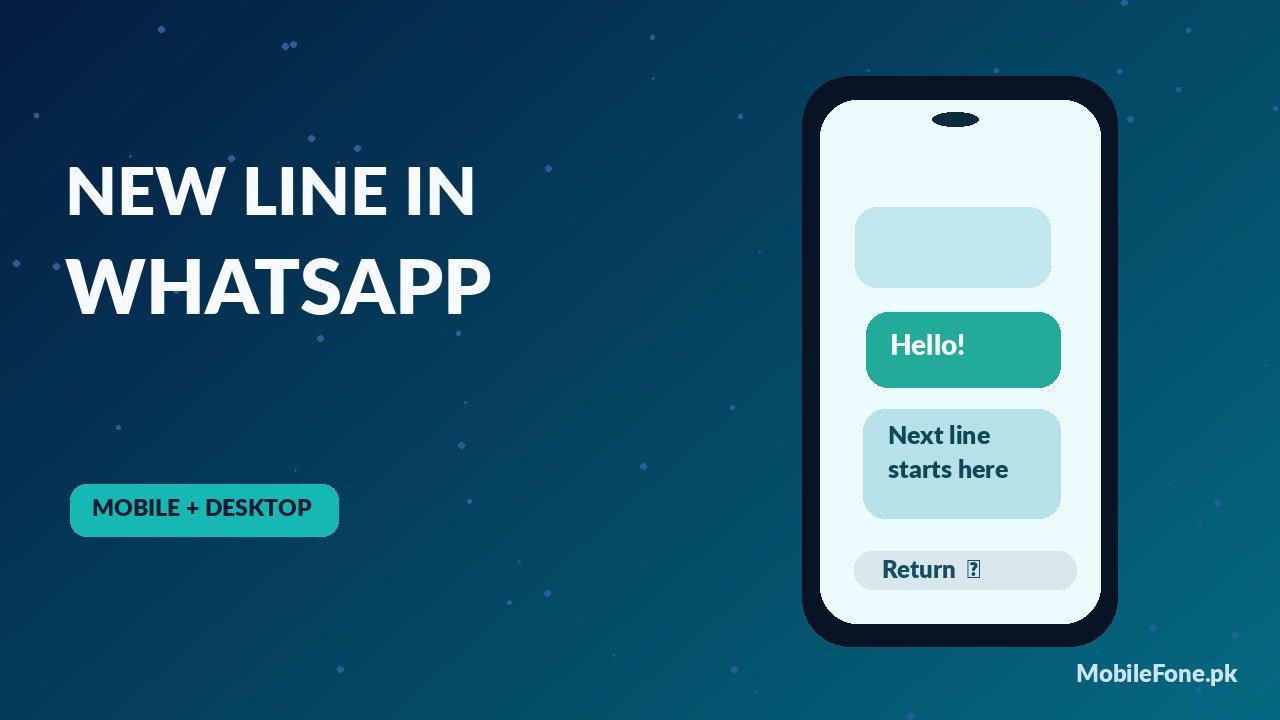
To start a new line in WhatsApp without sending your message, press Return on a mobile keyboard when it appears, or press Shift + Enter while composing on WhatsApp Web or Desktop. If the Enter key keeps sending messages on your Android phone, open WhatsApp → Settings → Chats and turn off Enter is send. The precise layout can vary with the keyboard, operating system and WhatsApp version.
Quick answer for Android, iPhone and WhatsApp Web
A line break is useful when you want to separate an address, a shopping list or several points into one readable message. It is not the same as sending several short messages. Before trying a shortcut, tap inside the message box so the keyboard or desktop cursor is active.
| Device | What to try | If it sends instead |
|---|---|---|
| Android WhatsApp | Tap the keyboard’s Return or Enter key | Turn off Enter is send in WhatsApp’s Chats settings |
| iPhone WhatsApp | Tap Return when shown on the keyboard | Check the current keyboard and app layout; use the Send icon deliberately |
| WhatsApp Web/Desktop | Press Shift + Enter (Shift + Return on Mac) | Hold Shift before pressing Enter, with the cursor in the composer |
Do not assume every keyboard uses the same label. Some Android keyboards display a bent arrow, others say Enter, and a particular app setting may make that key behave as Send. WhatsApp’s own Help Center explains the Enter is send setting.
Android: turn off Enter is send
On many Android versions of WhatsApp, this is the fix when pressing Enter sends the message immediately. It changes how the key works inside WhatsApp, not how all keyboard keys work across the phone. You can reverse the setting whenever you prefer quick sending.
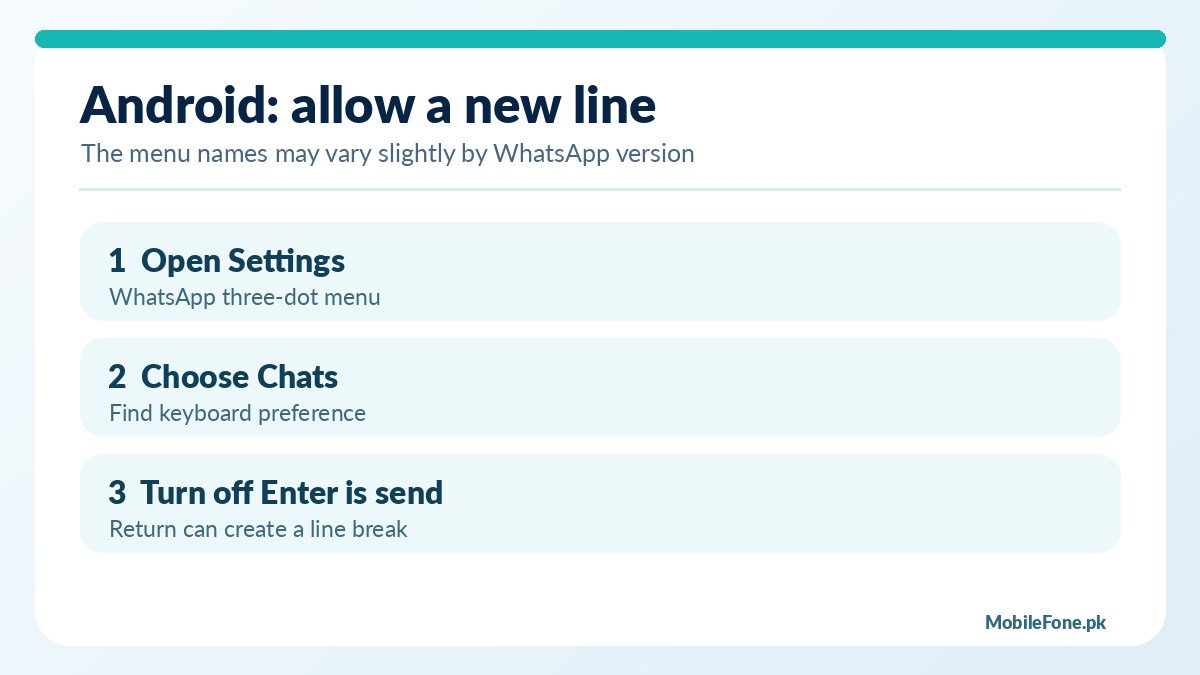
- Open WhatsApp on your Android phone.
- Tap the three-dot menu if it appears, then choose Settings. Some layouts expose Settings directly.
- Open Chats.
- Find Enter is send and switch it off.
- Open an ordinary chat, type a word and press Enter. It should move the cursor to a new line rather than submit the message.
When the option is on, Enter may send the text in the composer. When it is off, Enter can insert a line break and you send the finished message by tapping the on-screen Send icon. If you cannot find the setting, confirm that you are looking in WhatsApp’s Chats menu rather than the Android phone’s general Settings application.
WhatsApp Web and Desktop: use Shift + Enter
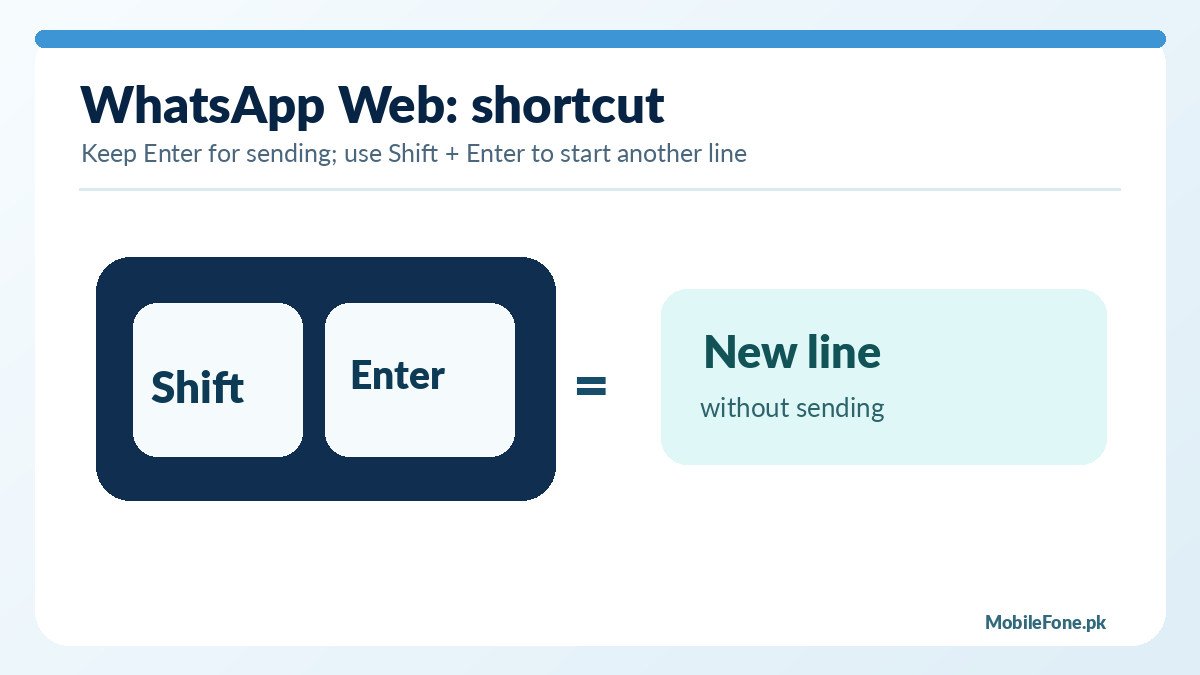
On a computer, the most useful shortcut is Shift + Enter. Click in the message field, type the first line, hold Shift, press Enter once and then release both keys. The cursor should move underneath the first line. Continue typing, and only press Enter by itself when you are ready to send.
On a Mac keyboard, the same idea is usually described as Shift + Return. Do not hold Control by habit: shortcuts from document editors or other chat applications do not necessarily have the same effect in WhatsApp. A physical keyboard attached to a tablet or phone may also behave differently from the on-screen keyboard, so test with a harmless message first.
How to make clean, readable multi-line messages
There is a difference between a single line break and a blank line between paragraphs. One Return moves the cursor to the next line. Two line breaks create an empty line that can help separate sections, depending on how the receiving device displays the text. You do not need a special WhatsApp formatting app to make simple lists.
For example, you might write a short delivery note with three lines: Name, Street and Contact number. Another useful example is a group announcement with a heading followed by a date, location and a brief instruction. Keep details in the same message so people can copy or forward them together.
- Put each list item on its own line rather than cramming everything into one sentence.
- Use a blank line before a new topic if the message contains more than one instruction.
- Proofread before sending, especially when names, dates or phone numbers matter.
- Prefer short paragraphs over a long wall of text on small screens.
Clear formatting is particularly helpful in group conversations. If you are sharing information with multiple people, it is also worth understanding how WhatsApp group number visibility works before inviting people who do not know each other. Formatting cannot hide other members’ contact details.
If the new-line key is missing or still sends the message
| Problem | Practical check |
|---|---|
| Android Enter sends instantly | Check WhatsApp → Settings → Chats → Enter is send |
| Keyboard shows a Send icon | Try the WhatsApp setting and then reopen the chat composer |
| Shift + Enter sends on desktop | Make sure both keys are pressed together and the message field has focus |
| Setting does not appear | Check app version, OS and keyboard layout; feature placement can vary |
If the keyboard is behaving strangely in other apps as well, switch back temporarily to your phone’s standard keyboard and see whether Return appears. You do not need to clear WhatsApp data or reinstall the app simply to add a line break. Reinstallation carries unnecessary account and chat-backup risks for such a small issue.
Line breaks are not the same as WhatsApp text formatting
A line break changes the arrangement of words within one message. Bold, italic and other text styles change the appearance of selected words. These are different tasks. There is no need to paste strange invisible characters or install a keyboard-extension APK just to move text onto another line.
For group administrators, a tidy message with a short heading and a few new lines is usually easier to understand than a paragraph with many spaces. If your real problem is organizing separate WhatsApp communities or conversations rather than composing text, our article on combining WhatsApp groups discusses that separate limitation.
The simplest rule: use Return where the mobile keyboard offers it, turn off Enter is send on Android when necessary, and use Shift + Enter on WhatsApp Web. Send the message only after you have checked its layout.