FL Studio Mobile APK +OBB Download Free

On this page
FL Studio Mobile is a paid music-production app from Image-Line. For Android, start with the official Google Play listing and install or restore the app through the account that owns the purchase. A third-party “APK + OBB download free” package is not the normal official installation route. This guide explains what the app does, how to identify the legitimate listing, and what to check before changing an installation that contains your projects.
You do not need a separate unofficial download to begin making music with a legitimate purchase.
What FL Studio Mobile lets you do
Image-Line’s mobile product page describes beat creation, piano-roll composition, audio recording, effects, mixing and automation. It is a mobile digital audio workstation: you arrange musical parts into a project rather than simply playing an existing song. Start with a short pattern and a few tracks before attempting a large production.
The current product page also describes project export for continuing work in FL Studio Desktop and rendered audio exports. Check the formats supported by your installed version and intended destination. An editable project and a finished audio file serve different purposes: the project keeps the arrangement available for editing, while an audio export lets someone listen without reopening your session.
- Beat creation: build a rhythm using suitable instruments or drum sounds.
- Melody and arrangement: add notes and organise sections into a track.
- Recording: capture vocals or instruments with an appropriate input setup.
- Mixing and export: balance the parts and make a listening copy.
Built-in tools can help, but they do not replace learning levels, timing and arrangement. There is no measured performance or audio-quality test behind this guide, and no promise that every project will run equally well on every phone.
Install or restore the legitimate Android app
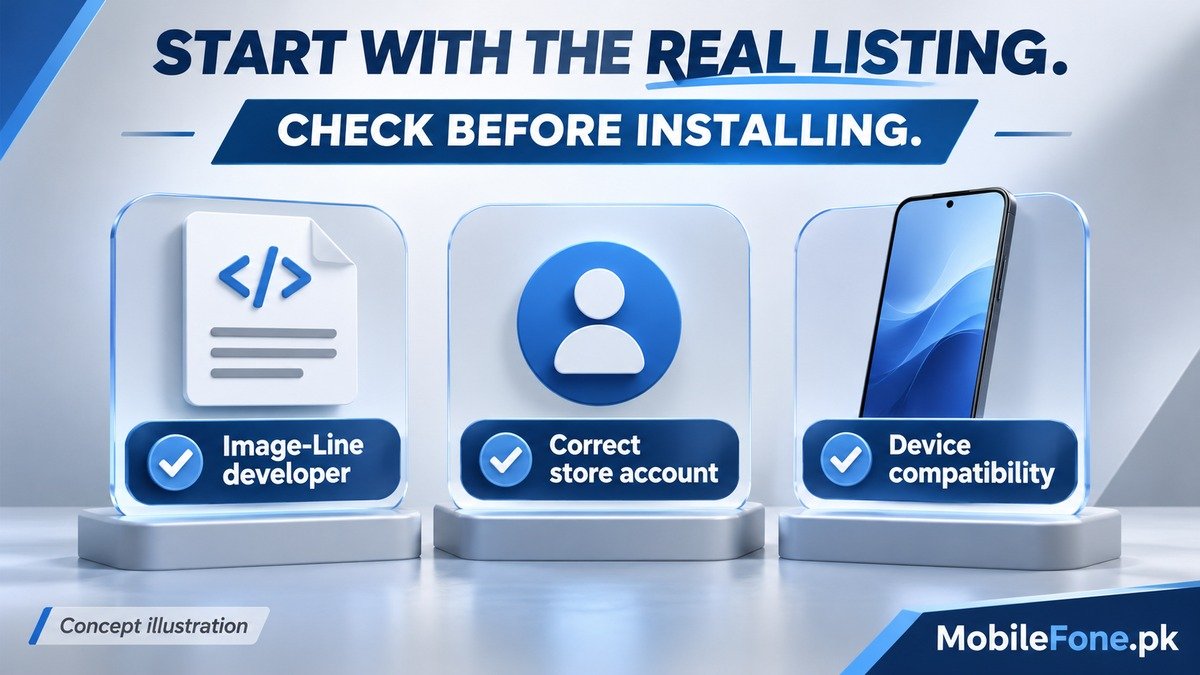
Open the official FL Studio Mobile listing on Google Play and check that the developer is Image-Line. Review the compatibility and purchase information shown for your device and account. The listing identifies in-app purchases, so check any additional content before assuming it is included in the base app.
For Pakistani buyers, use the price, payment options and availability actually shown in your own store account. A dollar price displayed on an overseas webpage is not a verified local checkout quote. App size and compatibility can also change; this guide does not repeat old claims about a tiny universal download or a fixed Android requirement.
- Start from Image-Line’s official website or its verified Google Play listing.
- Confirm the app name, developer and device compatibility.
- Check the signed-in store account and the purchase or install option it shows.
- Install through the store and allow the official app’s setup to finish.
- Create a small project, save it and check that you can reopen it before importing important work.
If you have already paid on Google Play, Google’s reinstall instructions explain using the same Google Account to reinstall purchased apps. If the listing asks you to buy again, check the account and purchase history first. Do not give a download site your Google password or pay an unknown person to unlock the app.
What APK and OBB mean for this download
APK is an Android app-package format. OBB refers to expansion files used by some Android apps for additional resources. Google’s expansion-file documentation explains that packaging mechanism; the presence of those words in a download filename does not establish that the file is genuine, complete or licensed.
| Item or claim | What it establishes | What to check |
|---|---|---|
| Official Google Play listing | The developer’s Android store route | Your account, device compatibility and purchase status |
| APK or OBB filename | A claimed package or resource format | Source authenticity; the filename is not proof |
| Modified or unlocked download | An unsupported claim by the distributor | Do not treat it as an official purchase or update |
| Purchase on another operating system | A purchase within that platform’s store | Current cross-platform licence terms |
| Exported audio file | A listening version of a track | Retain the editable project and required samples separately |
Image-Line’s support guidance directs app downloads and updates to the store where the app was purchased. Use that route rather than combining unrelated installers, old resource packs and instructions written for another release. A desktop trial or a purchase in a different platform’s store should not be assumed to provide the Android app.
Protect projects before troubleshooting
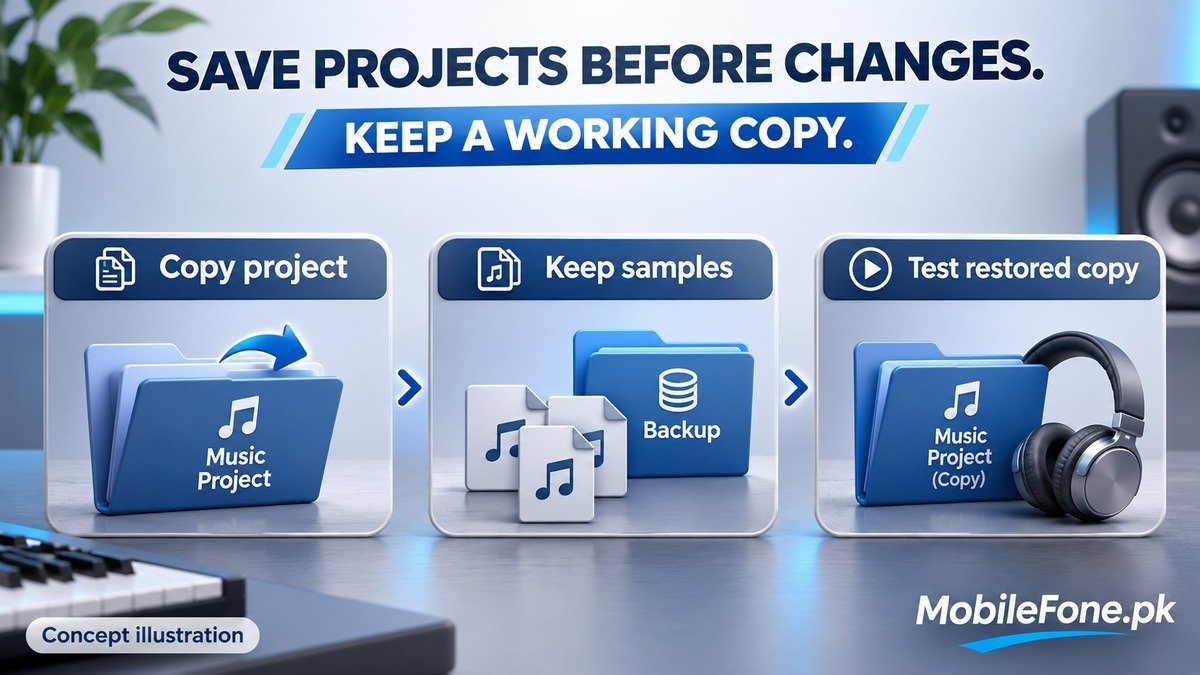
Back up projects and required samples before uninstalling, clearing app storage or attempting a downgrade. A finished MP3 is not a replacement for an editable project. Keep a separate copy you can access outside the installation being changed, and confirm that the saved work opens correctly where you intend to restore it.
Image-Line’s Android scoped-storage notice warns that app removal can delete project and sample data in the affected storage arrangement. Do not assume an old FLM User Files folder contains everything you created recently. Use the file and backup tools documented for your installed version rather than deleting folders to see whether a missing-sample error disappears.
If installation fails, check your connection, free storage, correct store account and the exact error before considering a reinstall. If an existing project fails, keep the original file and record which content is missing. Avoid a factory reset as a routine app-installation shortcut; it creates a much larger data-loss problem than the one you are trying to solve.
Check the phone and the support route
For a replacement handset, use the MobileFone model directory and phone comparison page to organise storage, memory, connector and other listed specifications. Verify the exact variant and the app’s current store compatibility separately. A large RAM figure alone does not prove low recording latency or smooth playback with every instrument and effect.
Keep Android’s app protections enabled. Google recommends leaving Play Protect on; disabling protection to make an unknown download install is not evidence that the package is safe. Use the official store’s support for purchase and download issues, and Image-Line’s documented support route for app or project problems.
Once the legitimate app is installed, save a short project and an audio export, then practise reopening the project from your backup. A verified purchase and usable project copies give you a sound starting point for making music without relying on an unverified package.